
Step 01 · Part 1 — Getting your account
Registration, approval and your subscription
Create your account, hand in your papers, and understand what you are paying for.
Applies to: Everyone. This is the first thing that happens, and nothing else opens until it is done.
HarakahTec does not start with an empty shop waiting for you. It starts with a registration that somebody at HarakahTec reads and approves, because the system issues tax invoices in your name and needs to know whose name that is.
This section covers the whole of that: creating the account, filling in the registration, attaching the three documents, what the statuses mean while you wait, and what your subscription actually covers once you are through.
Careful: Until your registration is approved, the only screen that opens is My Details. This is not a fault. Everything else — products, tills, reports — stays closed because none of it can issue a valid invoice until the business behind it has been checked.
#Creating the account
You start with an email address and nothing else.
- Open the back office address you were given. It is the one ending
/admin, not the till address. - Under the sign-in form, choose Register a business.
- Type the email address that should own the account and press Send me the link.
Nothing is created at this point. The screen says so deliberately: no company exists yet, and no password. What happens is that an email goes to the address you typed containing a single-use link.
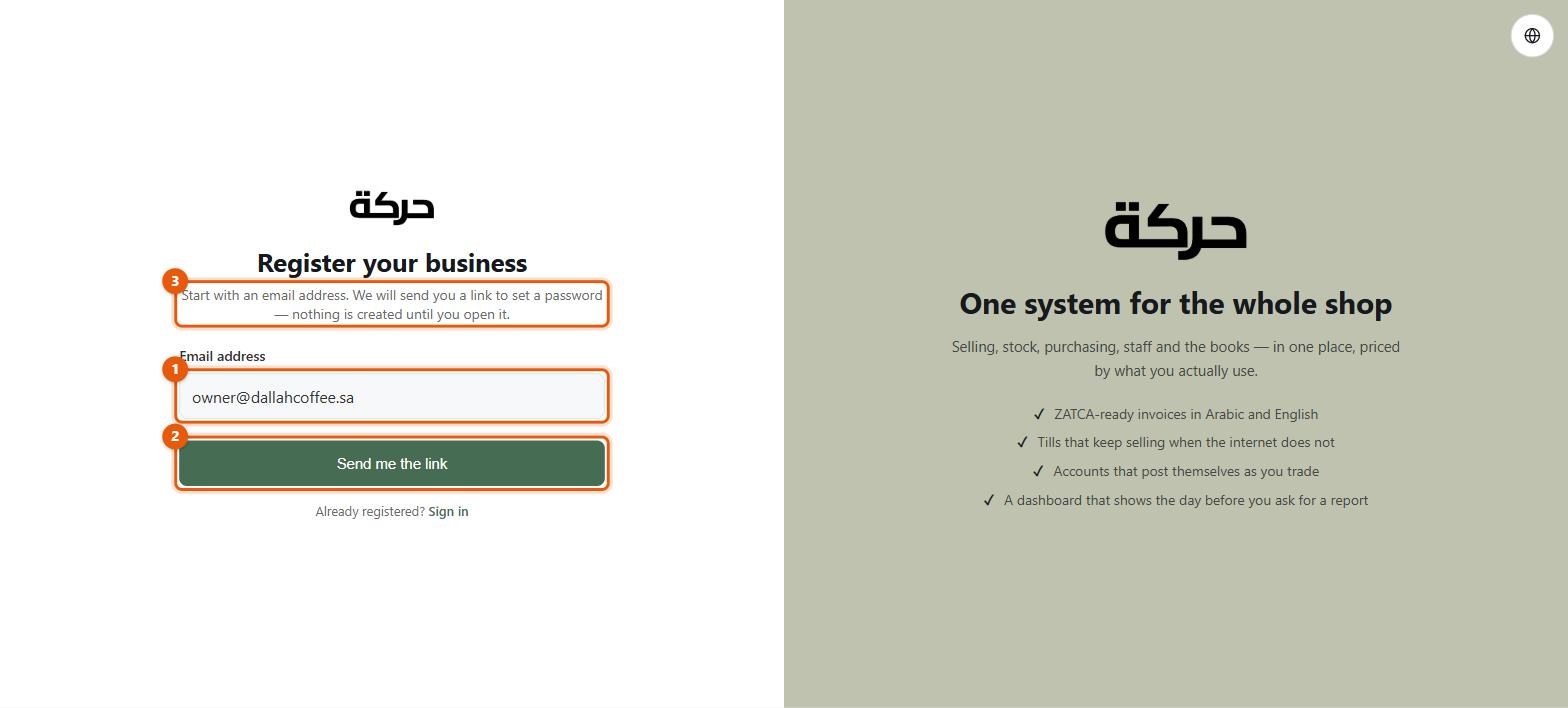
- Open the email and follow the link. It works once and expires after a few hours — the screen tells you exactly how long.
- Choose a password, type it again to confirm, and press Create my account.
Your account now exists. Sign in with the email and password you just set.
Worth knowing: If the link has already been used or has expired, the page says so plainly and offers Register again. Nothing is lost; you get a fresh link. Links cannot be reused, which is what stops a forwarded email from becoming a second way into your account.
Choose the owner's address carefully
Whoever owns this email address owns the company account. They get the Owner role, which is the only role that cannot be locked out of anything, and it is awkward to move later.
Use the business owner's own address, not a shared info@ mailbox and not the
address of a manager who may leave.
#Filling in the registration
Signing in for the first time lands you on My Details, which is the registration form. It has five steps across the top, and you can move between them freely — nothing is submitted until you say so on the last one.
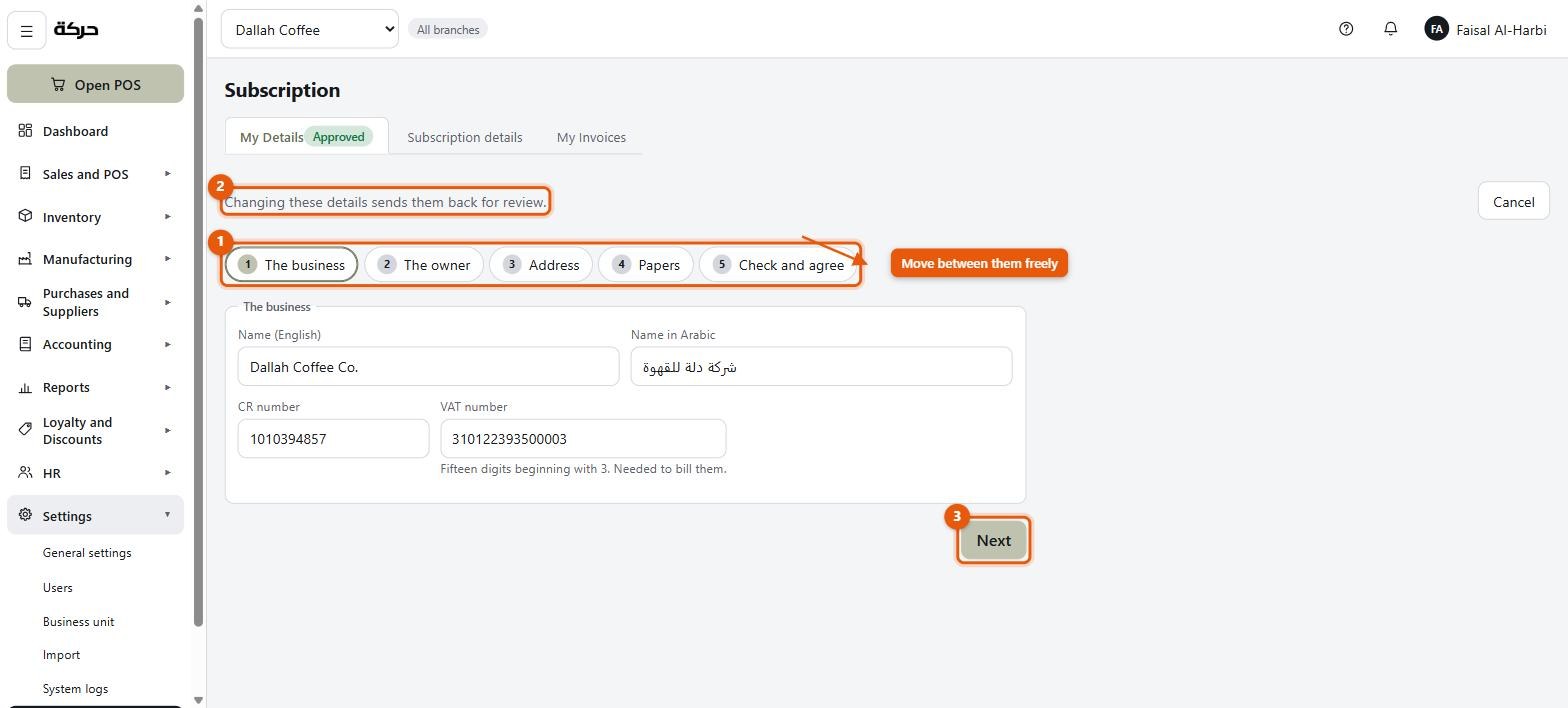
Step 1 — The business
| Field | What goes in it |
|---|---|
| Name (English) | The company's legal name as it appears on the commercial registration. This is printed on every invoice you issue. |
| Name (Arabic) | The same name in Arabic. Printed alongside the English on invoices and receipts. |
| CR number | Your commercial registration number — exactly ten digits. |
| VAT number | Fifteen digits beginning with 3. The system checks the shape of it as you type. |
| Phone | Optional. An office number, like 0112345678. |
Careful: The company name here is the one that appears on tax invoices. Use the legal name from the CR, not a trading name or a shop sign. You can put the shop's own name on the till receipt separately — that is covered in section 17.
Step 2 — The owner
The owner's full name and mobile number. The mobile is a Saudi number, and you
can write it however you normally do — 0551234567, +966551234567, with or
without spaces. The system stores one canonical form and shows you the local
one.
Step 3 — Address
Your Saudi national address, in the standard parts:
- Building number — the four digits on the plate
- Street — in English, and in Arabic if you have it
- Additional number — the four-digit secondary number
- District — in English, and in Arabic
- City — in English, and in Arabic
- Postal code
Building number and city are required; the rest are strongly recommended because they are what appear on the invoice's seller block.
Step 4 — Papers
Three documents, attached as a PDF or a photo:
- Commercial registration
- VAT certificate
- Owner's ID
Each has a 5MB limit. A clear photo of the page taken on a phone is almost always well under that; if you are over, it is usually a scan saved at print resolution.
Each slot says Attached or Not attached beside it, so the step itself
tells you what is still missing. The running count — 2 of 3 attached — is on
the last step, with the rest of the summary.
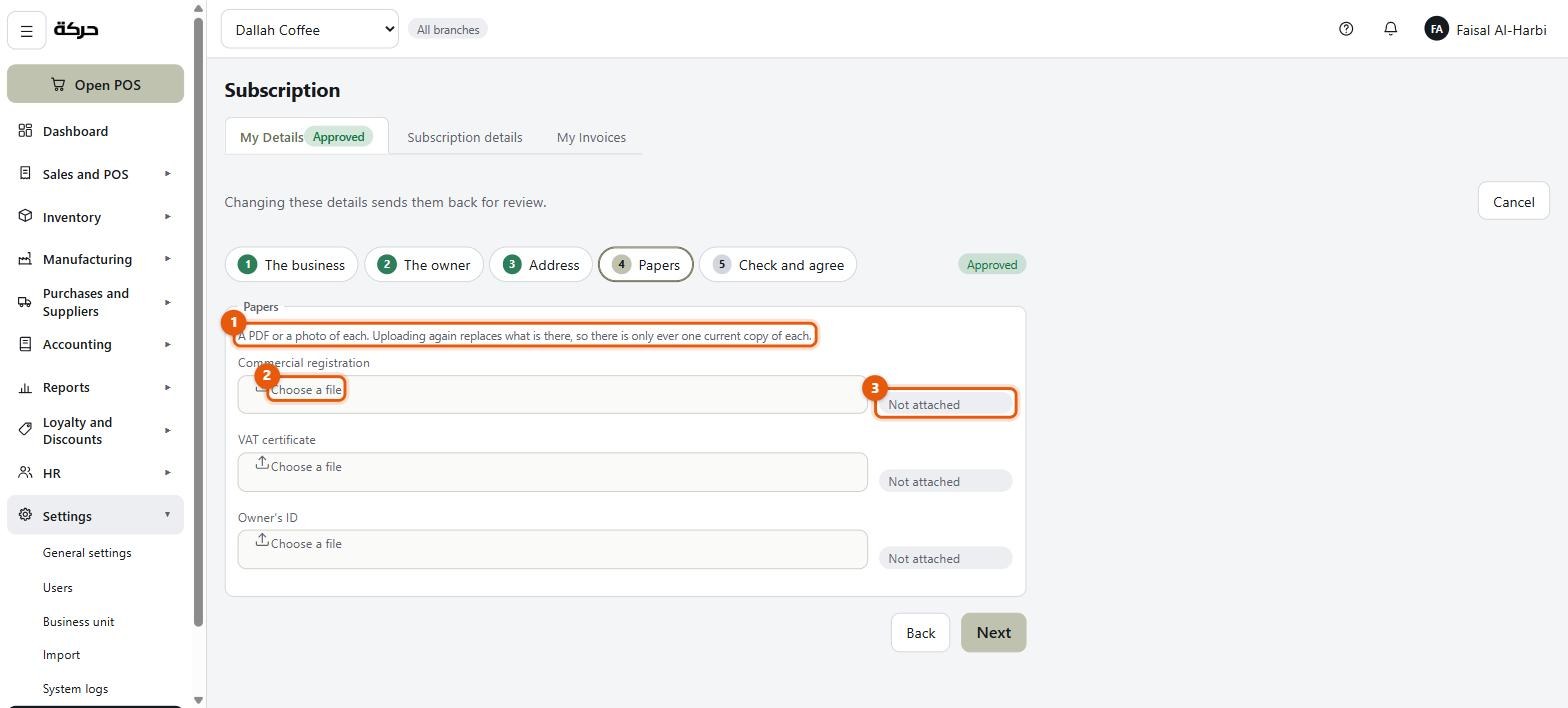
Worth knowing: Uploading a document again replaces the one before it. There is no version history and no way to attach two copies of the same paper, so you never have to wonder which one a reviewer looked at.
Only PDF, JPEG and PNG are accepted. Anything else is refused with a message saying so rather than failing silently.
Step 5 — Check and agree
The last step shows everything you have entered in one view, followed by the terms of service and the privacy policy, and a single tick box:
I have read and agree to the terms of service and the privacy policy.
If anything required is still missing, the step lists it under Still needed before this can be handed in — by name, so you know which step to go back to. The Submit button stays unavailable until that list is empty and the box is ticked.
Press Submit. The date and time you agreed are recorded against your company and shown back to you afterwards.
#While you wait: what the statuses mean
My Details always shows where your registration has got to, in a panel headed Where this has got to.
| Status | What it means | What you can do |
|---|---|---|
| Not handed in | You have started filling it in but not submitted. | Keep editing. Nothing is under review. |
| Under review | Submitted and waiting to be read. | Nothing. The form is locked while somebody reads it. |
| Returned | Somebody read it and sent it back with a note. | Read the note, fix what it asks for, submit again. |
| Approved | Done. Once the first subscription bill is paid, the whole system opens; until then only Subscription does. | Everything. Start at section 3. |
When a registration comes back as Returned, the reviewer's note is shown at the top of the screen, in their words. It is usually something specific — a document that is unreadable, a VAT number that does not match the certificate. Fix that one thing and submit again.
Careful: Once approved, the registration can no longer be edited by you. The English legal name, the VAT number and the CR number are what appears on your tax invoices and inside their QR code, so to change any of them you ask HarakahTec. Everything else — the address, telephone and email — is yours to change in Settings → General settings (section 3).
#Your subscription
Once approved, Settings → Subscription opens, with three tabs.
My Details
Before approval, the registration form described above. After approval it becomes the record of what was approved, laid out on one page to be read — there is no Edit. The screen says where changes go: To change the legal name, VAT number or CR number, contact HarakahTec. The address, telephone and email are yours to change in General settings.
Subscription details
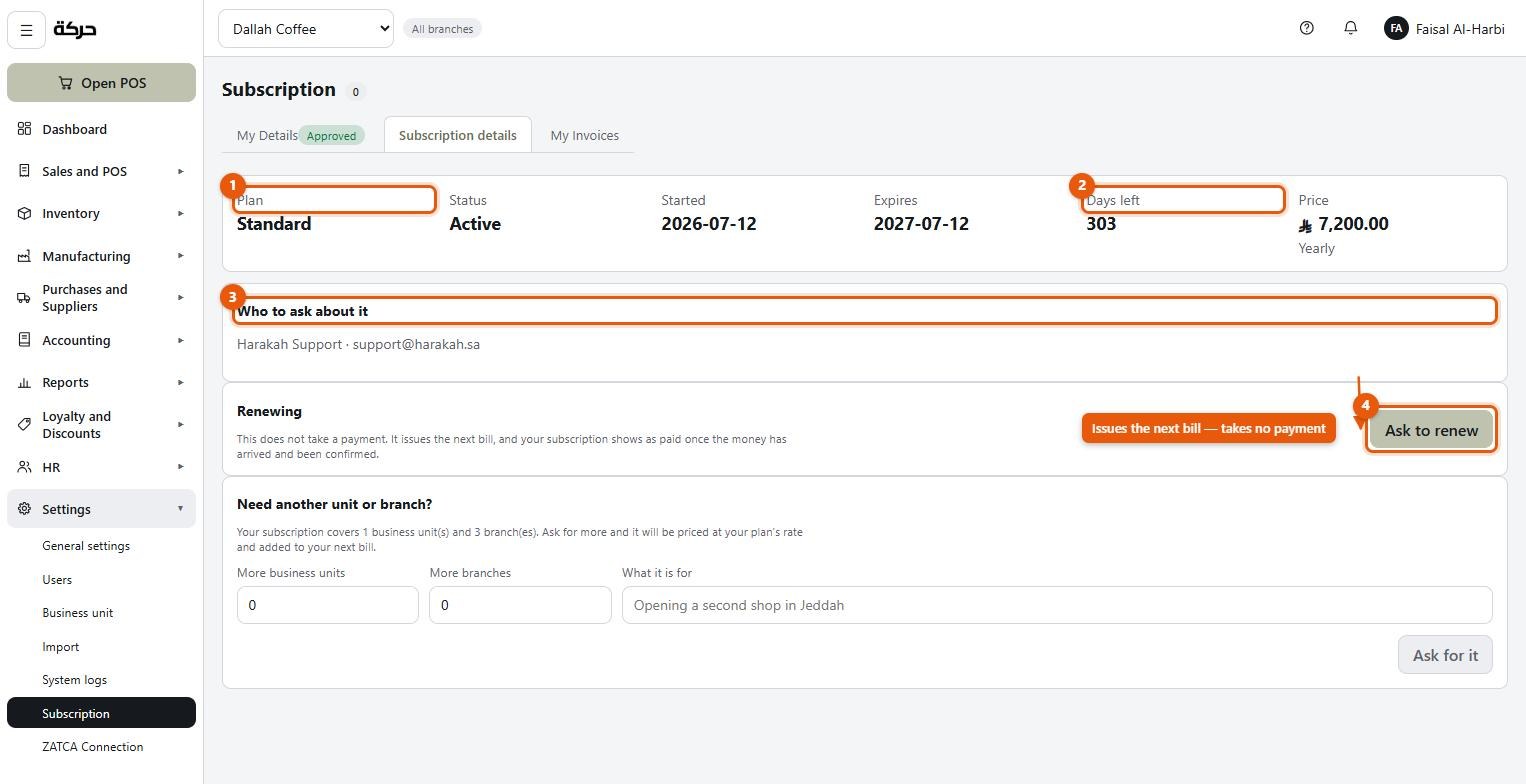
What you are on and what it costs:
- Plan — the plan you were put on
- Started and Expires — or Never expires, for a one-off purchase
- Days left — a plain countdown
- Price — what the current period cost
- Who to ask about it — the contact for billing questions
The screen warns you before things become urgent rather than after:
- This subscription ends in {days} days appears as the end approaches.
- There is a bill past its due date appears if an invoice has gone overdue.
- This subscription expired on {date} appears after it lapses — and the system goes on working. You are not locked out of your own shop on a Thursday night because a renewal was missed. You are told, clearly and repeatedly, to get in touch.
- You have grown beyond what this subscription was priced for appears if you have more business units or branches than the plan covers.
Asking to renew
The Ask to renew button does not take a payment. It issues the next bill and tells whoever handles billing that you want to continue. You then pay it however you already agreed to pay — bank transfer, or whatever was arranged.
If a bill is already waiting, the button says so rather than issuing a second one, because renewing twice would bill you twice.
My Invoices
Every bill for the software itself: number, period, issue date, due date, amount, and whether it has been paid. Each one can be opened as an A4 tax invoice and printed.
Worth knowing: These are invoices to you for the software. They are not the same thing as the invoices your shop issues to its customers, and they do not appear anywhere in your own accounts. Your own sales live under Sales & POS and Reports.
#Asking for more business units or branches
Your plan covers a number of business units and a number of branches. When you need more than that, the request goes through the system rather than through a phone call.
On Settings → Subscription → Subscription details, find Need another unit or branch?
- Choose More business units or More branches.
- Say how many.
- Write what it is for — a sentence is enough. "Opening a second shop in Jeddah" is the example the screen itself suggests.
- Press Ask for it.
The request is priced and billed, and once it is approved your allowance goes up and you can create the branch. Until then the screen shows Asked for with the date, and asking again is refused so you do not end up with two requests for the same shop.
Careful: Do not plan a branch opening around this being instant. It is a request somebody reads, prices and approves. Ask for the capacity before you need it, not on the morning you are ready to sell.
#What to do next
Once your status reads Approved and the first bill is paid, the whole back office opens and section 2 shows you around it. If you are still waiting, there is nothing to set up yet — the rest of this guide will be here.