
Step 02 · Part 1 — Getting your account
Finding your way around
Two apps, not one. The sidebar, the business-unit picker, and the things that trip people up on day one.
Applies to: Everyone. Ten minutes here saves an hour later.
HarakahTec is two separate applications sharing one set of books. Almost every confusion on the first day comes from not knowing that, so it is worth being clear about before anything else.
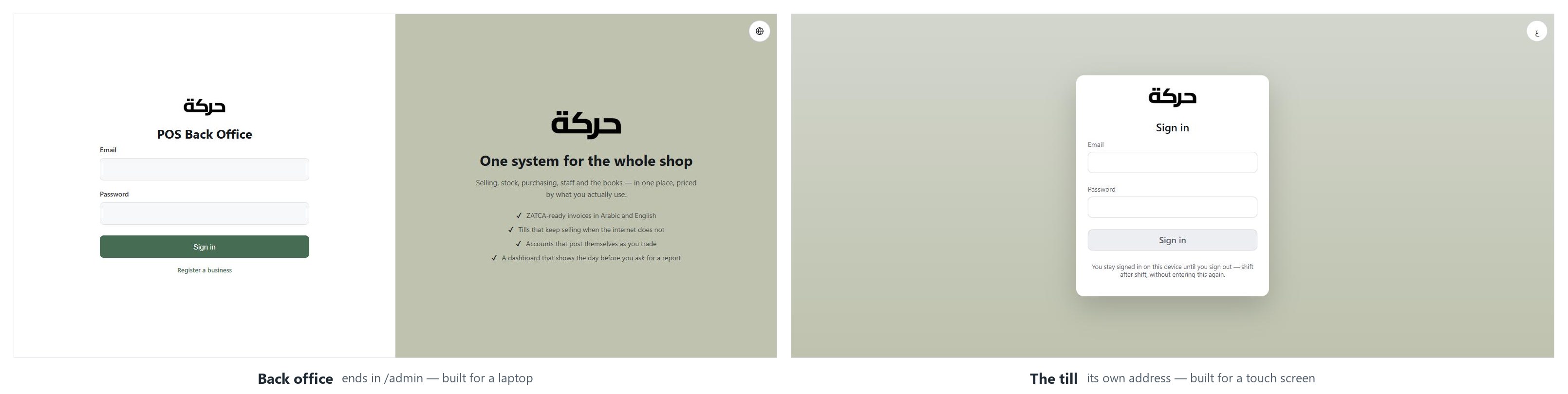
#Two addresses, not one
The back office is where you set the system up and where the business is
run from: products, prices, staff, purchases, reports, accounts. You reach it
at the address ending /admin. It is meant for a laptop or a desktop.
The till is what a cashier stands in front of. It sells, takes money, opens the drawer, prints receipts and closes the shift. It is a different address, and it is built for a touch screen.
They are not two views of one screen. They are two applications with two sign-ins, and a person can have access to one and not the other.
Worth knowing: You sign into each separately, with the same email and password. A cashier signs into the till and never sees the back office. An accountant signs into the back office and never sees the till. Most owners use both.
#Signing in
Email address and password on both. Three things to expect:
You may be asked for a two-factor code. By default HarakahTec asks Owners and Admins for one; HarakahTec can widen that to everyone in the back office, or to everyone including cashiers. The code comes from an authenticator app on your phone — Google Authenticator, Microsoft Authenticator or similar. The first time an account that needs one signs in, the screen shows a QR code to scan and asks for the first code the app shows.
You may be asked for a sign-in code. Where HarakahTec has switched sign-in codes on, a six-digit Sign-in code is sent to your mobile by text message after the password is accepted. It expires in 5 minutes. If it does not arrive, Send another code becomes available after a short wait; if codes still do not come, the screen offers Send it by email instead. Where it is offered, ticking Don't ask again on this device skips the sign-in code on that device for the number of days shown — the password, and any authenticator code, are still asked. Changing your password cancels it.
The till keeps you signed in. Deliberately. A cashier signs in once and stays signed in on that device, shift after shift, until somebody signs out. Asking for a password between customers would be unusable, so the till is protected differently — by a screen-lock PIN, covered in section 26.
Careful: There are no recovery codes. If you lose access to your authenticator app you cannot sign in, and nobody in your company can reset it from inside the system — contact HarakahTec. Set it up on a phone you control.
#The back office, laid out
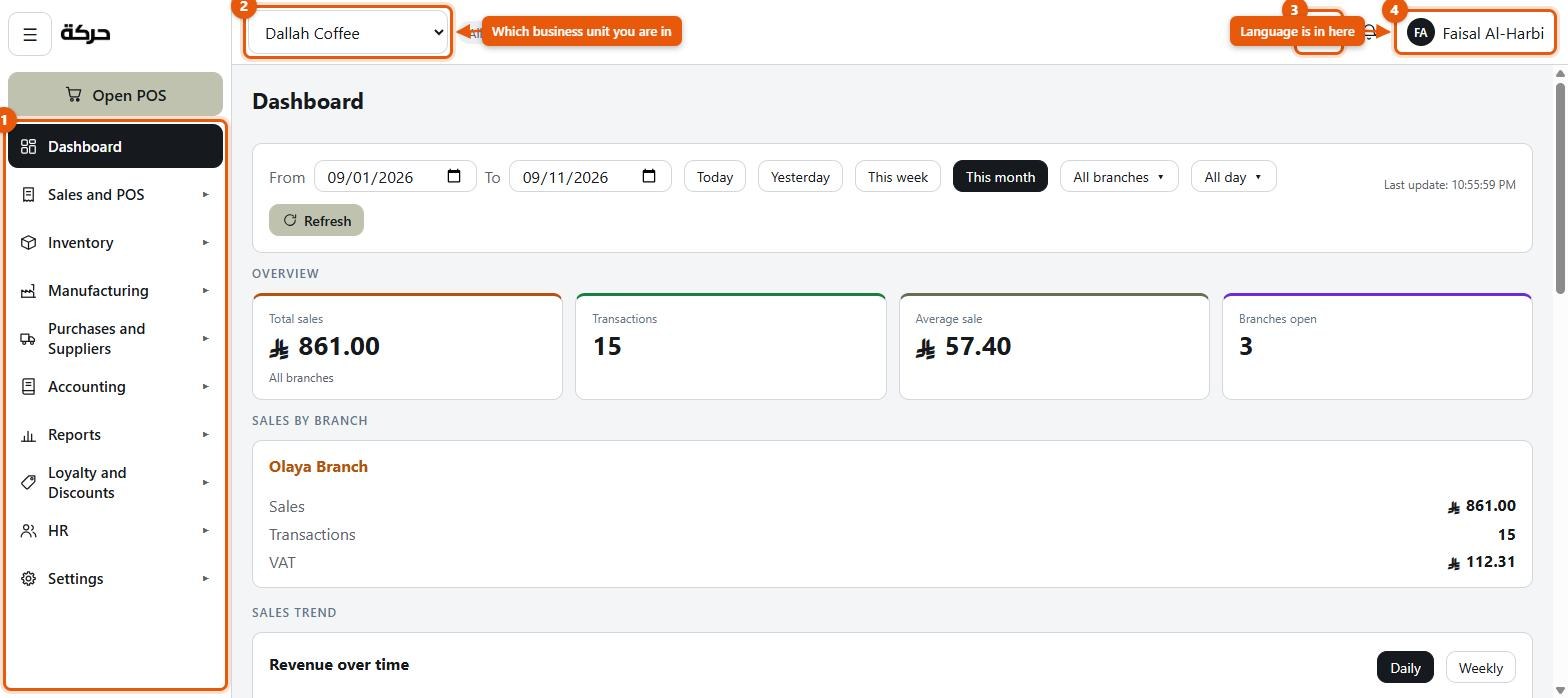
The sidebar
Ten entries down the left — the Dashboard, and nine sections that each open into their own list of screens:
| Section | What lives there |
|---|---|
| Dashboard | Today at a glance: sales, transactions, branches open, profit |
| Sales and POS | Sales Invoices, Quotations, Point of Sales, Cash Management, Sessions, Payment Methods, Settings (the tills' settings) |
| Inventory | Products, categories, units, stock report, stock count, stock movements |
| Manufacturing | Recipes, production orders, reports, the production dashboard, settings |
| Purchases and Suppliers | Suppliers, purchase invoices, refunds, payments, orders, settings |
| Accounting | Expenses, fixed assets, opening balances, balance sheet, trial balance, customer accounts, journal entries, cost centres, chart of accounts, settings |
| Reports | Sales, Delivery Platforms, Card Payout (where card machines are set up), Purchases, Inventory, Profitability, By cost centre, Tax, Zakat |
| Loyalty and Discounts | Customers, discounts, the loyalty reports, settings |
| HR | Employees, payroll |
| Settings | General settings, users, business unit, import, system logs, subscription |
Only one section is open at a time. Opening another closes the one that was open, which keeps the sidebar shorter than the screen.
Worth knowing: You only see what your role allows. A cashier who signs into the back office does not see a greyed-out Accounting section — they do not see Accounting at all. If a colleague says a screen is missing, the answer is almost always their role, not a fault. Section 5 covers this.
The business-unit picker
At the top of the screen is a control naming which business unit you are looking at. Everything on every screen is filtered by it.
If you have one business unit, this never needs touching. If you have more than one — a coffee shop and a bakery, say — this is how you move between them, and forgetting to switch it is the most common reason a screen looks empty when it should not.
If your role lets you see everything, the list also has an option above the units named after your company — it carries the company's name, not a label like "Full company". Choosing it narrows the sidebar to the things that genuinely span a whole company: the dashboard, Profitability, By cost centre, Tax and Zakat, customers, the loyalty reports and settings, and the company-level settings. Screens about one shop — a stock count, a till's layout — disappear, because there is no single shop to count.
Careful: If you choose the company while looking at a screen that only makes sense for one unit, you are sent back to the dashboard. Nothing is lost. It is the system refusing to show you a screen it cannot fill.
Notifications
The bell in the top bar carries things that need somebody's attention — a cash-out that has not been reviewed, a product at its reorder level, an offline sale that could not be synced, a subscription bill falling due. What you are shown depends on your permissions, and it is scoped to the business unit you are in.
The language control
HarakahTec runs in English and Arabic, and switching is instant. The whole interface mirrors for Arabic: the sidebar moves to the right, tables read right to left, and dates and figures follow.
A few things deliberately do not follow the interface language, because they belong to a document rather than a reader:
- Receipts print in the language the shop chose for its customers.
- The closing register report prints in the language set for it.
- Invoices carry both languages where both names exist.
That is covered properly in section 17.
#The till, laid out
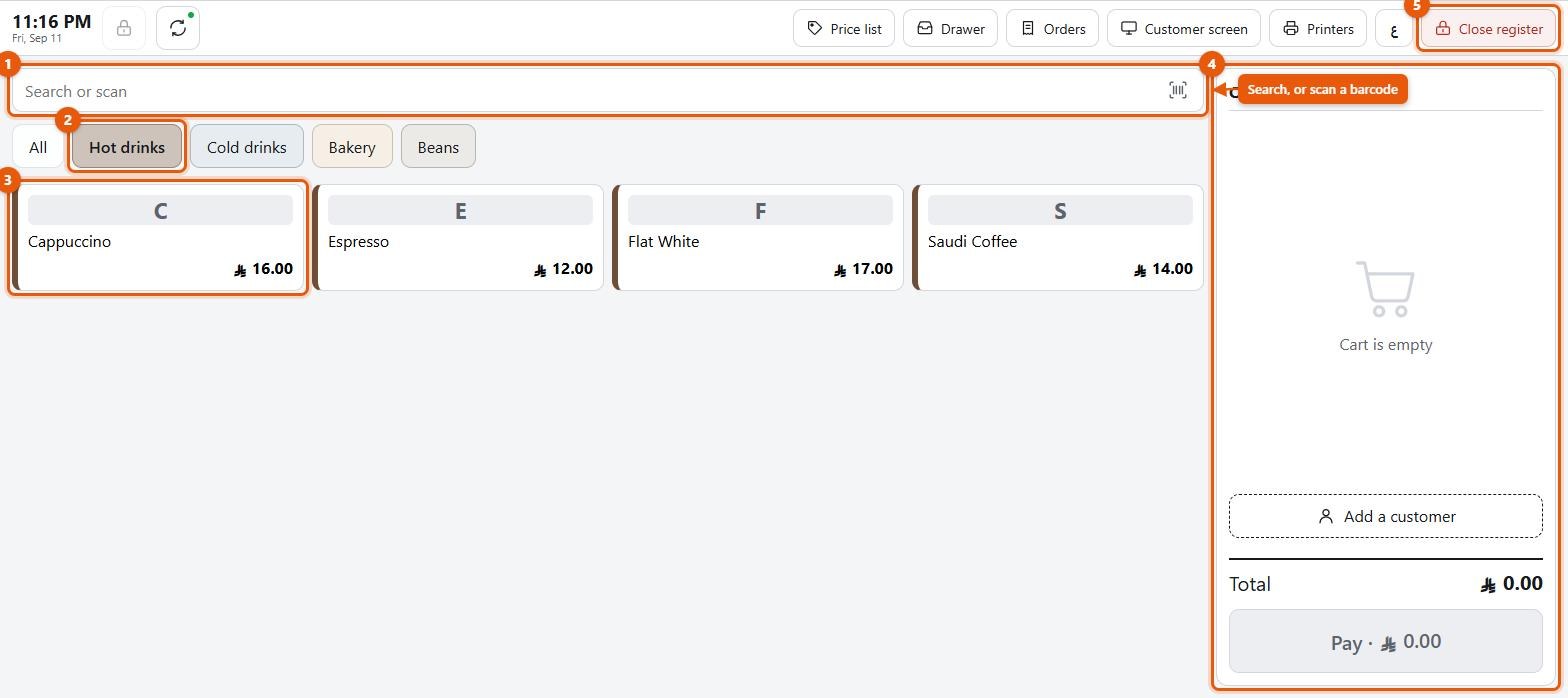
The till has fewer places to be, on purpose.
- Sign in with email and password (and a sign-in code, if one is asked for).
- Choose a register. If more than one till exists at your branch, you pick which one you are standing at. This matters — the register is what the invoice numbering is tied to.
- Open the shift by entering the Opening float — the cash you were given to start with.
- Sell.
- Close the shift by counting what is in the drawer.
Everything else at the till — discounts, customers, points, refunds, waste, cash in and out — hangs off the selling screen. Section 26 walks through all of it.
#The order to do things in
This guide is written in the order a real shop needs, and the order matters more than it looks.
Stop: Open the books before you sell anything — section 6.
This is the only step in the whole guide with a deadline, and the only one that cannot be undone. Nothing stops you opening a till and trading first: the sales go through, the receipts are right, the stock moves. They simply never reach the accounts, and opening the books afterwards does not go back for them. Your VAT return is then short by everything you sold first.
It takes five minutes and one date. Do it before anything else in Part 2.
Two more dependencies are worth knowing now, because getting them wrong means redoing work rather than losing money:
- Set up units before products (section 7). A product is bought in one unit and sold in another, and you cannot choose units that do not exist.
- Take your opening stock in through a purchase invoice or an opening balance (sections 18 and 6), not by typing quantities in later. What you paid for stock is what makes cost of sales work.
Everything else can be reordered to suit you.
#What to do next
Section 3 fills in your company's identity — the name, VAT number and address that appear on every invoice you issue.