
Step 03 · Part 2 — Foundations
Company identity and global settings
The name, VAT number, logo, currency, time zone and tax rate that everything else inherits.
Applies to: Everyone, once. Almost nothing here changes again after the first week.
Everything on this screen is inherited by something else. The company name ends up on every invoice; the VAT rate ends up in every price; the time zone sets the time printed on every receipt. It is worth ten careful minutes now.
Go to Settings → General settings.
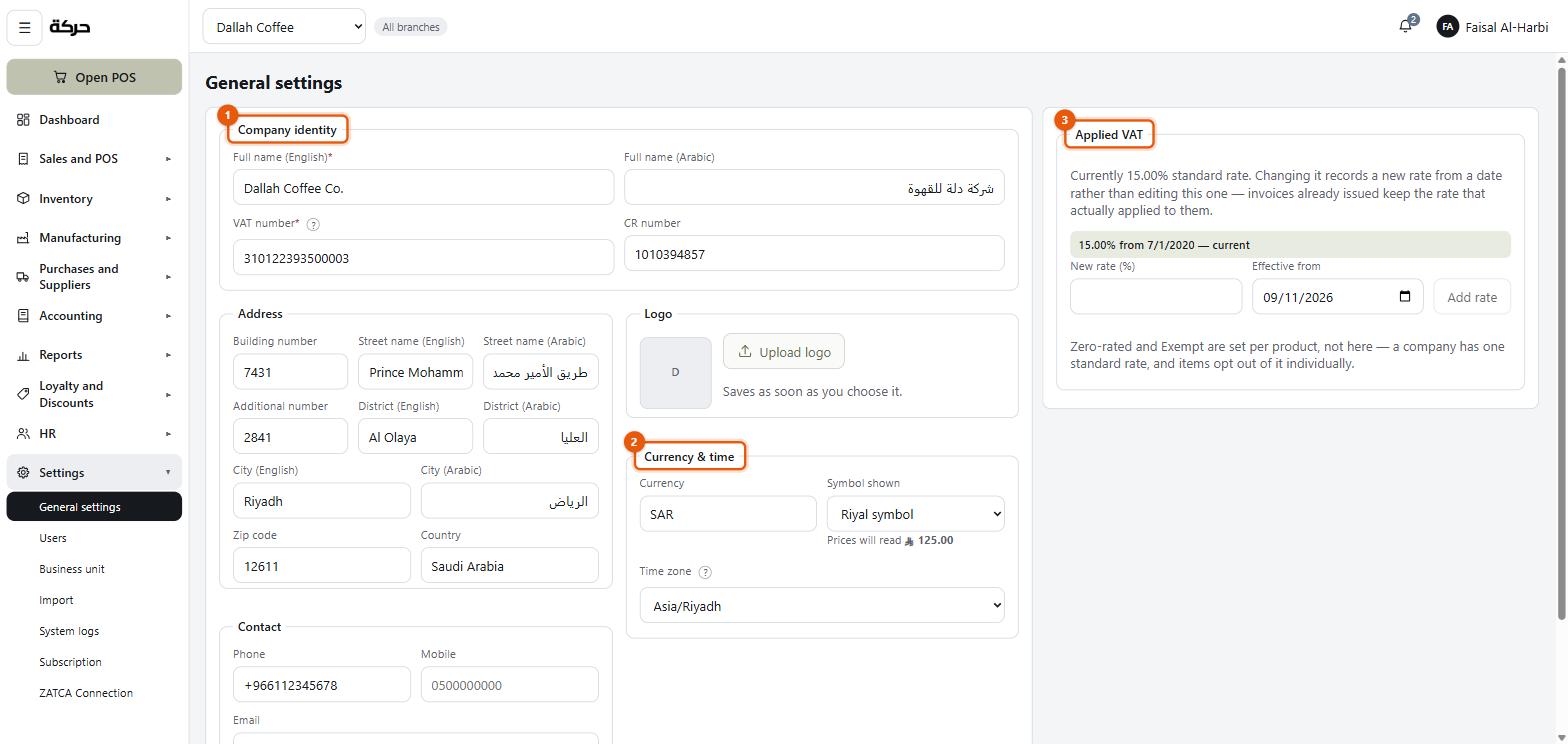
#Company identity
| Field | What it does |
|---|---|
| Full name (English) | The legal name, printed on every invoice you issue. |
| Full name (Arabic) | The same in Arabic, printed alongside it. |
| VAT number | Fifteen digits beginning with 3. Required on a tax invoice. |
| CR number | Your commercial registration number. |
| Contact | Phone, mobile and email. These appear on documents and are how a customer with a question reaches you. |
| Address | Your national address — building number, street, additional number, district, city and zip code, in English and Arabic. It is the seller's address on your invoices. |
Careful: These are the details a tax officer reads off your invoice. They must match your VAT certificate exactly — not your trading name, not the name on the shop sign. If the shop is called "Dallah" but the CR says "Dallah Coffee Company Limited", the CR name goes here. The shop's own name can go on the receipt header instead (section 17).
Once your registration has been approved, three of these are the details it was approved on: the English legal name, the VAT number and the CR number. They print on every tax invoice and inside its QR code, so a change to them is refused here — ask HarakahTec to change them. Everything else on this screen — the Arabic name, the address, the contact details, the logo, the currency and the time zone — stays yours to change.
The logo
Upload a picture of your logo and it appears on invoices, on the A4 documents, and at the top of printed receipts if you switch that on.
It saves as soon as you choose the file — there is no separate Save step for it, which the screen says underneath the button. Choosing a new file replaces the old one.
A square or landscape image works best. On a thermal receipt it is printed in black and white at low resolution, so a logo with fine detail or pale colours will not read. If yours has a wordmark, that usually survives better than an intricate emblem.
#Currency and time
Currency
The currency code your business trades in. For a Saudi business this is SAR and there is no reason to change it.
Symbol shown
This decides what a customer sees beside every figure, and there are four choices:
- SAR — the three letters, which every device on earth can display.
- ر.س — the Arabic abbreviation.
- SR — the two-letter form.
- Riyal symbol — the new riyal mark introduced in 2025.
The screen shows you a live preview under Prices will read so you can see the difference before committing.
Worth knowing: The riyal mark is drawn from a font the system supplies, not from a character your computer already has. On screen it always works. On a thermal printer it works because the receipt is drawn as a picture and sent as dots. In a spreadsheet export, or anywhere the font cannot follow, the system writes
SARinstead — because a box where a currency should be is worse than a spelling.
Time zone
Asia/Riyadh for a Saudi business. The list also offers Dubai, Kuwait, Qatar
and Bahrain.
It decides the clock a customer reads:
- the time printed on a receipt,
- the day the production dashboard shows.
Worth knowing: Which day a sale is counted in, where a shift's day begins and ends, and what "today" means in the reports all follow Riyadh time, whatever is chosen here. For a Saudi business the two are the same thing.
Press Save changes when the identity and currency blocks are as you want them. The logo and the VAT rates are separate and do not wait for it.
#Applied VAT
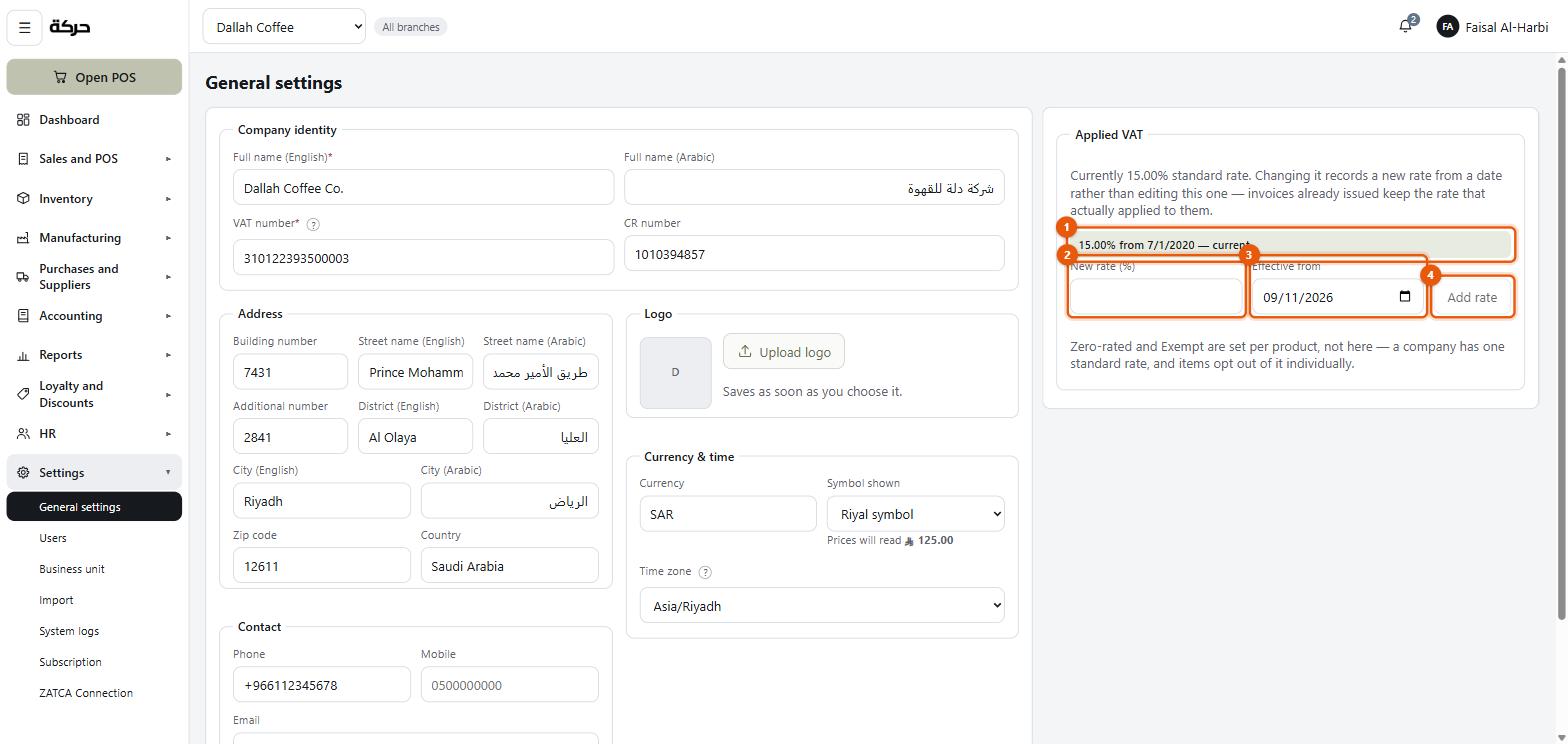
The bottom block is the tax rate in force, and it is a history, not a single number.
You will see a list like:
15% from 01/07/2020 — current
If the rate has changed in your time on the system, every past rate is listed with the range it applied to, so an old invoice can still be read correctly.
Scheduling a change
When a rate change is announced, you do not wait until the morning it takes effect and change it in a hurry. You schedule it:
- Type the New rate (%).
- Choose the date it becomes Effective from.
- Press Add rate.
From that date onwards, every new sale uses the new rate. Everything before it keeps the rate that was in force when it happened. Nothing is recalculated backwards, which is exactly right — an invoice states the tax that was actually charged.
Careful: A scheduled rate takes effect at the start of its date, Riyadh time. Only an Owner or an Admin can schedule one.
#What this screen does not cover
Three things people look for here and do not find:
- Changing the approved name, VAT number or CR number — that is done by asking HarakahTec, as above. Settings → Subscription → My Details shows what was approved, read-only, and points back here for everything else.
- Branch names and addresses are per branch, in section 4.
- Receipt header and footer are per business unit, in section 17. They are not the same as the company name.
#What to do next
Section 4 creates the business units and branches your company actually trades from.