
Step 04 · Part 2 — Foundations
Business units and branches
What a business unit is, when one is not enough, and what each of the three branch types actually changes.
Applies to: Everyone. Get the shape right before you build a catalog on top of it.
HarakahTec has two levels below your company, and the difference between them is the single most useful thing to understand early.
A business unit is a line of business. It owns a catalog, a price book, a set of payment methods, and its own rules about how the tills behave. A coffee shop and a car-wash are two business units even if one company owns both: they sell different things, at different prices, to different rules.
A branch is a place. A shop, a warehouse, a kitchen. Branches belong to a business unit and share its catalog. Stock is counted per branch, sales are made at a branch, and a shift is opened at a branch.
Worth knowing: The test for "do I need a second business unit?" is whether the two operations share a product list. Two coffee shops on opposite sides of Riyadh selling the same menu are one business unit with two branches. A coffee shop and a flower shop under one CR are two business units.
Most new subscribers need exactly one business unit and between one and three branches. Starting with more than you need makes every screen harder, because every screen is filtered by the unit you are in.
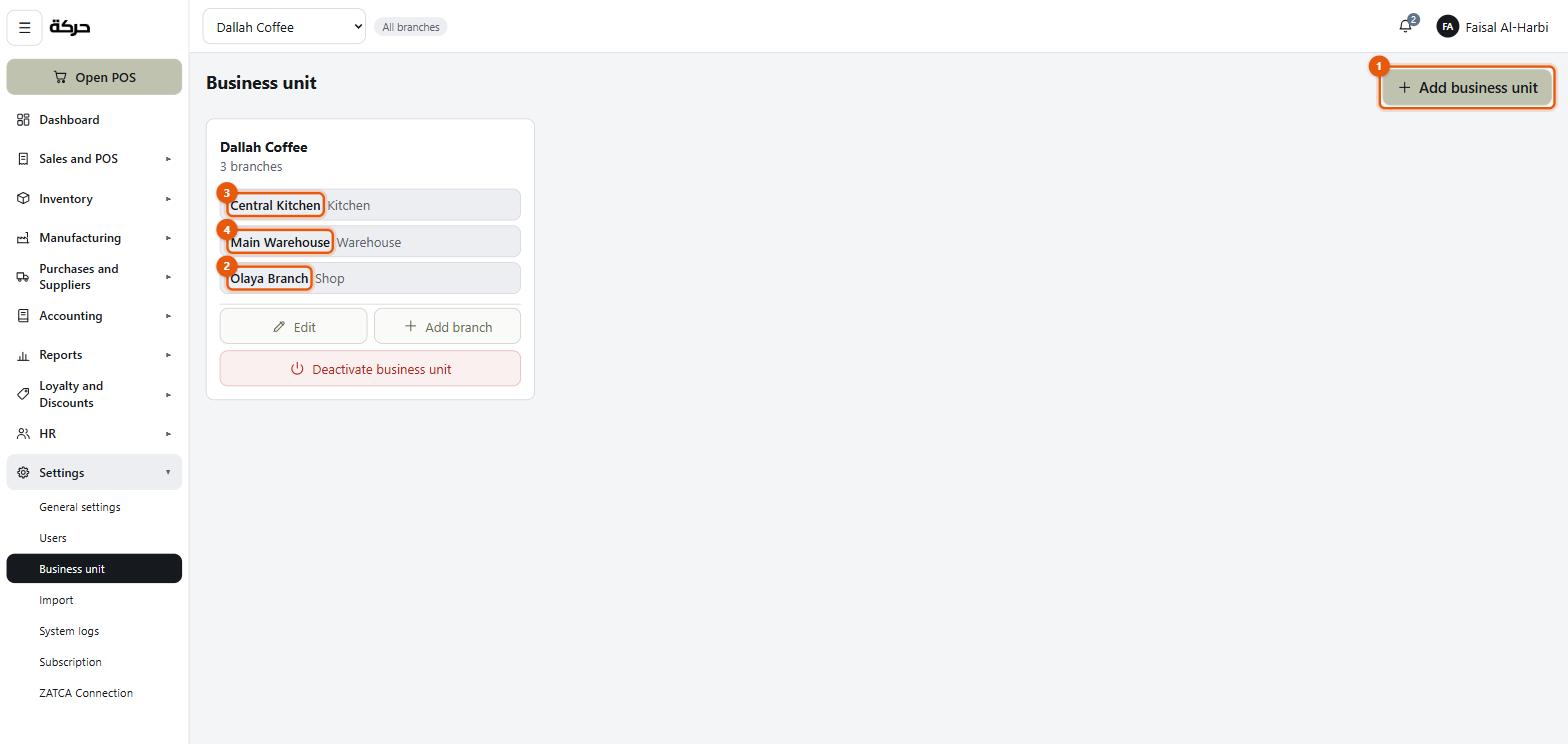
Go to Settings → Business unit.
#Creating a business unit
Press Add business unit.
| Field | Notes |
|---|---|
| Name (English) | What it is called. Appears on the unit picker and on documents. |
| Name (Arabic) | The same in Arabic. |
| Business unit logo | Optional, and separate from the company logo. |
| Cost centre | Where the unit's own figures — the ones that belong to no single branch — are reported. Optional; Not set — its entries stay unassigned. See section 6. |
Why a unit has its own logo
The company logo is the legal entity's. The business unit's logo is the brand's. A company that runs two cafés under two names wants the right one on each till's receipt, and this is how it gets there.
If a unit has no logo of its own, documents fall back to the company logo.
#Adding a branch
With a unit selected, press Add branch.
| Field | Notes |
|---|---|
| Branch name (English) | Something a person would say — "Olaya Branch", not "BR-001". |
| Branch name (Arabic) | The same in Arabic. |
| Branch type | One of three. This is the field to think about. |
| Address | The branch's own national address. Used on documents issued from it. |
| Cost centre | Everything recorded here — sales, wages, waste, expenses and opening balances — is reported under it. The list offers Create one called "…" with the branch's own name, and several places may share one. A branch left without one is reported as unassigned; it does not take the unit's. See section 6. |
The three branch types
This is not a label. It changes what the branch can do.
Shop
A place that sells to customers. This is where tills live, where shifts are opened and closed, and where cash drawers are counted.
Choose this for any shop, café, kiosk or counter.
Warehouse
A place that holds stock but does not sell it. It can receive purchase invoices, hold inventory, and transfer stock to other branches. It has no till and no shift.
Choose this for a stockroom, a central store, or a lock-up you buy into and distribute from.
Kitchen
A place that makes things. It is the branch a production order can be raised at: recipes are made here and the output is sent out to the shops.
Choose this for a kitchen, a bakery, a roastery, or any production site.
Careful: The branch type cannot be changed at all once the branch is created — a branch may already hold an invoice chain and open shifts that depend on its type. Only a Shop can host a till. Decide what each place actually is before you create it.
Two switches that go with production
Two settings on a branch are about manufacturing and are easy to miss:
- Whether things are made here. A production order can only be raised at a branch marked as a making place. This is what stops somebody telling a shop to bake by picking the wrong entry in a list.
- Whether finished production may be sent here. Deliberately separate from the branch type, because a warehouse might take deliveries of raw materials and never a tray of cakes, and only you know which.
If no branch in the unit is marked as accepting production, the question counts as unanswered and anywhere is allowed. That is a forgiving default for a shop that does not manufacture, not an oversight.
These are covered properly in section 20.
#Categories can be restricted by branch type
Worth knowing now because it explains something you will see later: a product category can be limited to certain branch types.
A category of Cleaning supplies might be marked as warehouse-only, so it never clutters the till's grid at the shop. A category of Pastries might be kitchen and shop, but not the warehouse.
You set this when creating a category (section 8). The reason it is mentioned here is that it only makes sense once the branch types are in place.
Careful: A category with no branch type ticked appears on no branch at all — it is hidden everywhere. Its products stay in the catalog, but a till lists a product only where its category is available, so they drop out of the grid with nothing on screen to say why. It is an easy mistake and worth checking.
#Deactivating a unit or a branch
Nothing in HarakahTec is deleted once it has traded, and that is deliberate. A branch with sales against it cannot simply vanish — the invoices it issued still have to be readable, and the accounts still have to balance.
So you deactivate instead.
For a business unit, the control is on its card: Deactivate business unit.
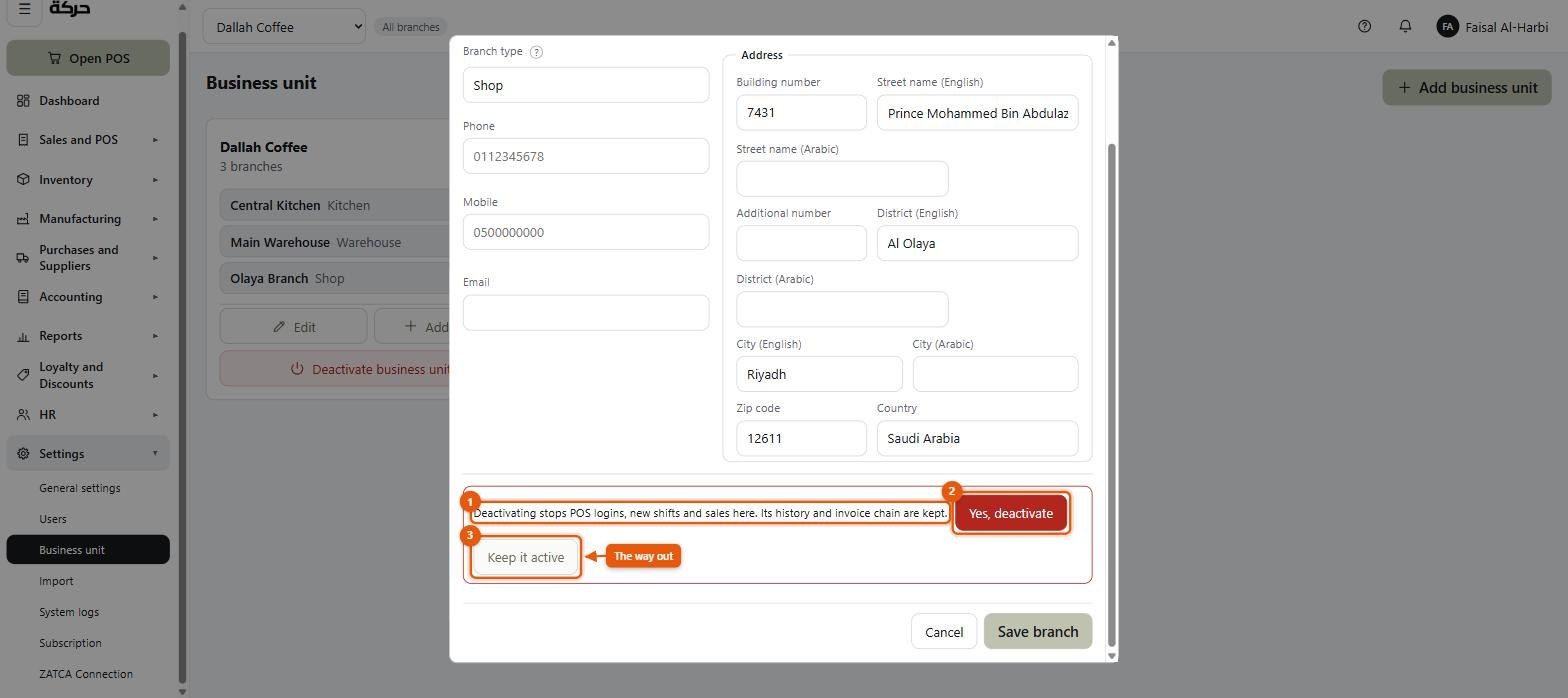
For a branch, open the branch — click its row — and the control is at the foot of the panel that opens: Deactivate branch. It confirms in place rather than in a dialog, and the sentence it confirms with is worth reading: Deactivating stops POS logins, new shifts and sales here. Its history and invoice chain are kept. Then Yes, deactivate, or Keep it active.
What happens:
- It disappears from the pickers people use day to day.
- Its history stays exactly where it was, and reports covering past periods still include it.
- Its name still appears wherever it already appeared, marked as closed.
- It can be reactivated later, from the same screen.
Worth knowing: Deactivating a business unit deactivates everything under it. Deactivating a branch leaves the rest of the unit alone. If you are closing one shop, deactivate the branch.
#How this shows up everywhere else
Once you have more than one branch, three things change:
- Stock is per branch. A product's quantity is a number at a place, not a company total. The stock report asks which branch.
- Transfers exist. Moving stock between branches is a documented movement, covered in section 19.
- Reports can be narrowed. Most reports offer a branch filter; some offer a whole-unit view.
And once you have more than one business unit, the picker at the top of the back office becomes something you use daily. Getting an empty screen is almost always a sign you are looking at the wrong unit.
#What to do next
Section 5 sets up the people who will use all of this, and decides what each of them is allowed to do.