
Step 05 · Part 2 — Foundations
Users, roles and permissions
Add your staff, decide what each of them can reach, and understand the approval pattern that runs through the whole system.
Applies to: Everyone. Do it before you train anybody, not after.
HarakahTec decides what a person can do in two steps. A role is a named set of permissions — Cashier, Manager, Accountant. A user is a person, given one role and a scope saying which branches they work at.
Both live at Settings → Users, which has three tabs: Users, Roles and Permissions.
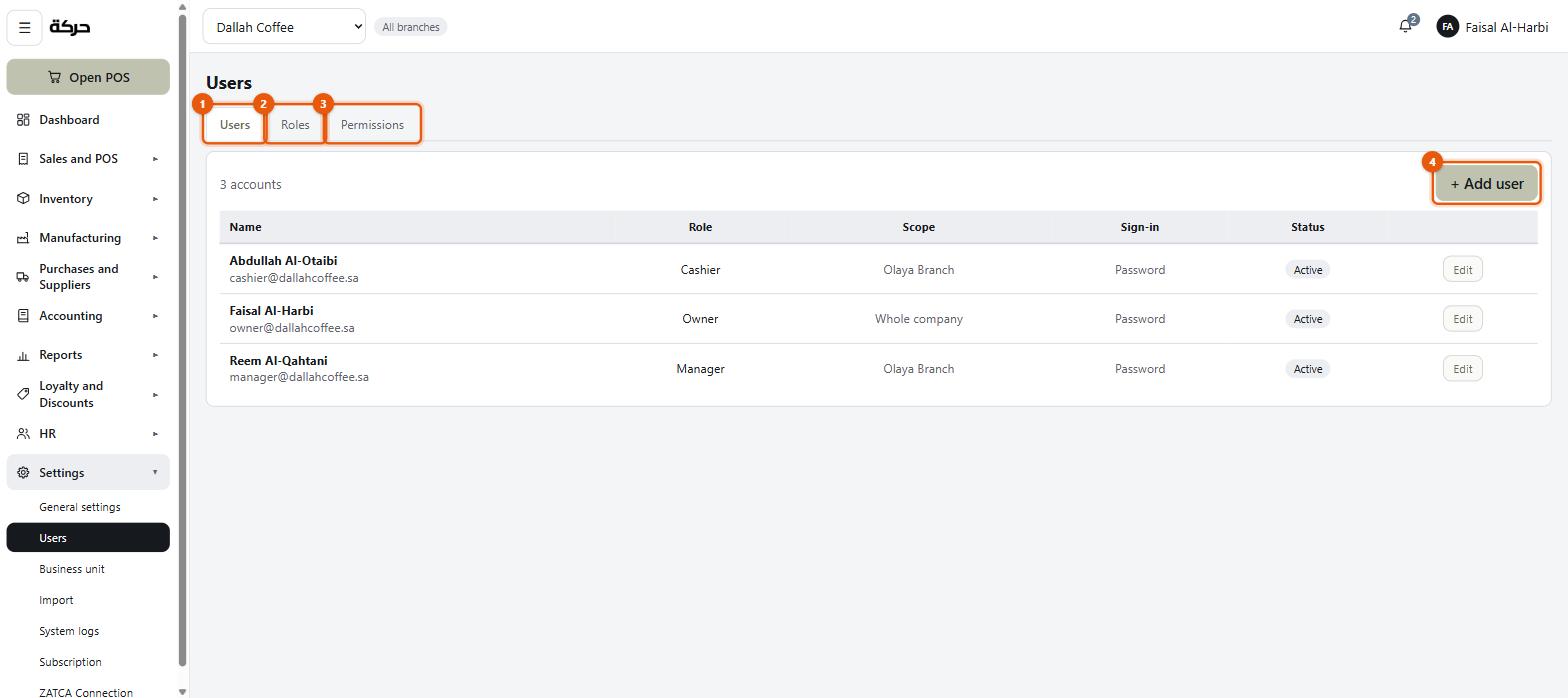
Worth knowing: If you are starting from scratch, work right to left. Look at Permissions to understand what the built-in roles already do, adjust them on Roles if you need to, and only then add people on Users.
#The five built-in roles
Every company starts with five roles already made:
| Role | Meant for | Notes |
|---|---|---|
| Owner | The business owner | Marked (fixed) — its permissions cannot be edited. Two-factor authentication is required. |
| Admin | A trusted second-in-command | Whole-company scope, two-factor required. |
| Manager | A branch manager | Can approve the things a cashier cannot do alone. |
| Inventory | Stock staff | Counting, movements, receiving. No access to the books. |
| Cashier | Till staff | Sells. Sees almost nothing in the back office. |
Worth knowing: Role names show as they were created, so the built-in roles keep their English names in the Arabic interface too. A role you create with an Arabic name shows in Arabic.
Owner and Admin always cover the whole company and their scope cannot be narrowed. Everybody else can be tied to particular branches.
#The Users tab
Adding a person
Press Add user.
The dialog is headed New user.
| Field | What it does |
|---|---|
| Full name | Required. It appears on the invoices they ring up, on journal entries they post, and in the system log. |
| Role | One of the roles above, or one you have made. |
| How they sign in. Must be unique. | |
| Mobile | Required — it is where a sign-in code goes. A Saudi mobile, however you normally write it. One number reaches one person, so two accounts cannot share one. |
| Scope | What this asks depends on the role — see below. |
| Password | At least 8 characters with an upper case, a lower case, a digit and a symbol. |
| Screen-lock PIN | Six digits, for unlocking a till screen — leave blank for no lock. |
Scope asks a different question per role
For Owner and Admin it asks nothing: the block reads Admin always has access to the whole company and cannot be scoped down.
For a Cashier it asks for one Branch, because a Cashier is pinned to exactly one shop and can only sign into the POS app.
For everybody else it is a list of branches to tick.
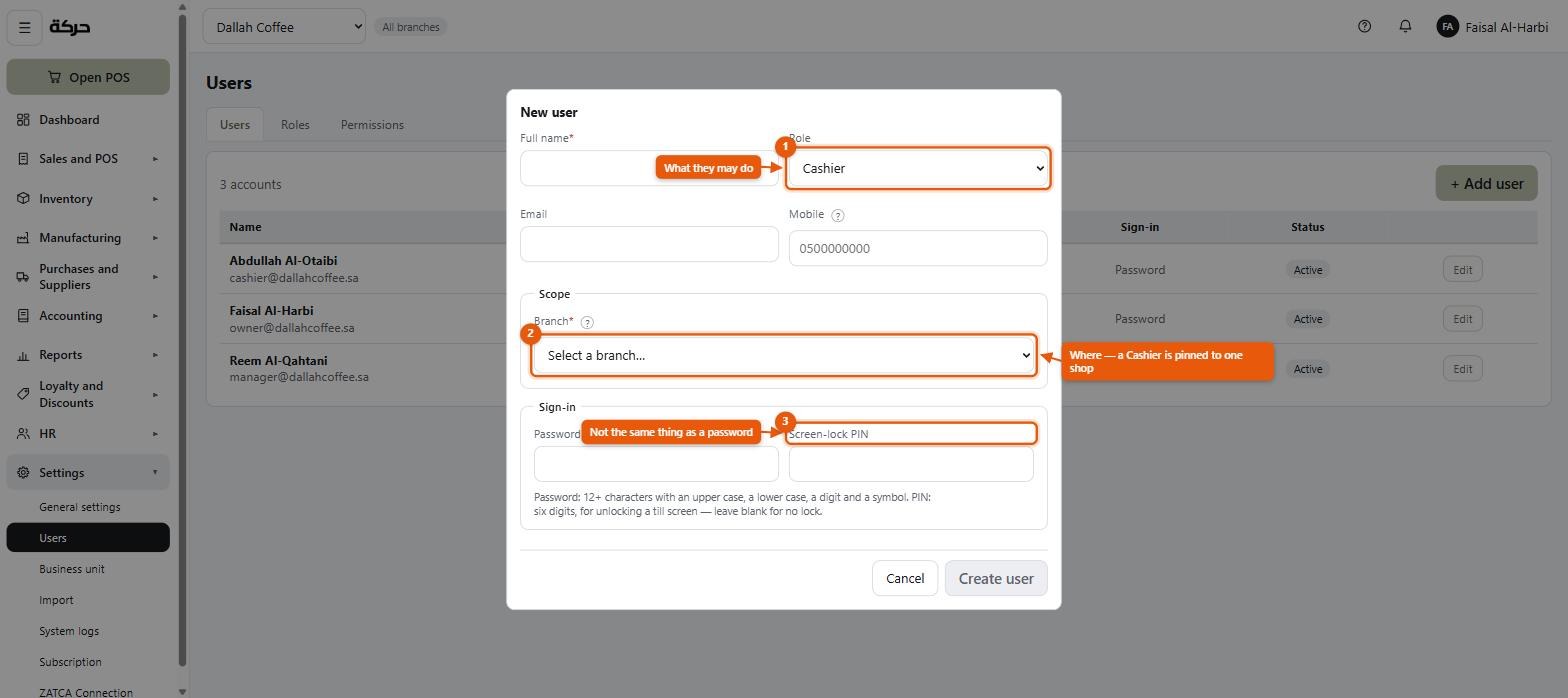
Scope is not the same as role
This catches people out. The role says what kind of thing somebody may do. The scope says which branches they may do it at.
A Manager scoped to Olaya Branch can do everything a manager does — but only for Olaya. They cannot see the Jeddah branch's takings, approve its cash-outs, or count its shelves. Change the scope, not the role.
Password and screen-lock PIN are two different things
- The password signs a person in, to either application.
- The screen-lock PIN unlocks the till after somebody has locked it with Lock the screen.
They are not interchangeable, and a cashier needs both. The till stays signed in across shifts by design — asking for a password between customers would be unusable — so the PIN is what protects the screen when somebody steps away.
Careful: Set the screen-lock PIN when you create a cashier, not later. Without one, Lock the screen stays unavailable at their till — it says No screen-lock PIN is set for this account — and the only way to protect the screen when they step away is to sign out.
Deactivating somebody
When a person leaves, deactivate the user. As everywhere else in the system, nothing is deleted: their name stays on the invoices they rang up and the entries they posted, marked as having left, because those documents have to stay readable.
A deactivated user cannot sign in to either application.
#The Roles tab
Here you create, rename and delete roles. Each row is marked Built-in or Custom.
Creating one: press Add new role, give it a name, and press Create role. It starts with nothing granted, and you grant permissions on the next tab.
Renaming one: only a role you made. The built-in roles are locked — A built-in role. Its name is fixed.
Deleting one: only a role you made, and only if no user is assigned to it. If somebody still holds the role, move them first. This is not a technicality — deleting a role out from under a person would leave them signed in with no idea what they could do.
Worth knowing: The permissions of the built-in roles can be edited — all but Owner's — even though their names cannot. If the Cashier role grants something you do not want your cashiers to have, take it away rather than building a sixth role.
#The Permissions tab
This is the heart of the system's security, and it is laid out the way you already read the product: as the sidebar.
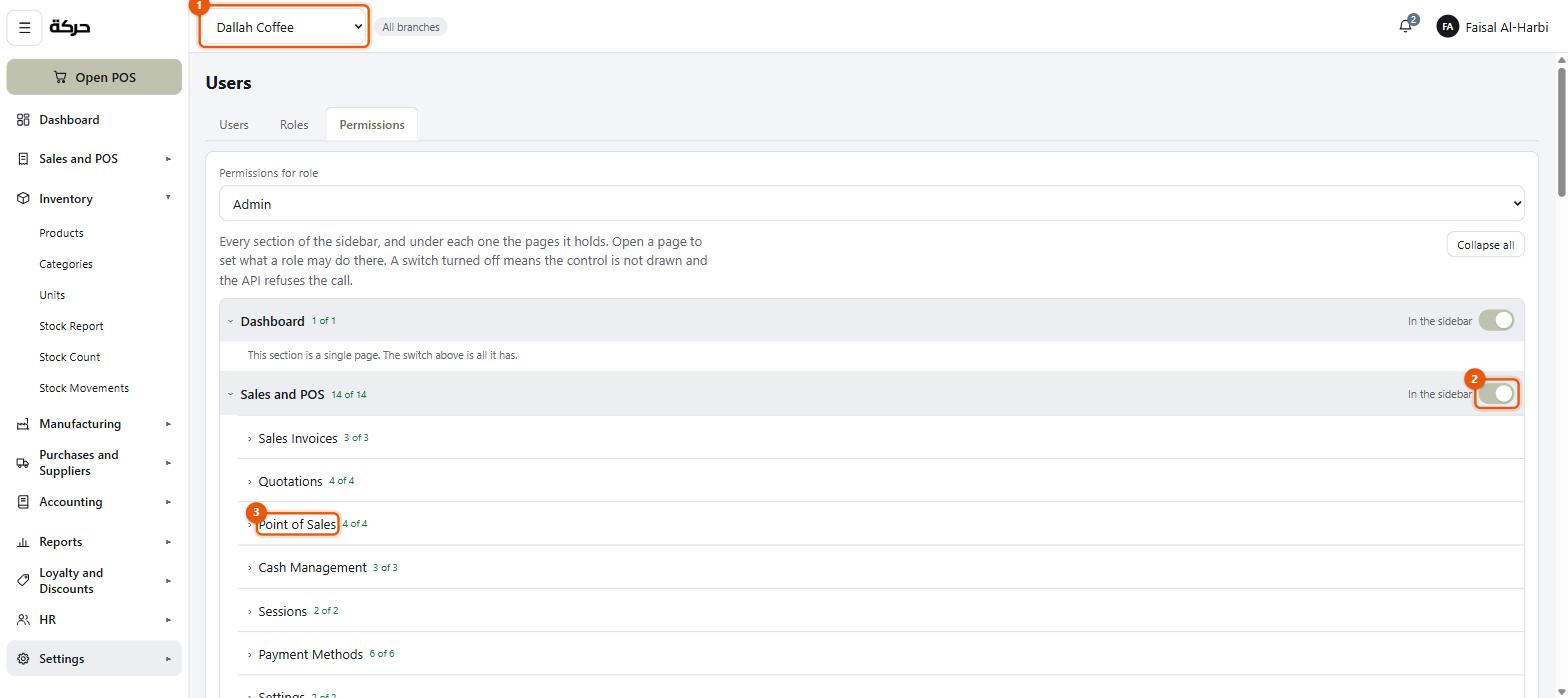
At the top, Permissions for role — pick the role you are editing. Then every section of the sidebar in order, and under each one the pages it holds. Open a page to set what the role may do there.
The screen says what a switch means, and it is worth taking literally:
A switch turned off means the control is not drawn and the API refuses the call.
Both halves matter. The button disappears and the request is refused, so a permission is not a hidden button somebody can find their way around.
Reading it
Each section shows a count — Sales and POS · 14 of 14 — of how many of its permissions this role holds. That count is the fastest way to see what a role can do without opening anything.
Beside each section is In the sidebar, which is exactly what it says: with it off, that whole section is gone for this role.
Expanding a section lists its pages, each with its own count: Sales Invoices 3 of 3, Quotations 4 of 4, Point of Sales 4 of 4, Cash Management 3 of 3. Opening a page shows the individual switches.
Expand all / Collapse all is at the top right.
Worth knowing: Owner is marked "(fixed)" in the role picker and cannot be edited. That is deliberate — a system where the owner can be locked out of their own business by a mis-set switch is a system that eventually locks somebody out. Every other role, including the built-in ones, is editable.
What sits underneath
Behind those switches the system groups permissions into fourteen areas. You do not choose them by name on this screen, but knowing the grouping explains why some switches travel together:
| Module | What it governs |
|---|---|
| Products | The catalog: products, categories, units, prices |
| Inventory | Stock as a quantity — what is on hand and what moved it |
| Stock Count | Counting a shelf and saying what is on it |
| Manufacturing | Recipes, production orders, targets and their results |
| Checkout & sales | Selling: the till, invoices, refunds |
| POS settings | Setting the tills up — registers, printers, payment methods, price lists, tables, grid layout |
| Discounts & loyalty | Discount rules, points rules, customers |
| Purchases and Suppliers | Suppliers, their invoices, refunds, orders and payments |
| Accounting | The books: journals, chart of accounts, expenses, what customers owe |
| Reports | Every report, and the dashboard |
| Staff & users | People: users, roles, employees, payroll |
| Settings | The company itself, its units, its branches, import |
| ZATCA compliance | Tax compliance |
| Subscriptions console | Selling the software itself — not something a shop uses |
Several of these splits exist because of real problems, and knowing why helps you use them:
- Stock Count is split from Inventory because counting a shelf is the one inventory job a shop hands to somebody it trusts with nothing else.
- Manufacturing is split from Inventory in the other direction: a production supervisor has no business adjusting a stock count.
- POS settings is split from Checkout & sales because a cashier needs Checkout & sales in order to sell, and that must not also let them change which payment methods the till offers.
- Purchases and Suppliers is split from Accounting because somebody who books supplier invoices does not thereby get the chart of accounts.
The shapes a switch takes
Within a page, the switches follow a small set of shapes. Not every page has all of them — a report has little more than View and Export — but these are the ones you will meet:
| Switch | Meaning |
|---|---|
| View | See the screen at all |
| Create | Make new records |
| Edit | Change existing ones |
| Delete | Remove them |
| Void / refund | Reverse something that has already happened |
| Approve | Sign off what somebody else may not do alone |
| Export | Take the data out as a spreadsheet or PDF |
| See expected quantity | Stock counts only — see below |
Two actions that deserve their own explanation
See expected quantity
On a stock count, this decides whether the person counting is shown what the system thinks should be there.
Withholding it is the whole method. Somebody who can see the book figure will, without meaning to, count towards it — and a count that agrees with the books by suggestion has measured nothing at all.
On the Stock Count page, give your counters the switches that let them start and enter a count, and leave See expected quantity off, unless you have a specific reason not to.
Approve — the pattern that runs through everything
This is the most useful idea in the permission system, and it appears in a dozen places.
Throughout HarakahTec, a limit placed on a cashier does not apply to whoever holds the matching Approve permission. Nothing is signed off in place: the permission belongs to the person signed in, and the limit is checked against them.
Examples you will meet later:
- A cashier's maximum discount is 15%. A customer needs 20%. The till refuses it unless the person signed in holds Checkout & sales: Approve. There is no manager sign-off on the cashier's screen, and no approver is recorded against the discount — whoever gives it must hold the permission themselves.
- Selling below zero stock is set to Warn, and let a manager approve it. The cashier is told the stock is short and has to confirm, and confirming needs Inventory: Approve — so a cashier without it has to fetch somebody who has.
- Putting a sale on a customer's account, where cashiers may not do it themselves, takes a manager standing at the till — and their name goes on the tab (section 12).
- Working the cash Review queue needs Accounting: Approve (section 23).
- Receiving a purchase invoice can be set to need Purchases and Suppliers: Approve.
So the question is never "should this cashier be allowed to do it?" but "who should be standing there when they do?"
Careful: A role holding Approve on a module can approve its own actions. If you give a cashier Checkout & sales: Approve to save walking to the office, you have removed the limit, not raised it.
#A worked example: setting up a small café
For a shop with an owner, a manager and three baristas:
- Baristas get the built-in Cashier role, scoped to their branch, with a screen-lock PIN each. Check that Cashier does not hold Checkout & sales: Approve.
- The manager gets Manager, scoped to the same branch, which does hold Checkout & sales: Approve — so a discount beyond the cashiers' limits is given by the manager, signed in themselves.
- You keep Owner.
- If you use an outside accountant, make a new role — call it Accountant — granting Accounting and Reports at View and Export, and nothing else. Scope it to the whole company.
#What to do next
Section 6 opens the books. It is the last thing that has to be right before you start putting real data in, and the one with the least forgiving consequences if it is left until later.