
Step 06 · Part 2 — Foundations
Opening the books
The ledger start date, the chart of accounts, cost centres and opening balances. Do this before you trade.
Applies to: Everyone. This is the one section in the guide with a deadline.
HarakahTec keeps double-entry accounts, and it keeps them automatically: a sale posts itself, a purchase invoice posts itself, a wage posts itself. You do not write journal entries for ordinary trading.
But none of that happens until you tell the system the books are open, and that date is not retroactive.
Stop: Sales made before the ledger's start date never reach the accounts, and moving the date backwards afterwards does not go back for them. The trial balance, the profit and loss and the VAT return will all be short by exactly the trading you did before you opened the books.
This is the single most expensive mistake available in the first week. Open the books before your first sale.
Everything here lives under Accounting.
#Step 1 — Open the books
Go to Accounting → Settings.
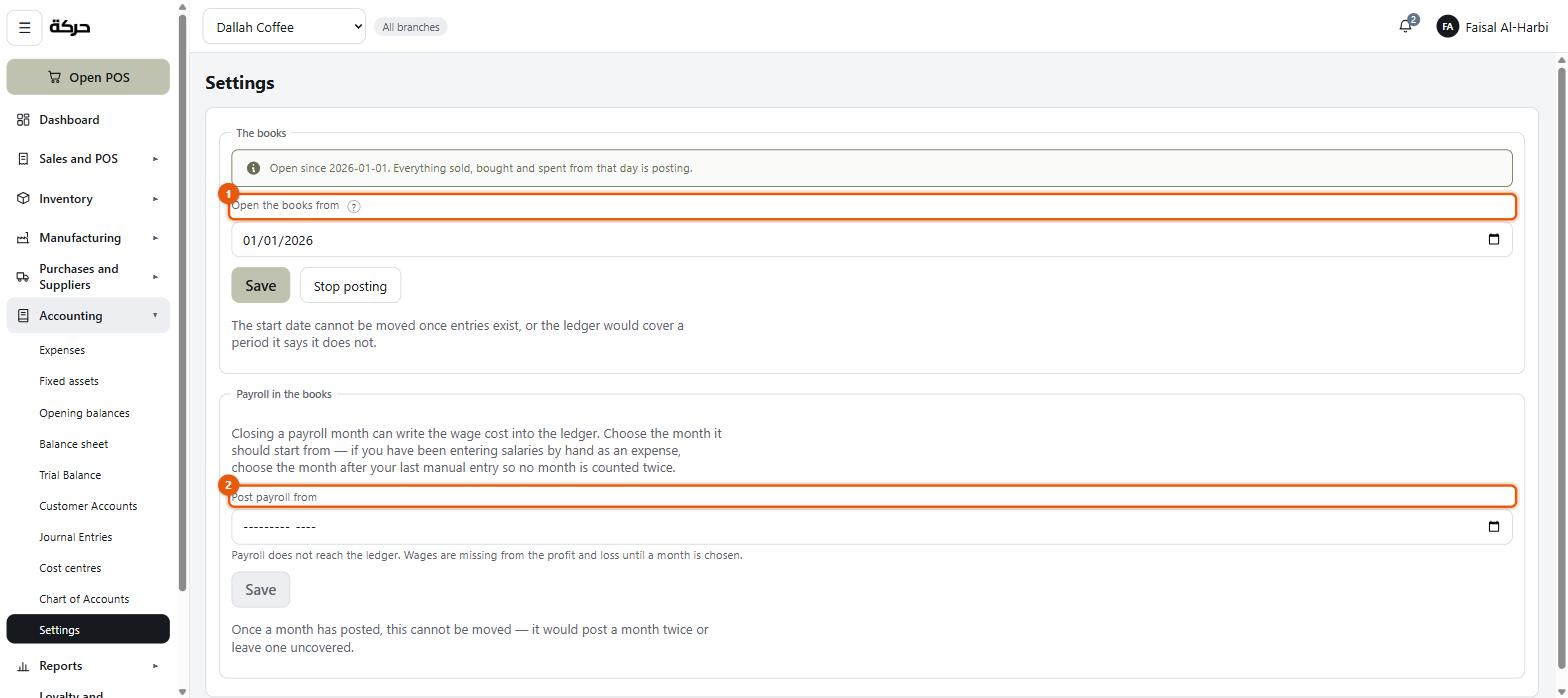
Under The books, choose the date in Open the books from and press Open the books.
Which date to choose
- If you are starting a new business, use the day you start trading.
- If you are moving an existing business onto HarakahTec, use the first day of a clean accounting period — the start of a month, a quarter, or your financial year. Whatever your accountant will want to reconcile against.
Once it is set, the screen reads Open since {date}. Everything sold, bought and spent from that day is posting.
Careful: The start date cannot be moved once entries exist. The moment anything posts, the date is fixed — moving it would make the ledger cover a period it has no entries for. Choose deliberately.
If you have already traded
If you started selling before opening the books, the settings screen tells you so, plainly and with figures:
14 sales never reached the ledger. SAR 4,210.00 of trading carrying SAR 549.00 of VAT, from 3 March onwards.
Opening the books now does not go back for them. Your options are:
- Post them by hand under Accounting → Journal Entries, dated the days they were rung up. Correct, and tedious.
- Accept the gap and document it. Reasonable if it is a day or two of testing. Not reasonable if it is a month of real trading, because the VAT return will be wrong.
The screen shows the first fifty of the affected sales so you can see exactly what is missing.
#Step 2 — The chart of accounts
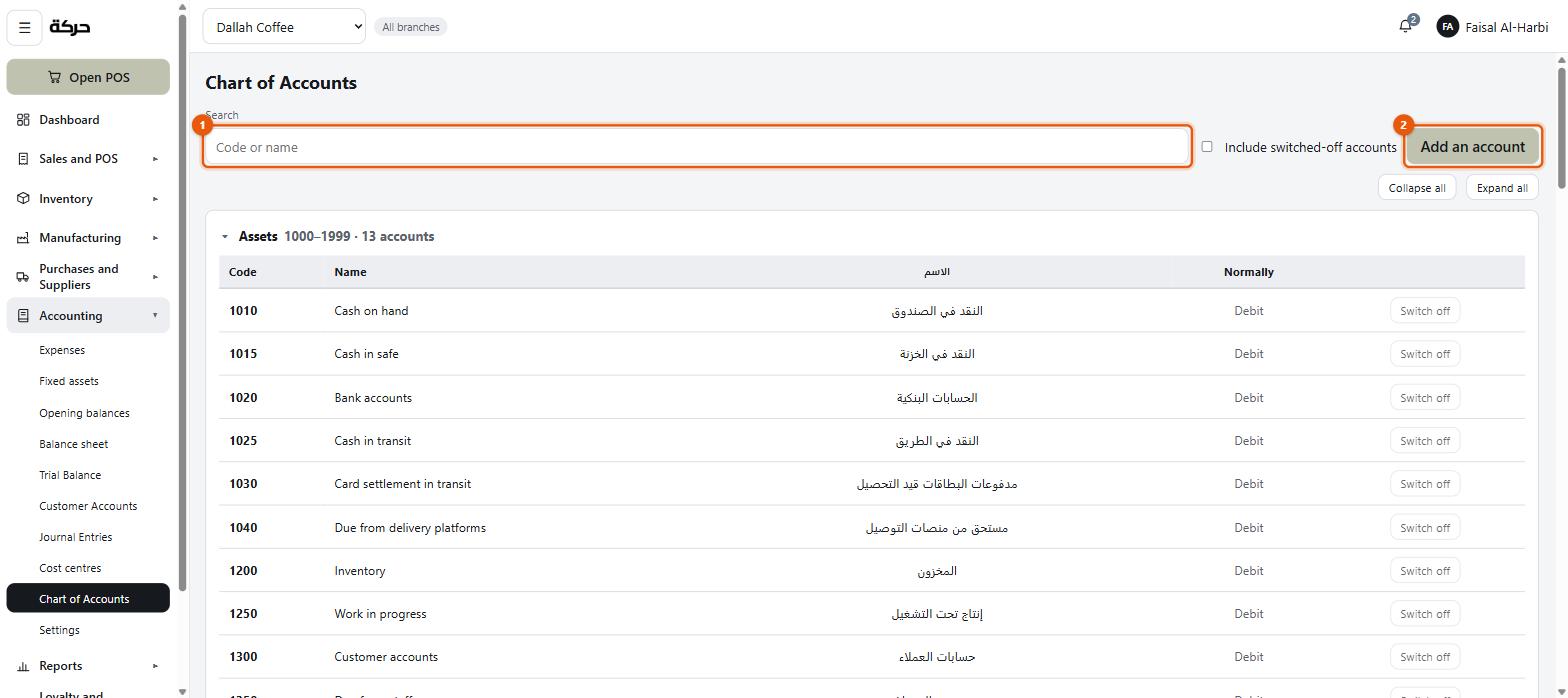
Go to Accounting → Chart of Accounts. The first time you open it, a standard chart is put in place automatically. You do not have to build one.
Each group shows its code range and how many accounts it holds — Assets 1000–1999 · 13 accounts — and every account carries its code, its name in English and Arabic, and which side it normally sits on (debit or credit).
It is grouped the way a set of accounts is read:
- Assets — what the business holds
- Taken off the assets — accumulated depreciation and the like
- Liabilities — what it owes
- Equity — the owner's stake
- Revenue — what it sells
- Cost of sales — what those sales cost
- Expenses — everything else it spends
The standard accounts cannot be edited
Every automatic posting in HarakahTec names an account by its code. When a cash sale posts, it debits 1010 because the rule says 1010. So the standard accounts are locked: you cannot rename them out from under the rules or delete them.
That is not a limitation so much as the reason the automatic posting can be trusted at all.
Adding accounts of your own
You can add as many as you like. Press Add an account.
Each account type has a code range — the screen tells you which — and your new account must sit inside it. That is what keeps assets together on a balance sheet and expenses together on a profit and loss.
If the code you choose is taken, the screen names what has it.
Switching an account off
Accounts are switched off rather than deleted, because entries already name them. A switched-off account stops being offered when somebody writes a manual entry; everything already posted to it still reads.
Tick Include switched-off accounts to see them.
#Step 3 — Cost centres
Go to Accounting → Cost centres.
A branch is a place and an account is a kind of cost. Neither answers "what did the kitchen cost us this month?" separately from "what did the shops cost us?" — a cost centre is the axis that cuts across places.
Each has a code — short, and fixed once entries name it — and a name.
Examples: OLAYA, KITCHEN, DELIVERY.
Cost centres belong to places
You do not tag postings one by one. You set a cost centre on each place, and everything recorded there carries it — sales, the cost of what was sold, wages, waste, expenses and opening balances.
Go to Settings → Business unit. The business unit and each of its branches has a Cost centre field. The list offers your centres, and on a branch also Create one called “Olaya” — a centre named after the place itself. Several places may share one centre.
- A posting at a branch takes that branch's cost centre.
- A posting with no branch — head office, a licence, the owner's capital — takes the business unit's.
- A branch with no cost centre set is left unassigned. It does not fall back to the unit's centre: its trading would otherwise read as head-office cost. The field says so — Not set — its entries stay unassigned.
Two things can override the place: an expense (its Cost centre field, left at As where it belongs says by default — section 22) and an employee, whose wage can be charged somewhere other than their branch — a cook at a shop, charged to the kitchen (section 24). Journal entry lines have no cost-centre field; a hand-written entry follows the place it names.
The Cost centres screen
Under Accounting → Cost centres you add them with Add. The list shows, for each one, how many Places, how many People and how many Entries use it, so you can see which are actually in use.
To read them, use Reports → By cost centre, or narrow the trial balance or the profit and loss to one cost centre (section 27).
Cost centres are optional. A single-shop business does not need them. A business with a kitchen and two shops usually finds them worth the trouble.
Like everything else, they are retired rather than deleted, and what they already name goes on reading.
#Step 4 — Opening balances
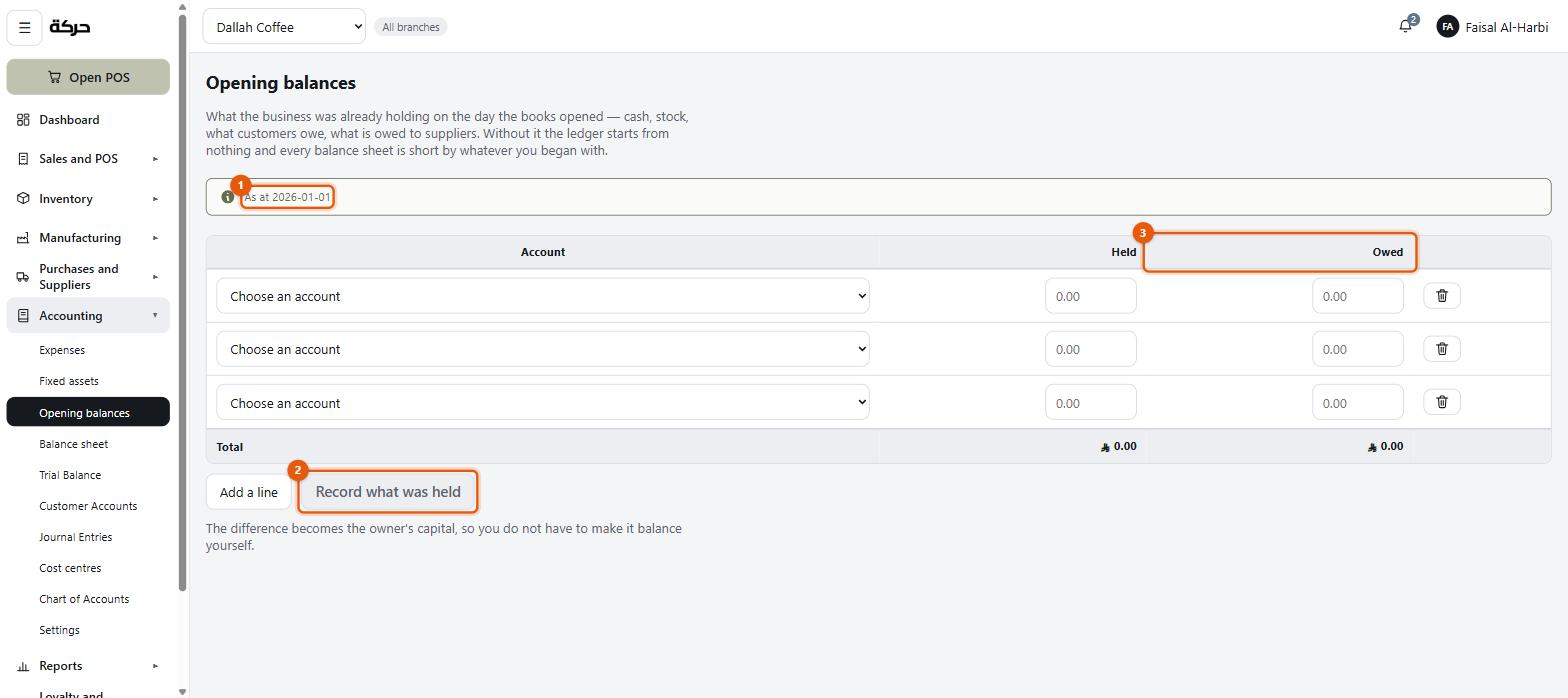
Go to Accounting → Opening balances.
This is what the business was already holding on the day the books opened — cash in the drawer, stock on the shelves, money customers owed you, money you owed suppliers.
Worth knowing: If you are a brand-new business with nothing, skip this. Opening balances are for a business that existed before HarakahTec did.
How it works
The screen is a list of lines. Each line is an account, where it was held, and an amount in one of two columns:
- Held — an asset. Cash, stock, money owed to you.
- Owed — a liability. Money you owe.
Press Add a line, choose an account, say Where, type the amount. Repeat.
Where is one of your branches or The business itself, and every line needs one: cash is a shop's; a bank account, a loan and the owner's capital are the business's. It is what puts each opening figure under the right branch and cost centre. Record what was held stays switched off until every line has been placed.
You do not have to make it balance
This is the part that surprises people who have done this elsewhere. As you type, the screen shows a running line:
The difference, SAR 84,200.00, becomes the owner's capital.
Whatever the two columns do not account for is posted as the owner's stake in the business, which is what it actually is. If the business owes more than it holds, that comes off the capital instead, and the screen says so.
So you enter what you know and the arithmetic takes care of itself.
Correcting them
Once recorded, the screen shows the figures read-only: Opening balances were recorded on {date}. These are the figures every balance sheet starts from.
If they are wrong, press Correct the opening balances, change the lines and record again. The new figures replace the old — the old entry is reversed rather than edited, so the audit trail shows both. Recording the same figures a second time is refused: Nothing has changed from what is recorded.
Careful: Opening balances can only be recorded once the books are open. The screen will tell you to do that first — an opening balance is what was held on the day they open, so there has to be a day.
#Step 5 — Payroll posting
Back on Accounting → Settings, under Payroll in the books.
Closing a payroll month can write the wage cost into the ledger. This setting decides whether it does, and from which month.
- Left off, payroll does not reach the ledger at all. Wages are missing from the profit and loss, which will make your costs look far too low.
- Set to a month, every month from that one onwards posts automatically when it is closed.
Choose the first month you will actually run payroll for in HarakahTec.
The screen gives the rule that matters if you are moving from something else: if you have been entering salaries by hand as an expense, choose the month after your last manual entry so no month is counted twice.
Careful: Once a month has posted, this cannot be moved. Moving it would either post a month twice or leave one out. Set it before you close your first payroll run, not after.
#Closing the books
The same screen carries Stop posting, and it is worth knowing it exists even though you will not use it for years.
Stopping posting means: the shop works exactly as it does now — tills sell, invoices print, stock moves — but nothing new reaches the ledger. What is posted already stands.
It exists for the end of a relationship with an accountant, or a migration away. It is not a month-end close and it is not something to do at the end of a busy day.
#How to check it worked
After your first real sale, go to Accounting → Journal Entries. You should see an entry for it, posted automatically, naming the cashier.
If you see Nothing has posted yet, the books are not open, or the sale happened before the start date. Go back to step 1.
Worth knowing: A posted entry is never edited or deleted. A correction is its mirror — an equal and opposite entry — so the original and the fix both stay visible. That is why the screen offers Reverse it rather than an edit button. Section 22 covers reading and reversing entries.
#What to do next
The foundations are done. Section 7 starts the catalog, beginning with units of measure — which have to exist before a product can reference them.