
Step 27 · Part 7 — Selling, reporting, going live
Reports, VAT and what ZATCA gets automatically
The dashboard and nine reports, the VAT return and its self-check, the zakat base, and the compliance that happens without you.
Applies to: Everyone. The VAT report has a deadline attached to it.
Everything HarakahTec records comes back out here.
The Reports menu holds nine reports: Sales, Delivery Platforms, Card Payout (only once it is switched on), Purchases, Inventory, Profitability, By cost centre, Tax and Zakat. The dashboard comes first.
#The dashboard
The first screen after signing in, and the one most owners spend most of their time on. It is not a summary page bolted on — it is ten panels that between them answer the questions you would otherwise open ten reports for.
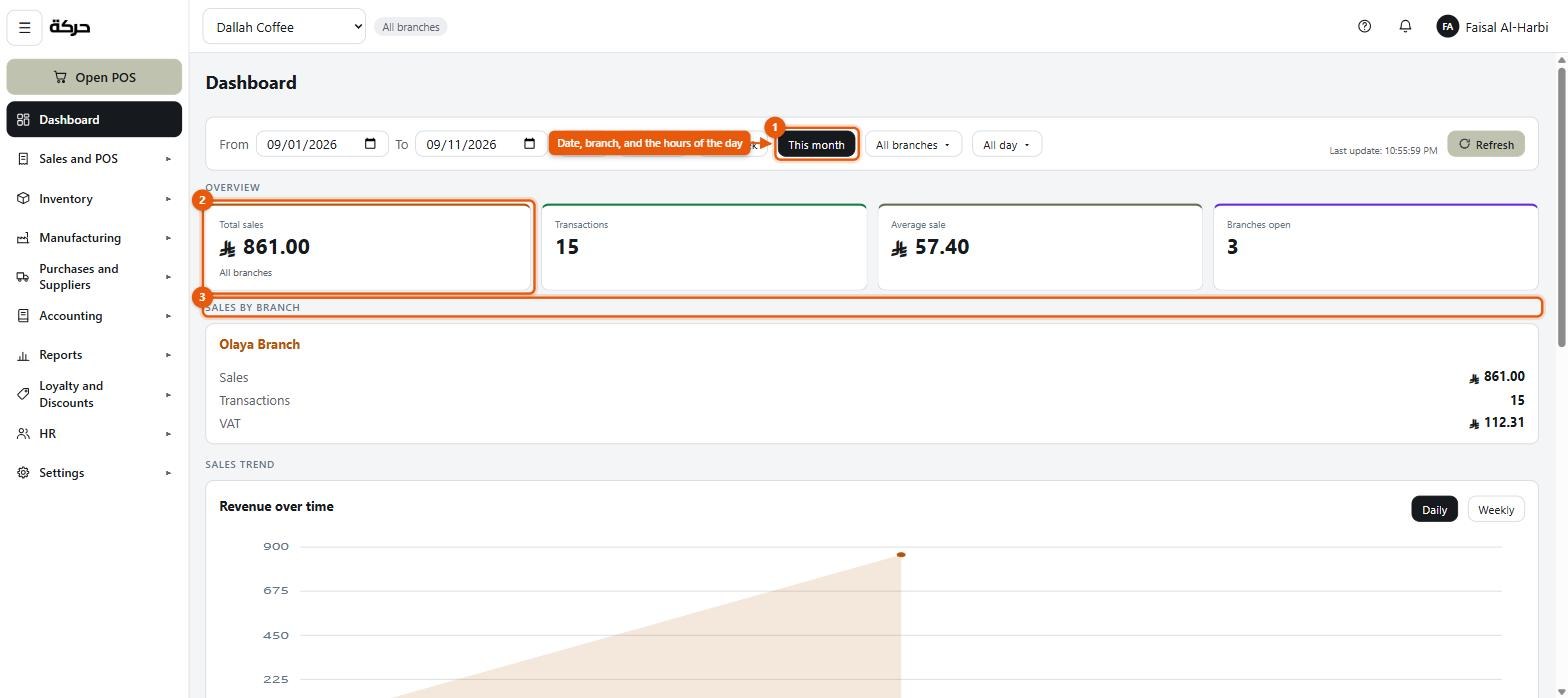
Across the top, four figures: Total sales, Transactions, Average sale and Branches open.
Then the panels:
| Panel | What it answers |
|---|---|
| Sales by branch | Which shop is carrying the day, with the VAT inside each figure |
| Sales trend | Revenue over time, Daily or Weekly |
| Top products | What is actually selling, by quantity and revenue |
| Payment methods | How the money arrived, and how many payments of each |
| Cash balances | What each open drawer holds right now, and the total |
| Tax summary (VAT) | Net sales before VAT, VAT collected, VAT on purchases, and VAT to pay |
| Inventory | Products, out of stock, low stock, and stock value |
| Running out | The products at or below their reorder level, with what is on hand |
| Pending bills | Supplier invoices, split into Overdue and Upcoming |
| Profit summary | Total revenue, total expenses, net profit and the margin |
The filters are the part people miss
Where narrows to All branches or named ones — and only shops are listed, because a warehouse or a kitchen cannot ring a sale. The date filter offers Today, Yesterday, This week and This month.
And there is a filter most dashboards do not have: All day, Mornings, Evenings, or Between these hours. That is what lets you ask is the evening shift actually worth staffing? — a question a daily total cannot answer.
Refresh re-reads everything, and the panel says Last update with the time, so you know whether you are looking at a figure from an hour ago.
Worth knowing: The dashboard is the one screen that is genuinely useful before anything else is set up. The moment sales are being rung, it has something to say — which makes it the right screen to leave open on the office monitor.
#Sales
Reports → Sales. What sold, when, through which till and by whom — and what it came to.
The controls across the top:
- Period — Yesterday, Today, This week, This month (the default), Last 3 months or Custom range, with From and To.
- Time of day — All day (24 hours), Morning (00:00–12:00) or Evening (12:00–24:00).
- Payment state — Paid only (the default), All sales, or Only what is still owed for sales put on a customer's tab.
- Show table by — Day, Day of the week, Branch, Cashier, Category, Product or Payment method.
- Include cancelled sales — off by default. Turn it on only when you are specifically looking for what was cancelled.
Below them, pick-lists narrow it further: Days of the week, Branches, Cashier, Customers, Category, Product — saleable only and Payment.
Two notes the screen makes, and both matter:
- Shown by Payment method, the rows cover whole sales — a payment cannot be split across the products in a basket. Every other figure covers only the filtered products.
- Shown by Category, a product in more than one POS category is counted under each, so the rows add to more than the totals above them.
What delivery platforms kept as commission is not here — it is in Delivery Platforms, next.
#Delivery platforms
Reports → Delivery Platforms. What each platform sold, what it kept as commission and delivery, and what is left for it to remit. This is where delivery commission lives.
Per platform: orders, what was taken, the commission, the delivery charge, the total taken, the reclaimable VAT on it, and what is left to remit to you.
Careful: If you see Some of this period's fee was recorded before the commission and the delivery charge were split, older orders in the range were recorded before that split existed. The total is right; the breakdown is incomplete for those.
#Card payout
Reports → Card Payout — only if switched on for the business unit (section 12).
This answers the question card-taking businesses actually care about: the machines batched SAR 8,400 — why did the bank pay SAR 8,253?
It shows what the machines batched, the acquirer's cut, the fee excluding VAT, and what is expected in the bank. You then Agree each batch against your bank statement.
Two things it tells you honestly:
- No machine is registered for this terminal number, so there is no contract to work the fee out from — register it (section 13).
- Terminal and host disagree — the machine's own two figures do not match, which is a question for your acquirer.
#Purchases, Inventory, Profitability
Purchases — what you bought, shown by Day, Supplier, Branch or Product. Only received invoices count unless you tick Include unposted invoices; Only what is still owed narrows it to unpaid ones.
Inventory — a cost-change report: every receipt that moved a product's cost, with the Cost before, the Cost after and the change, and on whose invoice. Filter by supplier and product, and by At least (%) to see only the bigger moves. For what is on the shelves, use Inventory → Stock Report (section 19).
Profitability — the profit and loss: revenue, cost of sales, gross profit, expenses, net profit, each with its margin as a percentage of revenue. It can be narrowed to a branch or to one Cost centre; narrowed to a cost centre it shows one part of the business, and anything recorded without a cost centre is left out — the screen warns you.
Worth knowing: A sale with no known cost adds nothing to cost of sales rather than counting as free profit. If your gross margin looks impossibly good, that is the first thing to check — products without costs (section 9).
If the report is empty, it tells you which of the two reasons applies: either the books are not open — Accounting → Settings — or nothing was sold or spent in this period.
#By cost centre
Reports → By cost centre. Each part of the business side by side: what it earned, what it cost, and what is left.
One row per cost centre (section 6), with Revenue, Cost of goods, Wages, Other costs and the Result. A line Not assigned to any cost centre carries whatever was recorded at a place that has no cost centre yet, or with none chosen, and the Total is the whole company's for the period — the same figures the profit and loss shows.
Worth knowing: A large unassigned line usually means a branch with no cost centre set. Branches do not borrow the business unit's centre — set one on each under Settings → Business unit.
#The VAT return
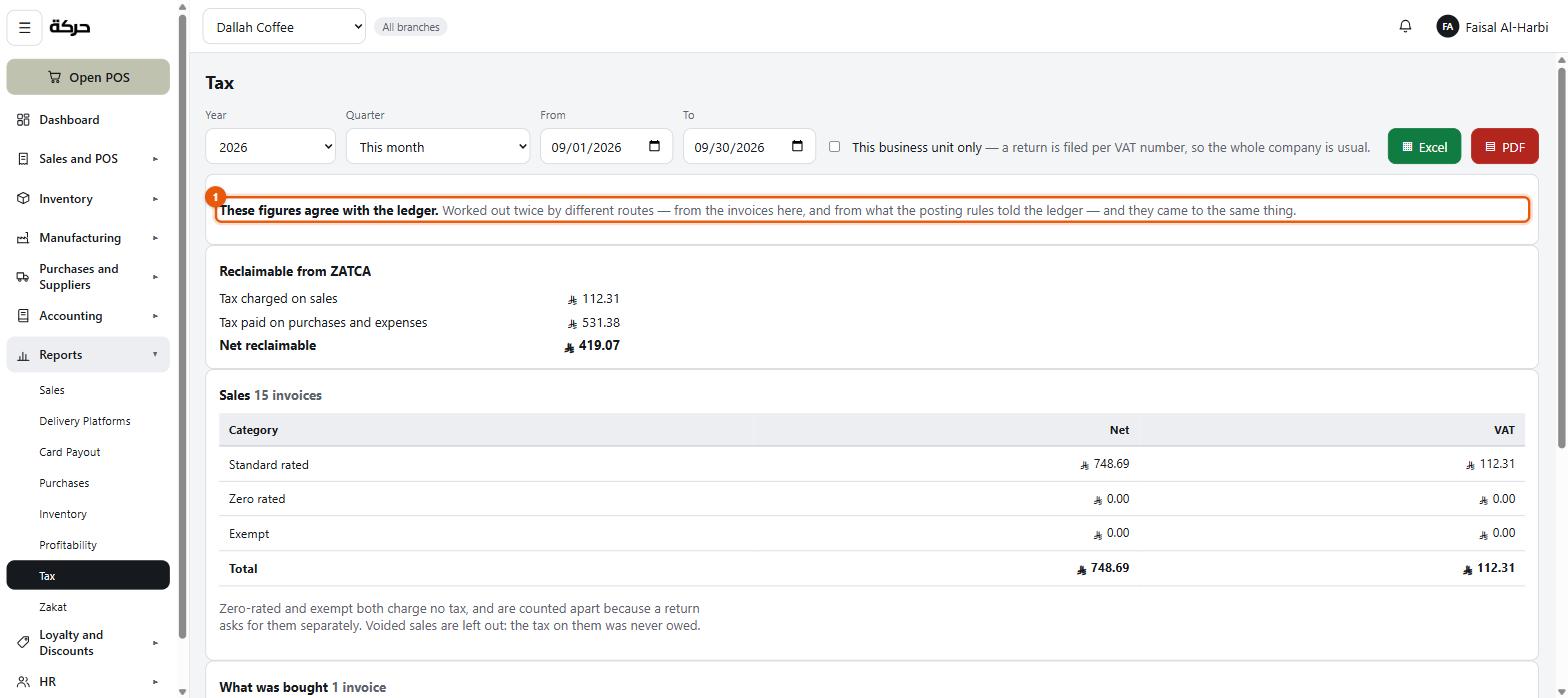
Reports → Tax. The most important report in the system, because something gets filed from it.
The period
This month, a quarter (the four are named), or the whole year.
This business unit only is available but a return is filed per VAT number, so the whole company is usual.
What was sold
- Standard rated — the normal rate
- Zero rated
- Exempt
Zero-rated and exempt both charge no tax and are counted apart because a return asks for them separately.
- Tax charged on sales — your output tax
What was bought
- Expenses carrying VAT
- VAT on card processing fees
- VAT on delivery commission
- Tax paid on purchases and expenses — your input tax
Only received invoices count; drafts are not counted. And expenses that carried no VAT are left out, not counted as zero — the screen says how many.
Net due
Due to ZATCA, or Reclaimable from ZATCA, or Nothing due.
The self-check
This is the feature worth understanding. At the top, one of two banners:
These figures agree with the ledger. Worked out twice by different routes — from the invoices here, and from what actually posted.
or
These figures do not agree with the ledger. Charged is out by SAR 42.00, paid by SAR 0.00. Find out why before filing from this.
The report computes the same numbers two independent ways and compares them. Agreement is real evidence. Disagreement is a stop sign.
Careful: The screen is explicit that this is a help with preparing a return, not a return. It reads what was recorded. HarakahTec does not file anything, and it cannot know about anything that never reached it.
#Zakat
Reports → Zakat assembles the figures a zakat calculation starts from.
As at a date — a zakat base is a snapshot on one day, not a total over a period.
It shows what is held, what is owed, and the base (held less owed).
What it deliberately does not do
The screen is careful, and so should you be:
These are the figures a zakat calculation is worked out from — not an amount of zakat.
The rate is not applied. Apply the one your situation calls for.
And it lists what this does not include, because a base that looks complete is how a wrong return gets filed:
- Property, fittings and equipment — held for use rather than for trade
- Investments and holdings outside this business
- Loans and financing, including anything not falling due within the year
- What the owners have taken out or put in
- The lunar year — these dates are the calendar the books are kept in
Take this to whoever prepares your zakat. It is a starting point, not an answer.
#ZATCA — what happens automatically
You do not configure this. There is no connection to set up and no screen to visit. It happens on every sale.
What Harakah does for you
A QR code on every receipt. Scannable proof of the invoice, in the form ZATCA requires, carrying the seller, the VAT number, the timestamp, the total and the tax.
A sequential invoice counter per device. Every till keeps its own unbroken, never-reused sequence of invoice numbers. Gaps are what an auditor looks for, and there are none.
A chained hash. Each invoice carries a cryptographic link to the one before it on that device, so the sequence cannot be quietly rewritten after the fact. If a till's chain is stale — for instance after an offline spell — the server detects it rather than accepting the sale blindly.
The required fields. Seller name, VAT number, the timestamp, the line detail, the tax charged and the totals — in Arabic and English where both exist.
A simplified tax invoice for a person, a standard one for a company. A company customer needs their VAT number, registration and address, which is why the customer types differ (section 21).
What it does not do
Being straight about this matters more than sounding complete.
Careful: Harakah generates compliant invoices. It does not connect to ZATCA's systems to clear or report them. There is no onboarding, no certificate exchange and no live clearance in the product today. The ZATCA Connection entry you may see in the settings sidebar is a placeholder for that work, not a screen.
If your business is in a phase or a category that requires integration, that is a conversation to have with whoever supplies your software before you go live.
What you must get right
The compliance is only as good as what you typed in section 3:
- The VAT number must be your real one, fifteen digits beginning with 3.
- The company name must match your VAT certificate.
- The address must be your registered one.
- The QR code must be left switched on in the receipt design (section 17).
- The VAT rate must be current (section 3).
#Exporting
Most reports export to Excel and PDF. Numbers stay numbers in the spreadsheet — they are not written as "12.00 SAR" — so a column can be summed on arrival rather than cleaned up first.
#What to do next
Section 28 is the go-live checklist.