
Step 26 · Part 7 — Selling, reporting, going live
Working the till
A cashier's whole day — signing in, opening a shift, selling, taking money, refunds, waste, the drawer, going offline, and closing.
Applies to: Every cashier, and every owner who wants to know what their staff are looking at.
This is the section to print out and leave by the counter. It follows a cashier's day in order.
Stop: Before the first sale ever rung on this system, check the books are open. Go to Accounting → Settings; it should read Open since {date}, dated on or before today.
The till sells perfectly well without it. Nothing warns the cashier, the receipt is correct, the stock moves and the money is counted — and not one of those sales reaches the accounts. Opening the books afterwards does not go back for them, so the VAT return is short by everything sold first.
This is the one thing on this page that cannot be fixed later by pressing a button. Section 6 is the five minutes that prevents it.
#Signing in and choosing a register
Sign in with your email and password.
If your account is asked for a Sign-in code, a six-digit code is sent to your mobile by text message, and the screen says where it went: Sent to {where}. It expires in 5 minutes. Type it in. Send another code asks for a fresh one after a short wait, and Send it by email instead sends it to your email address. If the text message cannot be sent, the code goes by email and the screen tells you so.
Where it is offered, tick Don't ask again on this device for {days} days and this till stops asking you for a code for that long. It spares only you: the next person who signs in on the same till is still asked for theirs. An account that uses an authenticator app is also asked for its Two-factor code.
You stay signed in on the till until you sign out — shift after shift. Then Choose a register.
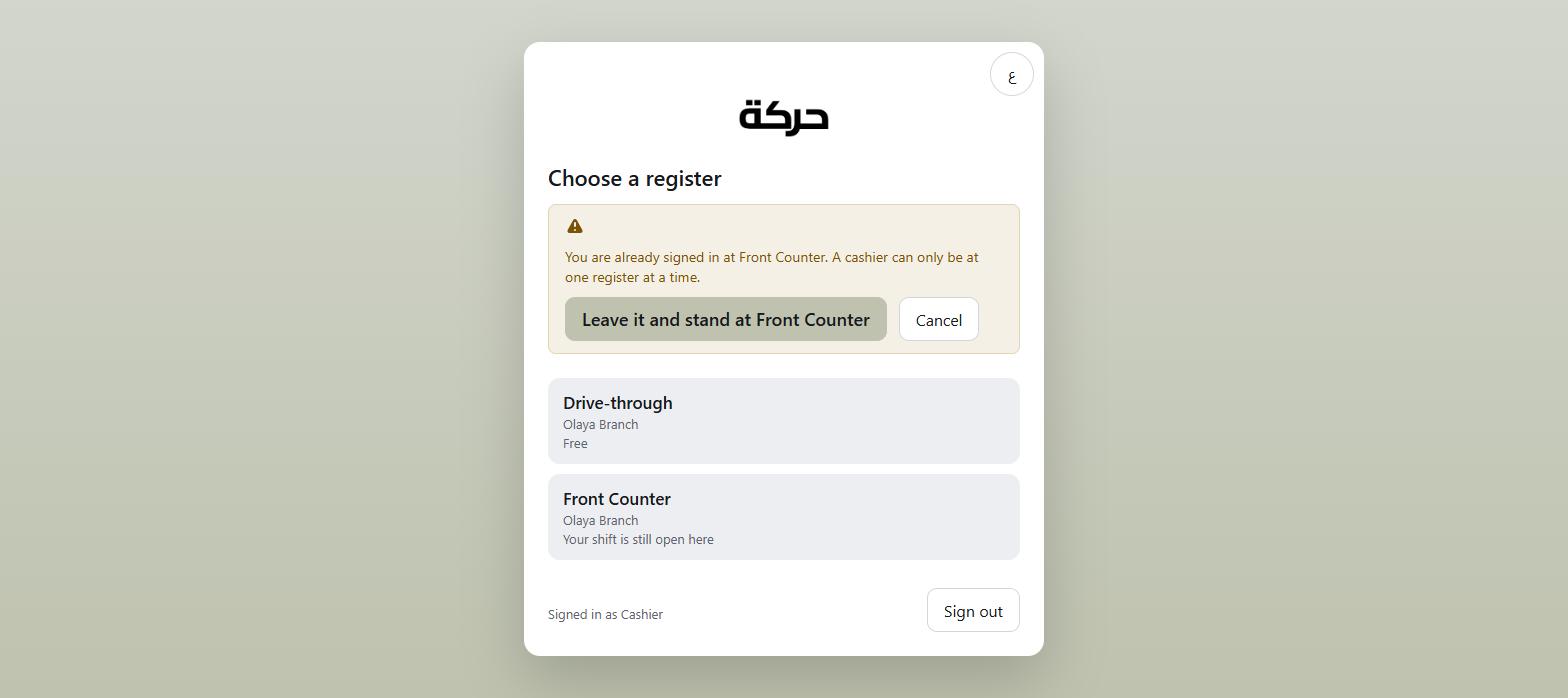
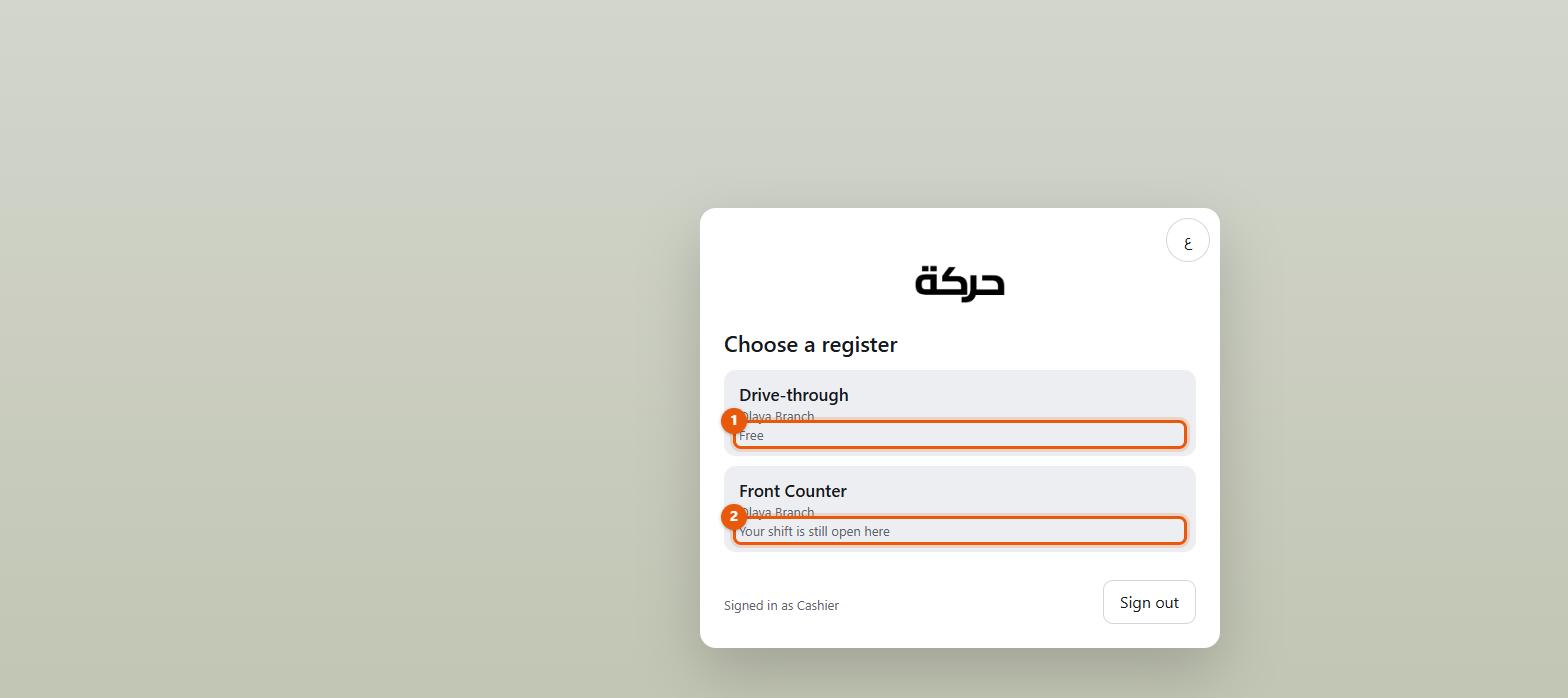
The list shows the tills at your branch that are switched on and open to you:
- Free — nobody is at it
- Free · takes table numbers — a dine-in till; you pick a table for each order
- In use since 09:14 — somebody else is signed in
- Your shift is still open here — come back to it
If somebody else is at the register you need, you can Sign them out and stand here — which ends their session on that device.
Worth knowing: A cashier can only be at one register at a time. If you are already signed in somewhere else the screen says so and offers to move you — Leave it and stand at Front Counter.
If nothing is available, the screen explains: A till has to be switched on at your branch, and assigned to you if it names anybody. That is a job for a manager, not something you can fix from here.
#Opening the shift
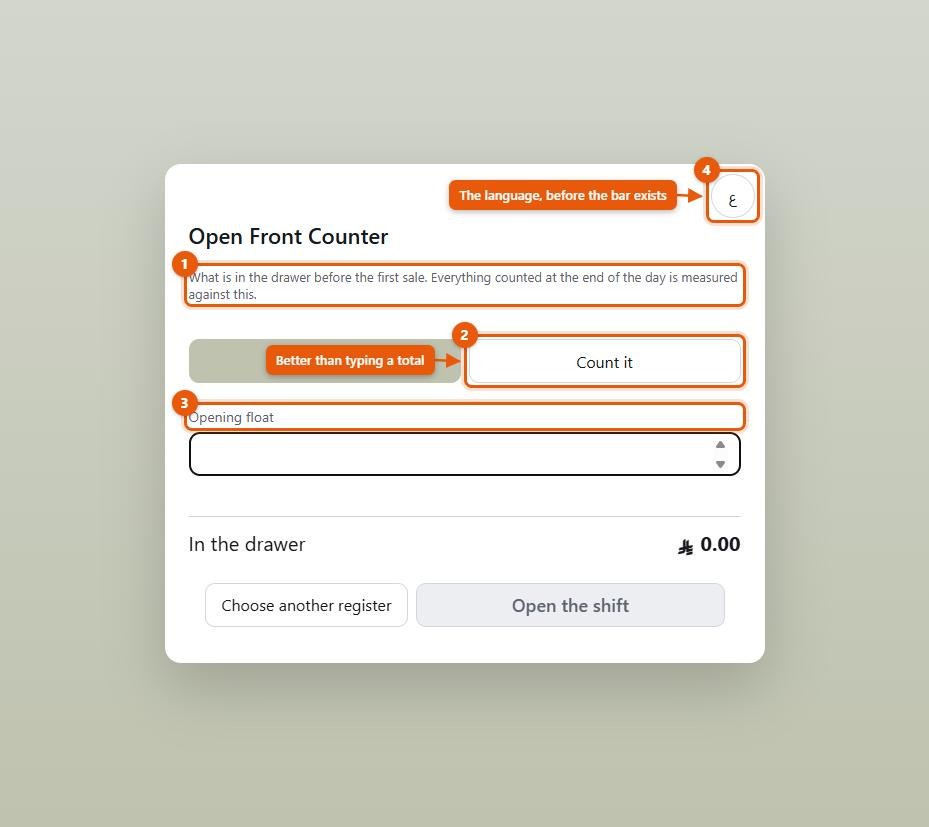
You cannot sell until a shift is open, and a shift opens by counting the cash you were given.
Two ways:
- Type the total in Opening float.
- Count it — tap the icon in the Opening float field to open Count the drawer, enter how many of each note and coin you have, and press Use this count. The screen adds them up, and the field then reads From your count — tap the icon to change it.
Counting is better. The drawer is the one figure you will be held to at the end of the day, and a float typed as "300" that was actually 280 is a shortfall you will be asked about eight hours later.
Worth knowing: Opening a shift posts nothing to the accounts. Moving the float from the safe to the drawer does not change what the business holds. The books hear about the drawer when money moves and again when it closes.
#Selling
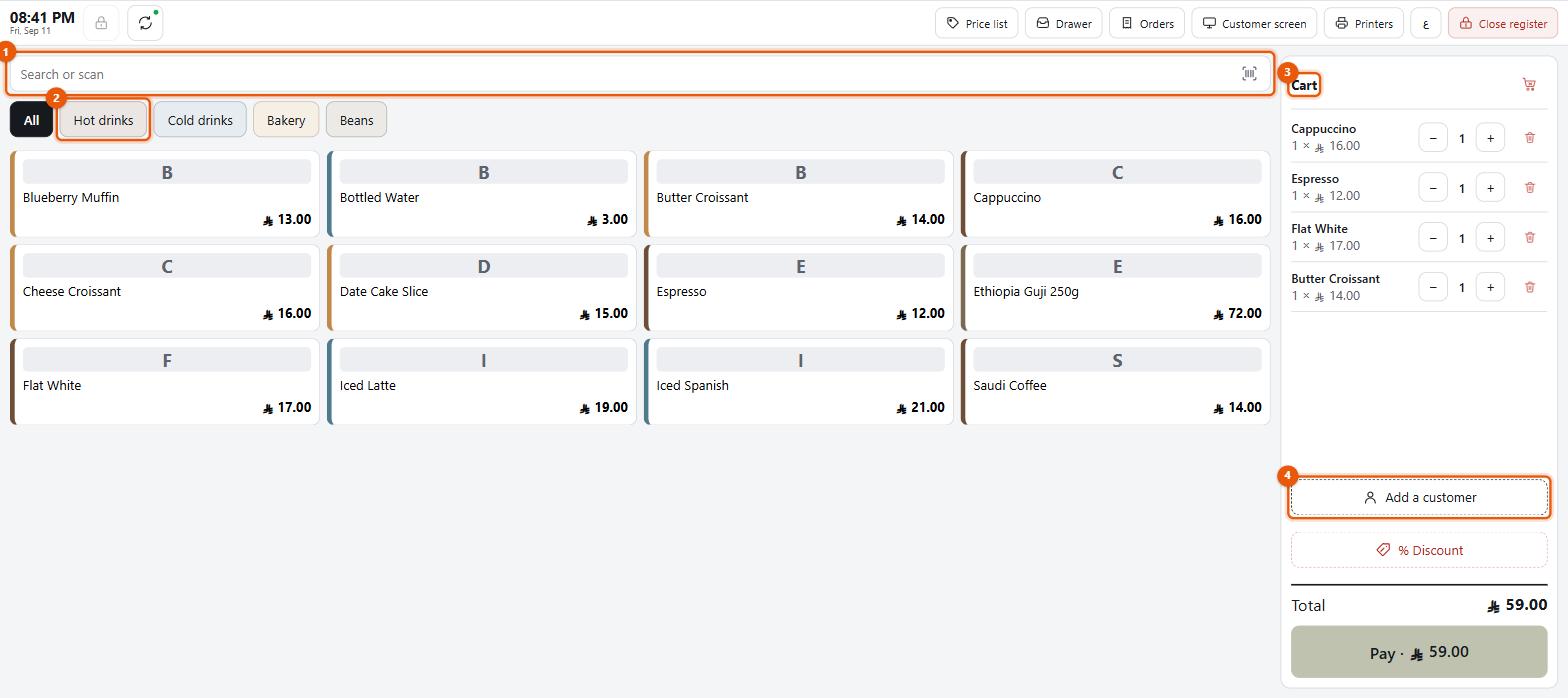
Four ways to put something in the cart:
- Tap it on the grid.
- Scan its barcode. The scanner types the code and presses Enter; the product lands in the cart.
- Search by name or code.
- Tap a category tab first to narrow the grid.
If a scan finds nothing the till says No product has that barcode rather than silently doing nothing.
The gear on a tile
A product that has extras recorded against it (section 9) wears a small gear in the corner of its tile.
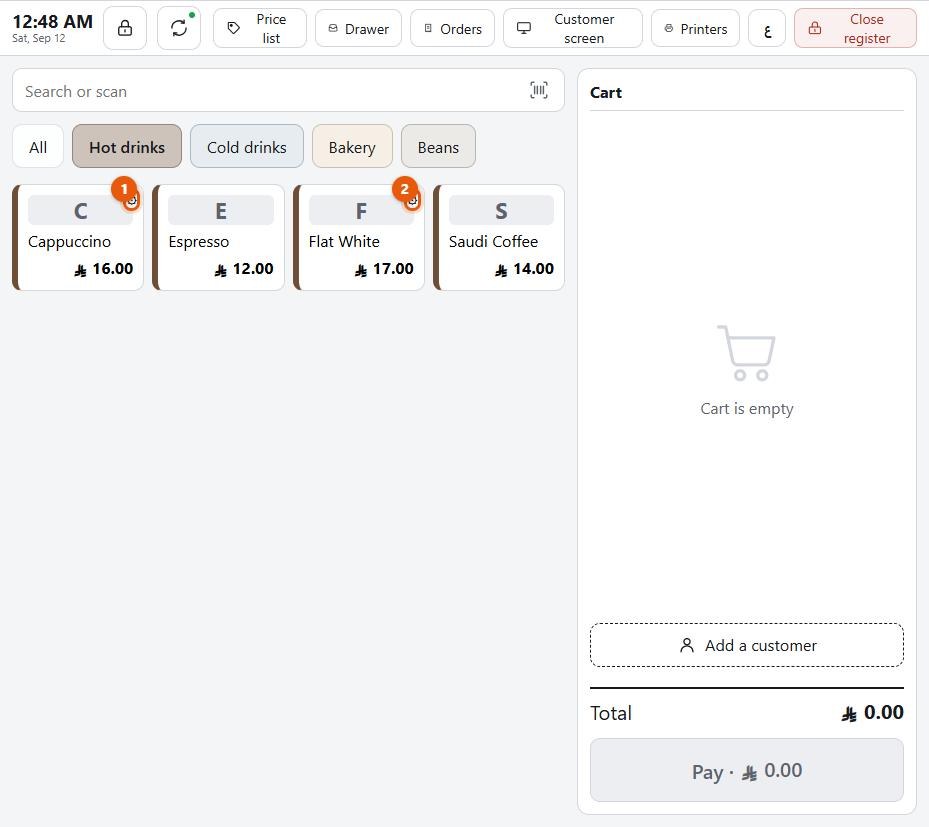
Stop: The gear is the whole feature at the moment. Tapping the tile puts the product in the cart at its own price, as any other tile does — there is no sheet to choose an extra from, and nothing carries one onto a sale line. Until that is built, price a variant as its own product.
The cart
Quantities can be changed, lines removed, and the whole cart emptied.
#Choosing a price list
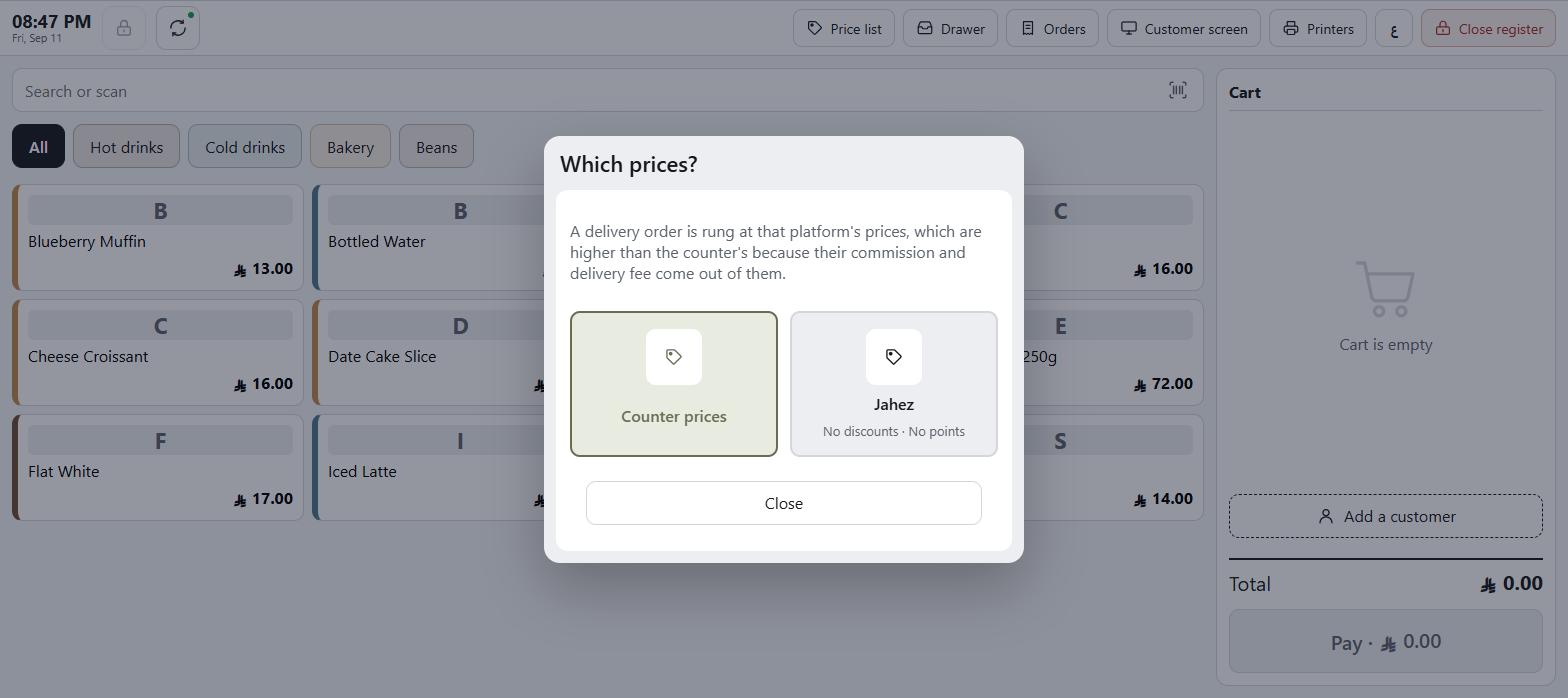
If price lists are set up (section 11), a Price list button offers Counter prices and any list on this till, under the heading Which prices?
Careful: Choosing a price list mid-sale reprices the whole cart. Every line already rung moves to the new list's prices. And what the new list does not allow is taken off as you choose it: a list with No discounts removes the discount on the sale, and a list with No points takes the customer — and any points being spent — off the sale. Decide before you start ringing if you can; if you realise three items in that this is a delivery order, choose the list and check the cart again before taking payment.
Choosing one reprices the grid and the cart immediately and the till shows Ringing at Delivery platform prices. The button also shows what that list does not allow — No discounts, No points — so you know before you try.
#Putting a customer on the sale
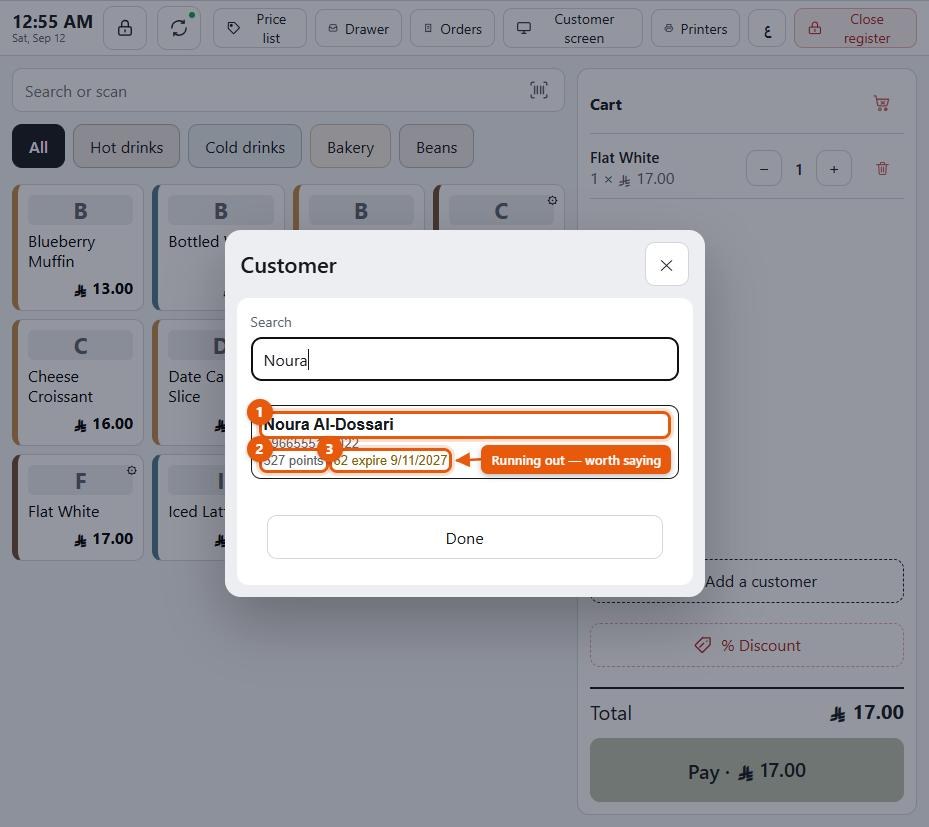
Tap the customer control and search by name or phone.
You can search on the local form of a number — 0551234567 — whatever form it
was entered in.
Each result shows the customer's phone, their points balance, and how many of those points are about to expire with the date — 527 points · 62 expire 9/11/2027 — which is the prompt a cashier needs to say "you have points running out next month."
Once a customer is on the sale you can:
- Use points (below)
- See what they owe, where they owe anything
- Put the sale on their tab
Add a customer creates one on the spot, if your shop allows it (sections 16 and 21).
#Choosing a table
On a till that seats people (section 14), a table chooser sits in the cart, beside the customer. It starts at No table and lists the branch's tables that are in service — Table 7, or Terrace · 7 where the table has an area. Pick the table the order is for before you take payment.
The list is kept in the back office under Sales and POS → Settings → Tables. There is nothing to type, and a table that is not on the list is refused. The table is printed on the invoice, and a refund of that sale keeps the same table.
Worth knowing: A sale rung up offline keeps its table. The one exception is a table retired between the sale and its sync: the sale still goes through, without the table.
#Discounts
Tap % Discount. Choose Percent or Amount, type the figure, and the screen shows what Comes off.
Two guards:
- That is more than the cart is worth — you cannot discount past zero.
- That is over what a cashier may give. A manager can put it through. — you have hit your limit (section 16). The sheet will not apply a discount past it, and there is no manager sign-off on your screen; section 16 explains who may go past the limit.
The screen tells you your ceiling before you start: A cashier may take off at most SAR 30.00. A manager can approve more.
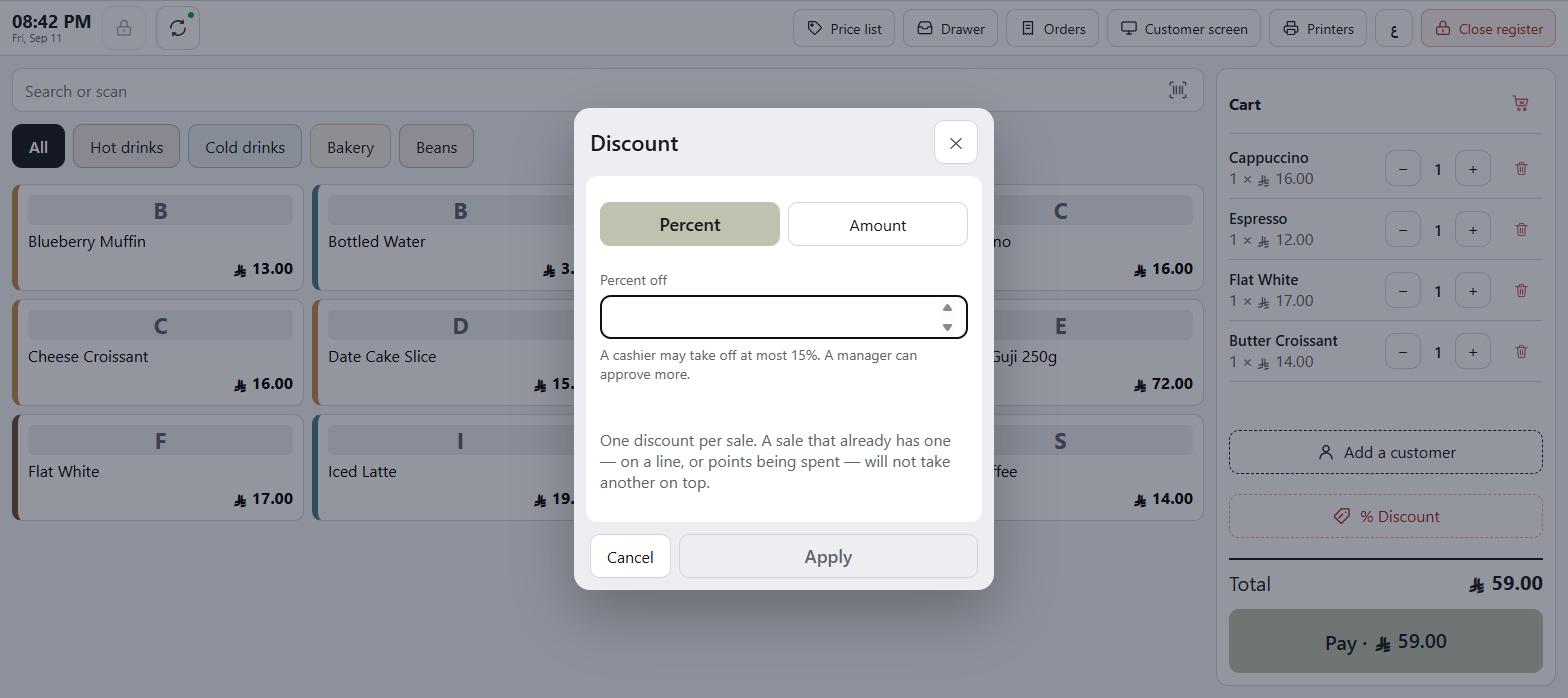
Worth knowing: One discount per sale. If the sale already has one — on a line, from a rule, or from points — a second is refused.
#Redeeming points
With a customer on the sale, tap Use points.
The screen tells you what you are working with:
- 527 points · this bill will take up to SAR 17.00
- Points to spend
- Use all 170 — and note the number. It is not what they hold; it is the most this bill can absorb. A customer with 527 points against a SAR 17 bill is offered 170, because the rest would be a discount with nothing left to discount.
- Takes SAR 15.00 off the bill, updating as you type
Two refusals, both plain:
- That is more than this bill is worth.
- That many points is worth less than a halala.
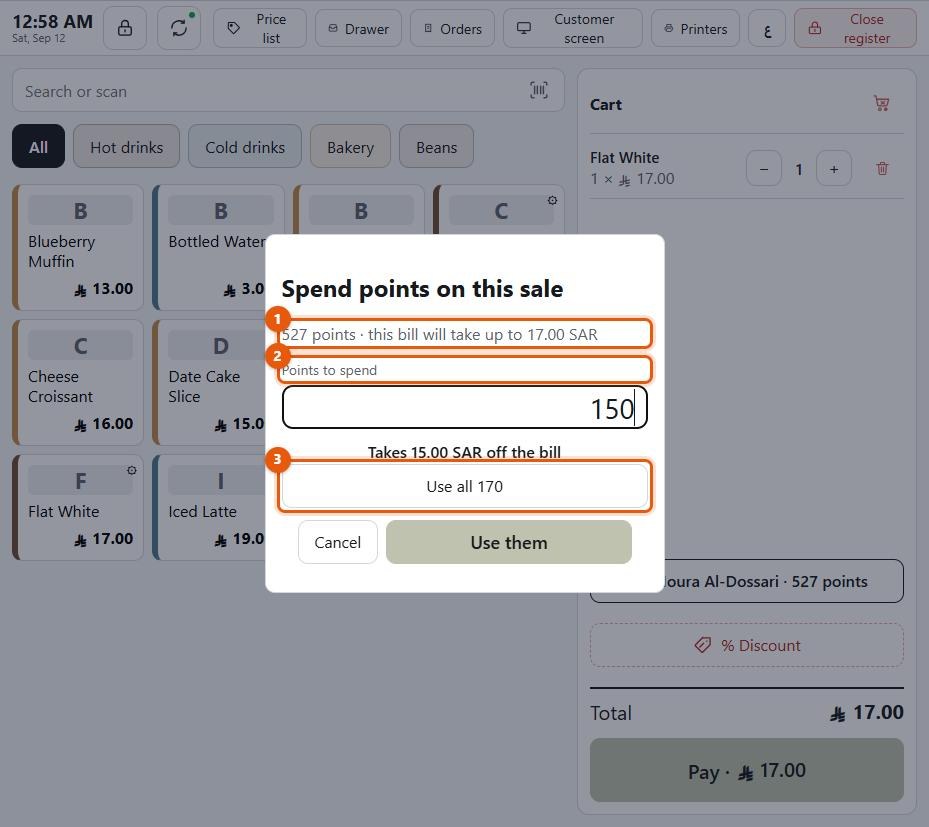
Worth knowing: Points cannot be spent while the till is offline — the balance is checked on the server.
#Taking payment
Tap Pay.
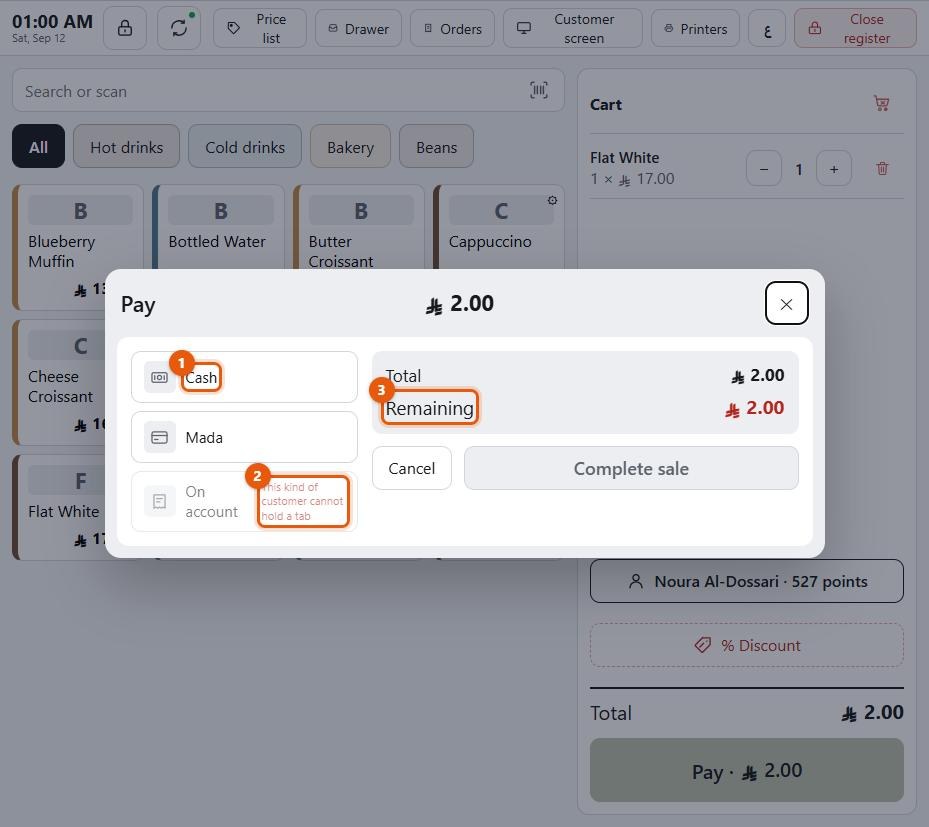
One method
Tap the method, confirm the amount, Complete sale.
Splitting across methods
Tap a second method and give it an amount. The screen keeps a Remaining figure and will not complete until it reaches zero.
Tapping the same method twice tops up its line rather than adding a second one. A line can be taken off and chosen again.
A method marked non-combinable (section 12) refuses to be part of a split, and says so.
Worth knowing: You will not see every payment method here. A method tied to a price list — a delivery platform's, say — is only offered when that list is the one being rung. At counter prices it is simply absent, which is the restriction from section 11 doing its job rather than something missing.
On account
Tap the tab method. Three things have to be true, and the till tells you which one is not:
- Put a customer on the sale first
- This kind of customer cannot hold a tab
- No room left on their account
#After the sale
The Sale complete screen shows what happened: what was paid, with what, the invoice reference, any discount, points spent and earned, the new points balance, and what the customer now owes.
The receipt prints. Print again produces a second copy.
If something was wrong, the sale can be voided from here — the button says Void this sale, and it asks why is it being voided? because somebody has to account for this at close. Voiding puts the stock back and reverses the sale in the books; it is not the same as a refund, which issues a credit note against a sale that stands.
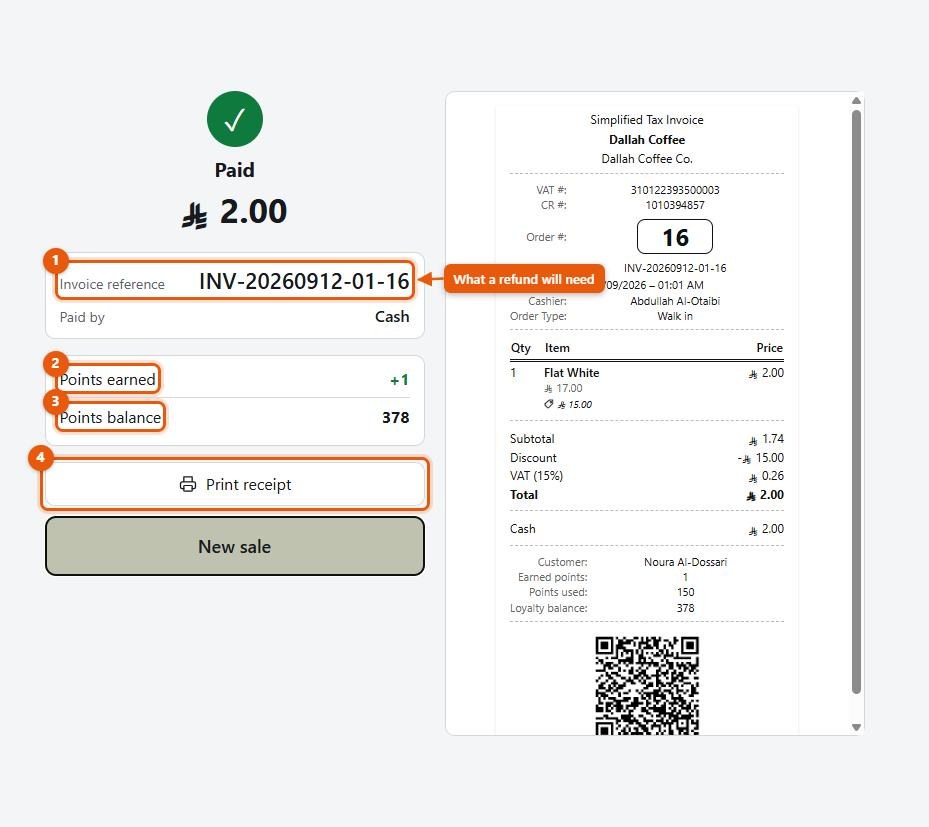
#Logging waste
If your shop allows it (section 16), a Log waste button.
Choose the product, the quantity, and a reason — Expired or Damaged — add a note if you like, and press Write off.
The till will not let you write off more than is on the shelf: Only 4 in stock at this branch.
#Cash in and out of the drawer
Tap Drawer.
Money in needs a note saying what it is — change brought over, a correction. The office records where it came from afterwards (section 23).
Money out needs one of three reasons under What for: Paid a supplier, Owner took cash or Paid a wage (section 23). A supplier payment also asks Who was paid. Money back to a customer is not a cash-out: refund or void the sale instead.
Press Put it in or Take it out and the movement is recorded there and then — nothing waits for a manager: Recorded. The drawer is expected to match this. What the money was for is settled afterwards, in the office. Recording a movement does not open the drawer.
The screen shows what this shift has already moved.
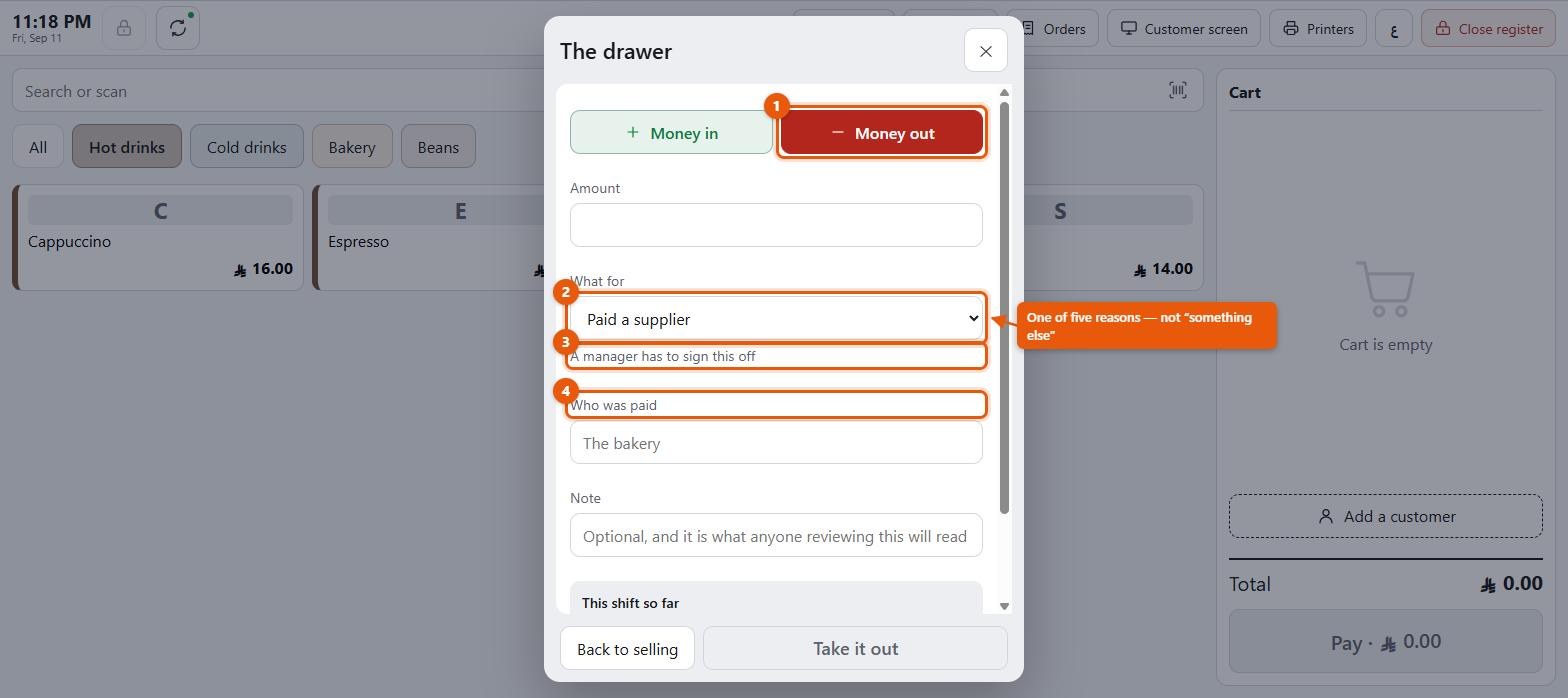
The screen has changed since this picture: money out now has three reasons — a supplier, the owner, a wage — and nothing waits for a manager.
#Orders and refunds
Tap Orders for this session's sales, searchable by invoice number.
From an order you can:
- Print it again — Printed. Tap again for a second copy.
- Return some or all of it
Refunding
Choose the lines and quantities Coming back, and under Give the money back as how the money is being returned. A credit note is issued: Refunded. Credit note #1043 issued.
A full refund returns everything; a partial refund returns what you choose. Stock comes back on the shelf for what was returned, and if the sale was on a tab, what the customer owes goes down.
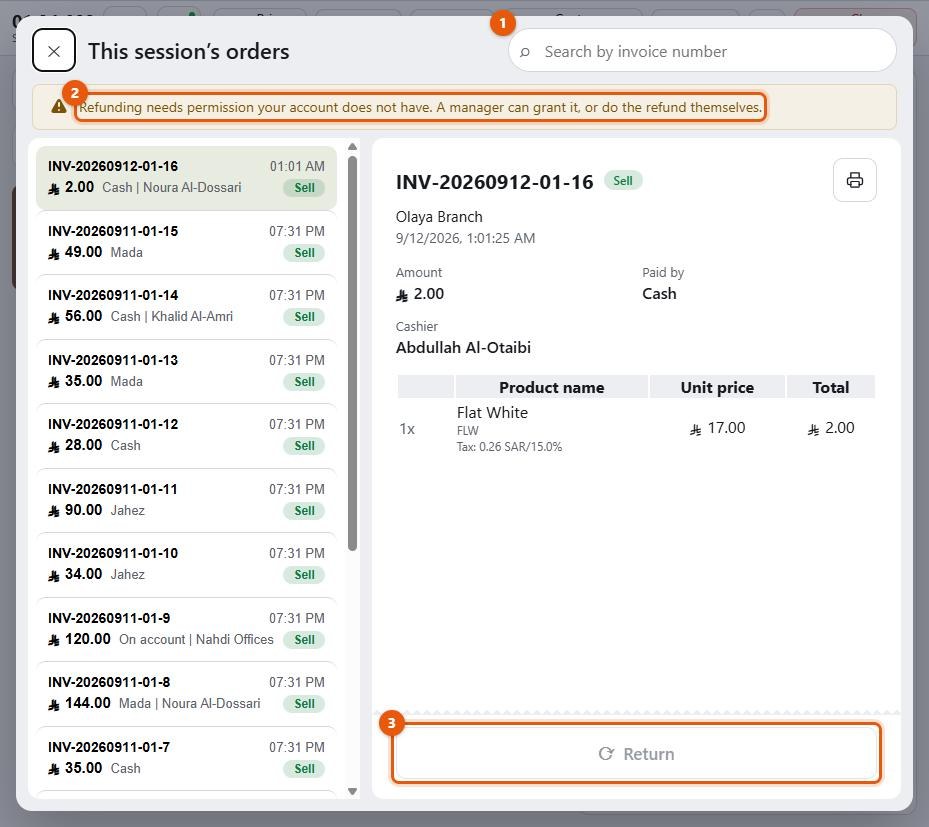
Worth knowing: Refunding is a permission, and most cashiers will not have it. The screen says so rather than hiding the button: Refunding needs permission your account does not have. A manager can grant it, or do the refund themselves. That is the Approve pattern from section 5 in its simplest form — the control is visible so the cashier knows what to ask for, and dead so they cannot use it.
Worth knowing: A sale can be refunded in parts, more than once. Each line shows how many are already returned, and the till lets you send back only what is left — until everything on the sale has come back.
Careful: A card refund has to be done on the card machine as well — this records it, it does not send it. Refund the customer's card on the machine too, or they will not get their money.
#Selling when the network goes
When the connection drops, the till keeps selling. There is nothing to switch on and no till to designate — it is how the app behaves, on every register.
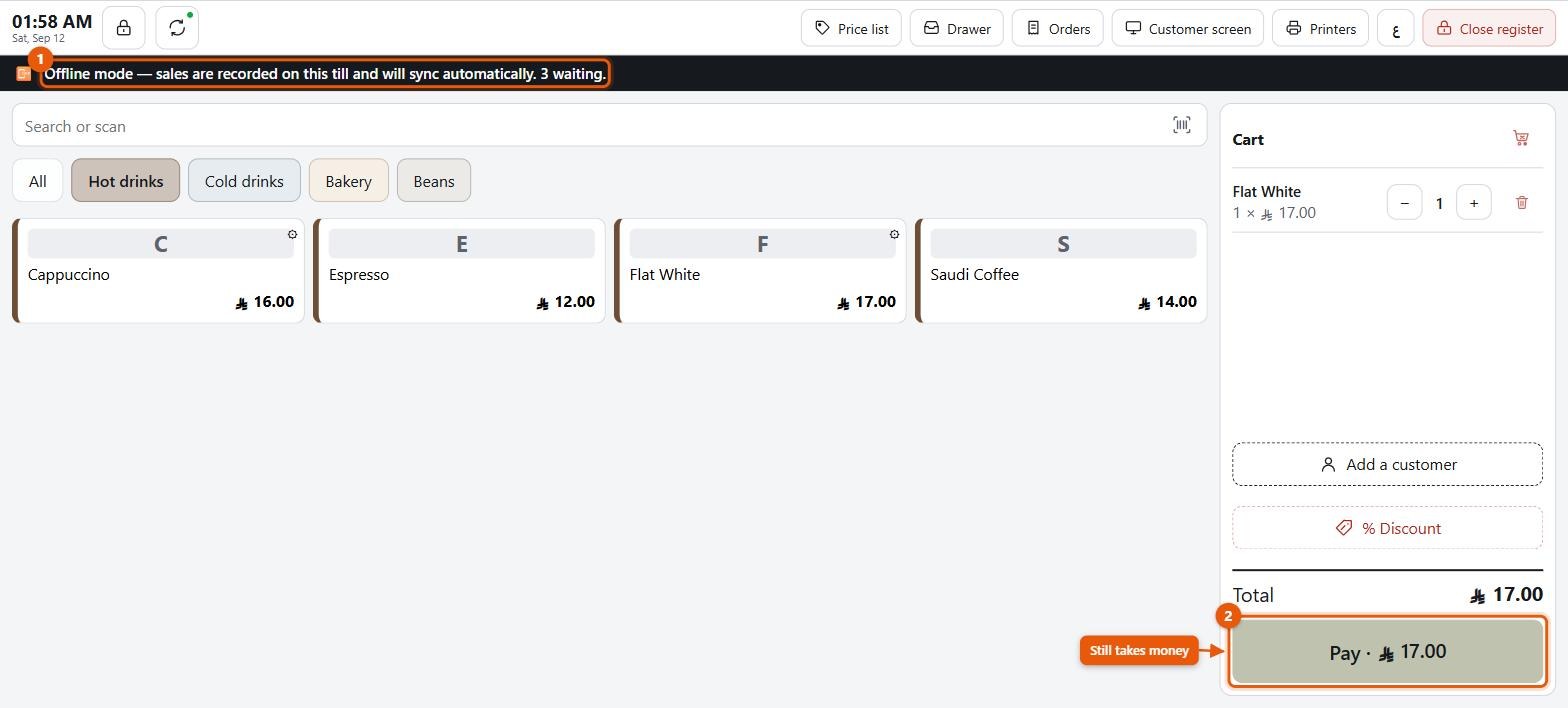
What happens:
- A bar appears: Offline — sales resume in 12s, with Retry now
- Sales are queued and the bar shows 3 waiting
- When the connection returns, the queue syncs and the sales land
What to know:
- Every till sells offline, with its own invoice chain, so two tills at one branch never collide.
- The invoice numbers the till gave are kept, and so is the total on the receipt the customer took away.
- Points cannot be spent until the connection is back.
- Syncing twice does not sell twice. The queue retries on a flaky line, so this happens in earnest and is handled.
- If a sale cannot be synced, the till says it is held for review. Its receipt is already with the customer, and its invoice number does not change.
Careful: Offline selling is tested against a clean disconnection. A real outage is messier — a Wi-Fi point that answers but routes nowhere, a captive portal. Test it on your own network before you rely on it. Section 28 has this on the checklist.
#The screen lock
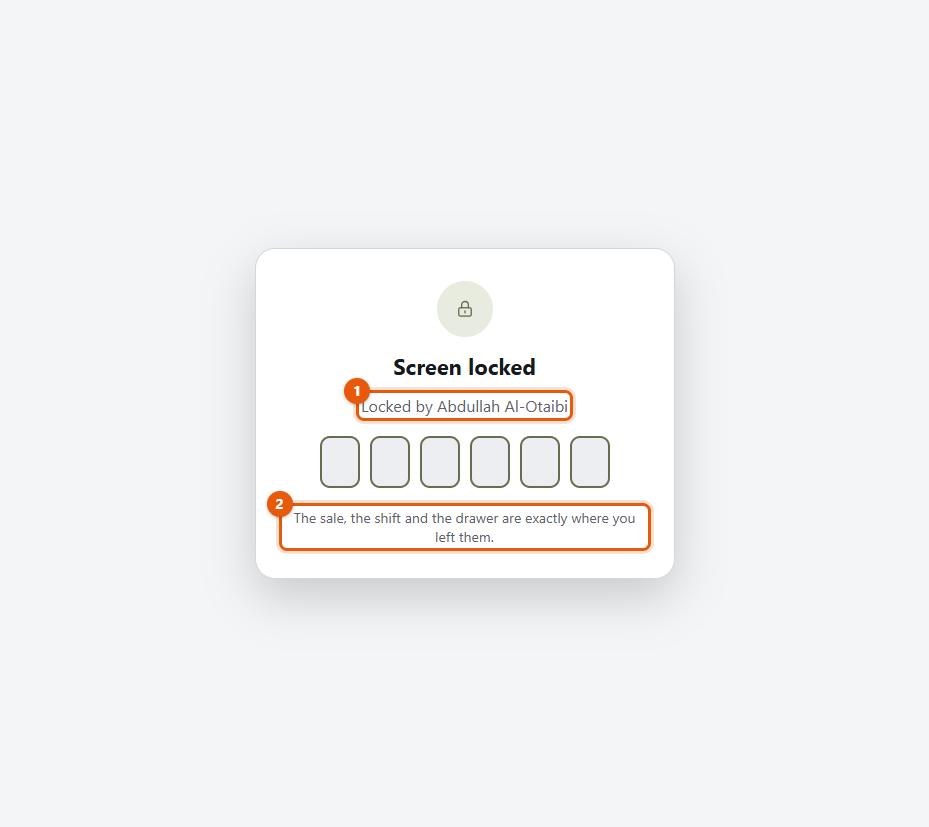
When you step away from the counter, tap Lock the screen on the bar. The till never locks itself — locking is always done by hand. The screen then reads Screen locked, with Locked by {name}.
Unlock with your six-digit screen-lock PIN — not your password. If you do not have one, the lock button is greyed out: No screen-lock PIN is set for this account. A manager can add one under Users.
The lock does not sign you out: The sale, the shift and the drawer are exactly where you left them. The PIN is checked by the server, so a till that has lost its connection cannot be unlocked until the connection is back.
#Closing the register
Tap Close register on the bar.
1. Count the cash
Enter what is in the drawer — typed, or counted note by note from the icon in the field.
2. The card total
Depending on your settings (section 12), one or both of:
- Count — type the Card machine total from the machine's own printout
- Scan — scan the Settlement slip, the machine's own figure
Scanning reads the batch and shows the machine and the total. A batch can be removed if it was scanned in error, and the same batch cannot be recorded twice. If your shop is set to accept the scanned slip only, no typed card figure is offered.
If the machine and the till disagree, the till says so — The machine and the till differ by {amount}. Say which is right before closing.
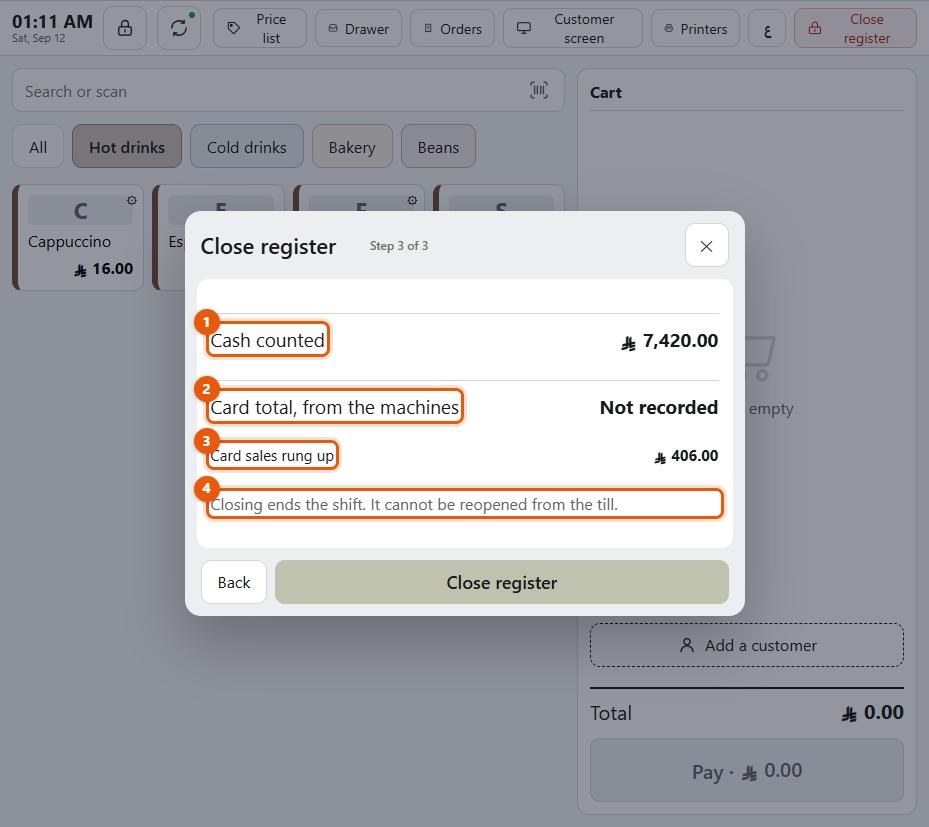
3. Review and close
The review step shows:
- Cash counted
- Card total or Card total, from the machines — or Not recorded
- The difference between what the drawer holds and what it should
A difference within your shop's threshold closes without fuss. A larger one may need a manager's review.
Careful: Closing ends the shift. It cannot be reopened from the till.
The closing report
If it is switched on (section 17), the slip prints: the session's times, its orders, what each payment method took, the cash detail, the card detail, and what was written off.
If your shop sends the closing report to Telegram as well (section 17), it goes there as the shift closes. If it does not arrive, the screen says The closing report did not reach Telegram. The shift is closed either way.
New session starts the next shift.
Worth knowing: What should be in the drawer is the float, plus cash takings, plus cash put in, less cash taken out. Card takings are not in it — they went to the bank. A close that expected the card money in the drawer would be asking you to hand over money the shop never had.
#What to do next
Section 27 covers the reports that read everything this section produced.