
Step 10 · Part 3 — The catalog
Importing a catalog from a spreadsheet
Get a few hundred products in at once, see exactly what will be skipped before anything is written, and fix it.
Applies to: Anybody moving from another system, or from a spreadsheet. Skip it if you have twenty products.
Typing four hundred products into a form is not a reasonable way to spend a week. If your catalog already exists somewhere — an old system, a spreadsheet, a supplier's price list — import it.
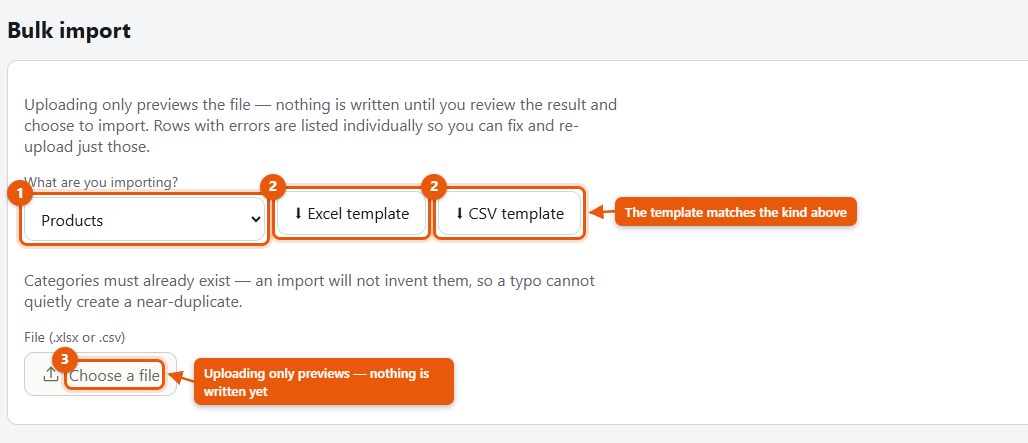
Go to Settings → Import.
Careful: Importing requires permission to create products. If the screen tells you that, your role is the reason — see section 5.
#The four steps
1. Choose what you are importing
The screen asks What are you importing? There are three kinds: Products, Categories & subcategories and Customers. Each has its own template, because each has its own columns.
2. Download the template
Take the template for the kind you chose. It arrives as a spreadsheet with the right column headings already in place.
Use it. Building your own file with columns in a different order is the single most common reason an import does not work.
3. Fill it in
A few rules that will save you a second attempt:
- Categories must already exist. An import will not invent them. This is deliberate: it means a typo in a category name cannot quietly create a second category called Bakey.
- Codes must be unique within the business unit.
- One file can hold both kinds of customer — put
personorcompanyin the type column. A company needs its VAT number, registration, city and country; the preview says which rows are short. - Leave a cell blank rather than writing
N/Aor-. Blank means "not given";N/Ais a value.
4. Upload, and read what it says
Choose the file — File (.xlsx or .csv) — and upload it.
Nothing is written yet. The screen says so plainly — Uploading only previews the file — nothing is written until you review the result and choose to import. What you get back is a report:
- N rows read — what was in the file
- N rows ready to import — what will go in
- Rows that will be skipped — a table of Line, Problem
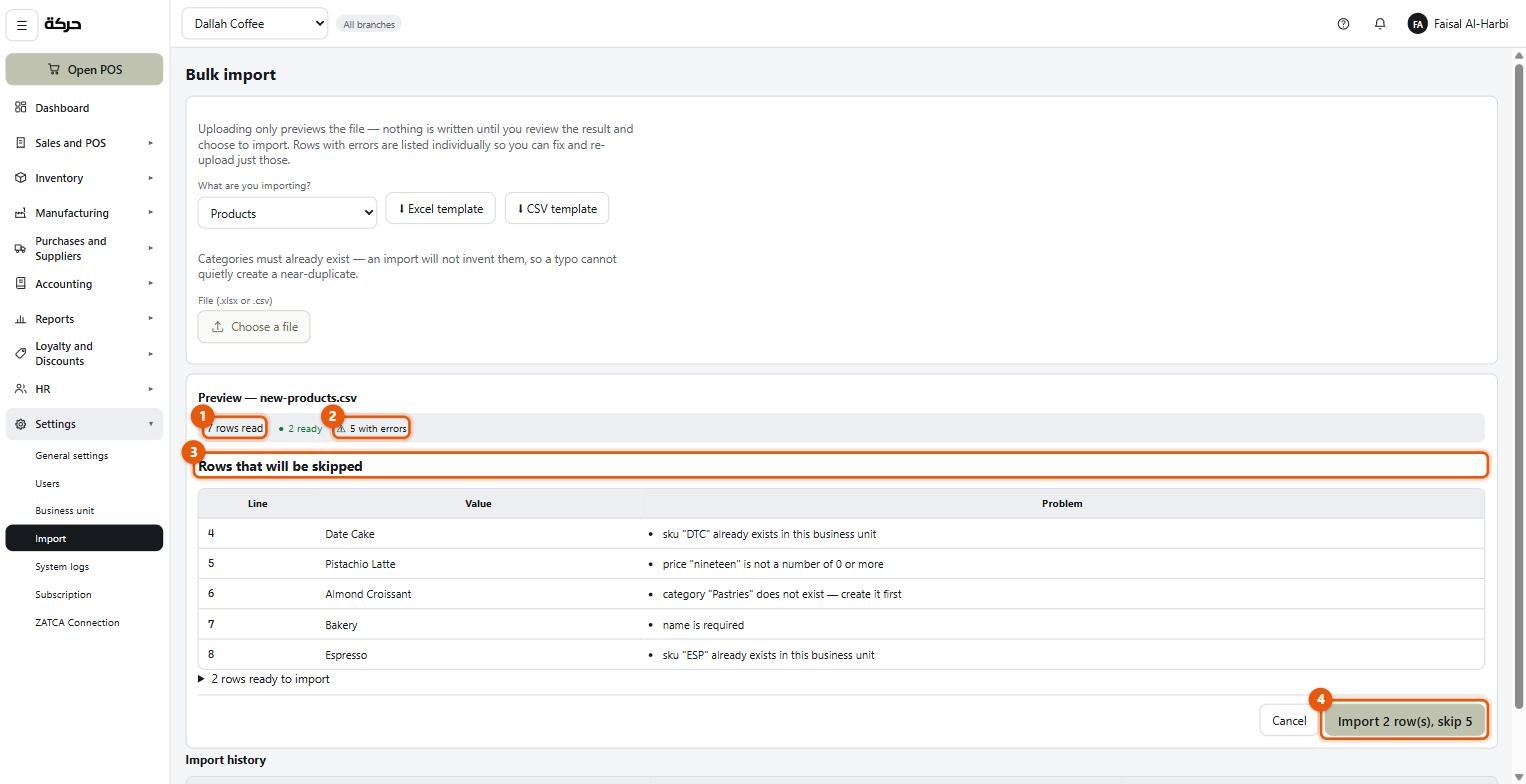
The skipped list gives the line number and the reason, so you can open the spreadsheet, jump to that line, and fix it.
Worth knowing: If every row has a problem, the screen says Nothing can be imported from this file. Fix the errors above and upload it again. Nothing half-imports.
When you are happy, confirm. The screen then tells you how many went in and how many were skipped: 12 rows were skipped and not imported.
#Import history
At the foot of the screen, every import you have run: the type, the number of rows, how many failed, and when.
This matters more than it looks. If somebody imports the same file twice by accident, the history is where you find out.
#What to do after an import
Imported products land in the catalog with what the file gave them. Two things are usually still missing:
- Opening stock. An import does not put quantities on shelves. Either receive them through a purchase invoice (section 18) or set opening quantities per product.
- POS categories. The back office categories come from the file; the cashier's grid tabs are a separate thing (section 15).
Spot-check ten products afterwards. Open each one and look at the price, whether the includes VAT switch matches what the file meant, and the units. Ten minutes of checking now is better than finding out from a VAT return.
#What to do next
Section 11 covers price lists — selling the same product at more than one price, which is how delivery platforms are handled.