
Step 09 · Part 3 — The catalog
Products
The six product types, pricing with and without VAT, cost and margin, units, stock, and the three switches that decide where a product can be used.
Applies to: Everyone. This is the longest section in the guide, and the one worth reading before you type anything.
The product form is the biggest screen in HarakahTec, and it deserves the attention. Almost every question you will ask the system later — what sold, what it cost, what is left, what tax it carried — is answered from what you type here.
Go to Inventory → Products and press Add product.
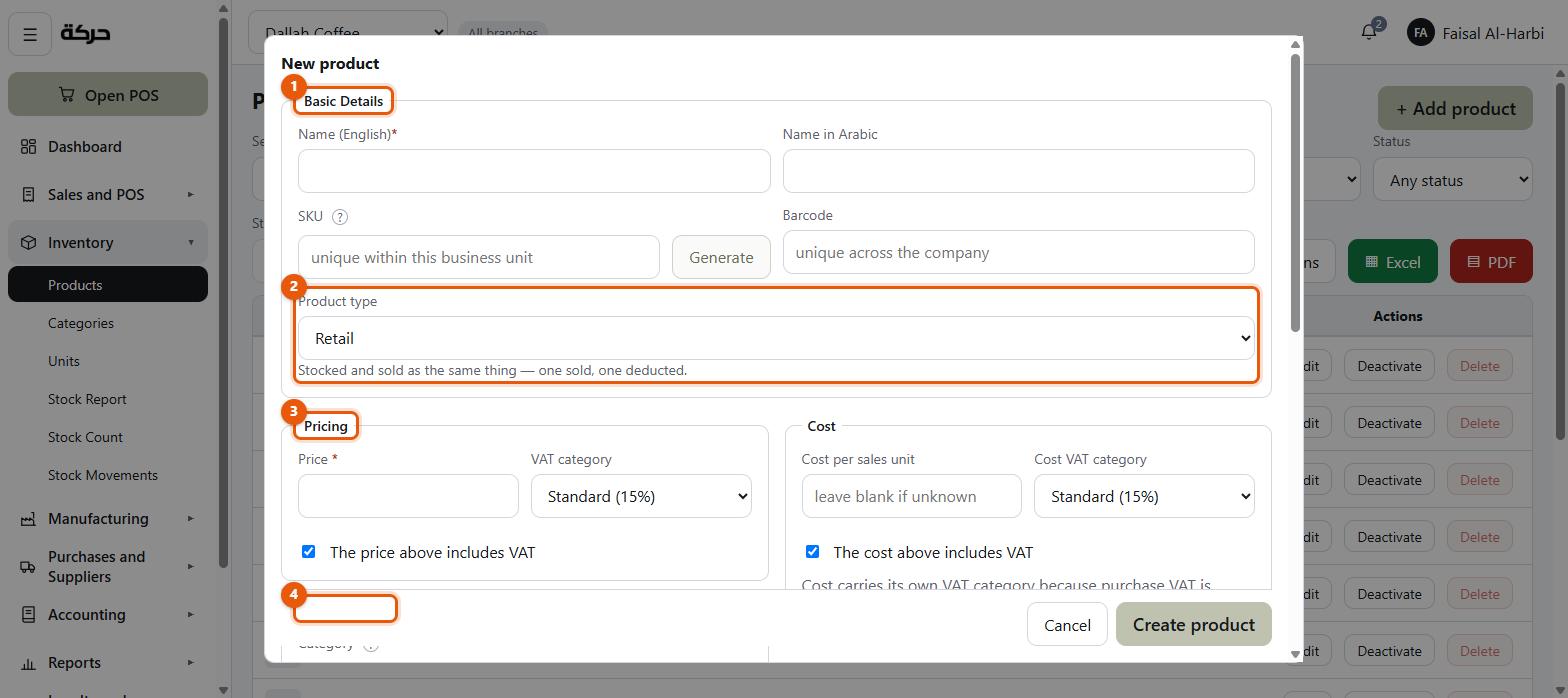
#Basic details
| Field | Notes |
|---|---|
| Name (English) | Required. What appears on the receipt and the grid. |
| Name in Arabic | What appears on an Arabic receipt. Worth filling in even if your staff work in English — your customers may not. |
| SKU | Unique within this business unit. Press Generate to build one from the name plus a short random suffix, so two similar names do not collide. |
| Barcode | The number a scanner reads. Unique across the company. |
About the barcode
If the product comes with a printed barcode, type or scan it in. If you make your own, any unique number works.
The barcode is what makes the till fast: a cashier scans and the product lands in the cart without anybody touching the screen. It also works in the back office — the product search accepts a scan, because a scanner simply types the code and presses Enter.
#Product type
Still in the first block, Names, codes and type, and the choice changes what the rest of the form asks and what happens when the product sells. The form explains each one as you pick it — choosing Retail shows Stocked and sold as the same thing — one sold, one deducted.
Careful: The type can only be set when you create the product. Open an existing one and it is shown as a plain chip beside the name, not a field. If you get it wrong, the fix is a new product — so decide before you save.
Six types:
| Type | What it means |
|---|---|
| Retail | Stocked and sold as the same thing. One sold, one deducted. |
| Recipe | Made from ingredients. Selling one removes them, and its cost comes from them. |
| Service | Sold but never counted, since there is nothing physical to count. |
| Raw material | An ingredient, used inside recipes and never sold on its own. |
| Combo | Several products at one price. Selling one removes each part by its own rules. |
| Consumable | Used up by the business rather than sold. Counted, so it can be reordered before it runs out. |
Some worked choices for a coffee shop:
- A bottle of water you buy and sell → Retail
- A latte made from beans and milk → Recipe
- Milk and beans themselves → Raw material
- A coffee + croissant deal at one price → Combo
- Takeaway cups → Consumable
- A barista training session you charge for → Service
Worth knowing: The type is not just a label. A Recipe gets an ingredients list and its cost is calculated from them rather than typed. A Combo gets a list of the products it contains. A Service loses the whole inventory block, because there is nothing to count.
Recipes and combos
Both types add a list to the form.
For a Recipe, add each ingredient and how much of it one unit uses. The form then shows Can be made now — how many you could produce from stock across the business unit, limited by whichever ingredient runs out first.
For a Combo, add each product in the bundle. Selling one removes each part by its own rules, so a recipe inside a bundle consumes its ingredients.
The form refuses three things, and the messages say why:
- A recipe needs at least one ingredient — otherwise selling it consumes nothing.
- A product cannot contain itself.
- The same component is listed twice. Raise its quantity instead.
#Pricing
| Field | Notes |
|---|---|
| Price | What you sell it for. |
| The price above includes VAT | A switch. This is the important one. |
| VAT category | Standard (15%), Zero-rated or Exempt. |
Including or excluding VAT
Tick the switch if the price you typed is what a customer hands over. Leave it clear if the price is before tax.
The form shows both figures side by side — Excl. VAT and Incl. VAT — so you can see immediately whether you have it the right way round.
For a shop selling to the public, the price almost always includes VAT, because that is the number on the menu board.
VAT category
- Standard — the normal rate, currently 15%.
- Zero-rated — taxable at 0%. Appears on the VAT return as a zero-rated supply.
- Exempt — outside VAT entirely.
Most things a shop sells are Standard. If you are unsure, ask your accountant; the difference matters on the VAT return.
Careful: Editing a price affects future sales only. Past invoices keep the price actually charged, so reports and receipts already issued do not change. The form says this next to the field. That is correct behaviour, not a limitation — an invoice is a record of what happened.
#Classification
Which category the product is filed under. Subcategories are indented under their category; choosing one files the product in that finer group.
A product can be saved without a category, but see section 8 for why that usually turns out badly.
#Cost
Cost sits beside Pricing, as the same question asked of the buying side.
| Field | Notes |
|---|---|
| Cost per {unit} | The label names your sales unit — Cost per piece. What you pay for one, in the unit you sell in. Leave it blank if unknown — the placeholder says so. |
| Cost VAT category | Its own field — see below. |
| The cost above includes VAT | Same question as pricing, for the buying side. |
Once the product has been on a purchase invoice, the cost fields lock. The form says why: Set by purchase invoices: the average cost of the stock received, before VAT. It updates with each invoice and can’t be edited here.
Why cost has its own VAT category
Purchase VAT is recoverable input tax. The VAT you pay a supplier is not a cost to you — you reclaim it. So the system tracks the tax on the buying side separately from the tax on the selling side, and they can differ.
Worth knowing: For a Recipe, you do not type a cost. It is calculated from the ingredients, which means it follows them: when the price of milk goes up, the cost of every drink made with it goes up too, without anybody editing a product.
#Units
The two fields from section 7:
- Bought in — the unit on a supplier's invoice
- Sold in — the unit on a customer's receipt
Both lists start with Not tracked, and packaging units are labelled (size per product) so you can see at a glance which ones will ask you for a quantity.
The form states the case plainly underneath: Set both to track stock in one unit while selling in another — coffee bought by the kg and sold by the gram, cups bought by the box and sold each.
If the two are in different dimensions the form refuses — Those units cannot be converted. If one is a packaging unit, a third field appears asking how many sales units are in one purchase unit.
#Inventory
| Field | Notes |
|---|---|
| Track quantity for this product | Whether the system counts it at all. |
| Reorder level, per {unit} — your sales unit | A branch at or below this is flagged as needing a reorder. |
| Opening quantity at | Only when creating a product — a branch and a quantity to start it off. No opening stock is the default. |
Leave tracking on for anything physical. Turn it off for a service, or for something you genuinely do not count.
Careful: The Opening quantity field is for a product that is already on your shelf on the day you set the system up, with no purchase invoice behind it. Use it once, at setup. After that, stock should arrive through a purchase invoice (section 18) so that what you paid is recorded — otherwise your cost of sales is wrong and your profit looks better than it is.
#Where this product is used — the three switches
Near the foot of the form, under the heading Where this product is used, are three independent switches. They catch people out because they sound like one question.
| Switch | What it allows |
|---|---|
| Sellable — can appear on an invoice | It can appear on an invoice. |
| POS — shown on the cashier grid | It is shown on the cashier's grid. |
| Can be bought from a supplier | It can appear on a purchase invoice. |
They combine to describe real situations:
- A latte — Sellable, on POS, not purchasable. You make it.
- Milk — not sellable, not on POS, purchasable. You buy it to use.
- A wholesale-only item — sellable, not on POS, purchasable. It goes on invoices your office raises, but a cashier should not be able to ring it up.
- Takeaway cups — not sellable, not on POS, purchasable.
Careful: The form warns you that with none of the three selected this product cannot be sold, rung up or ordered. It will only exist in the catalog. That is occasionally what somebody wants. Usually it is a mistake.
POS categories
Tick the POS switch and the form offers the cashier-grid groups this product should appear under. If you have not made any yet it says so, and points you at Sales and POS → Settings → POS categories (section 15).
Extra options
In the POS behaviour block, tick This product has extra options — e.g. an extra shot, a syrup and you can add named add-ons with their own prices.
Extra prices include VAT, because an add-on is normally quoted that way.
Stop: The till cannot yet charge for one. Ticking the switch and adding the extras records them against the product and marks its tile on the cashier's grid with a gear — and that is all it does today. There is no sheet to choose one from, and nothing carries a chosen extra onto a sale line, so an extra shot cannot be rung up or charged for.
What to do instead, until it is built: make the variant its own product — Latte and Latte, extra shot — so the price a customer pays is a price the till can actually take.
#Status and the image
Status is Active or Inactive (kept for past invoices). Inactive products stop appearing but remain resolvable on documents that already name them.
Image takes JPEG, PNG, WebP or GIF up to 5 MB. SVG is deliberately not accepted, because an SVG can contain scripts.
The picture appears on the cashier's grid if the layout is set to show images (section 15). For a menu-driven shop it makes the grid much faster to use; for a barcode-driven shop it is not worth the effort.
#The product list
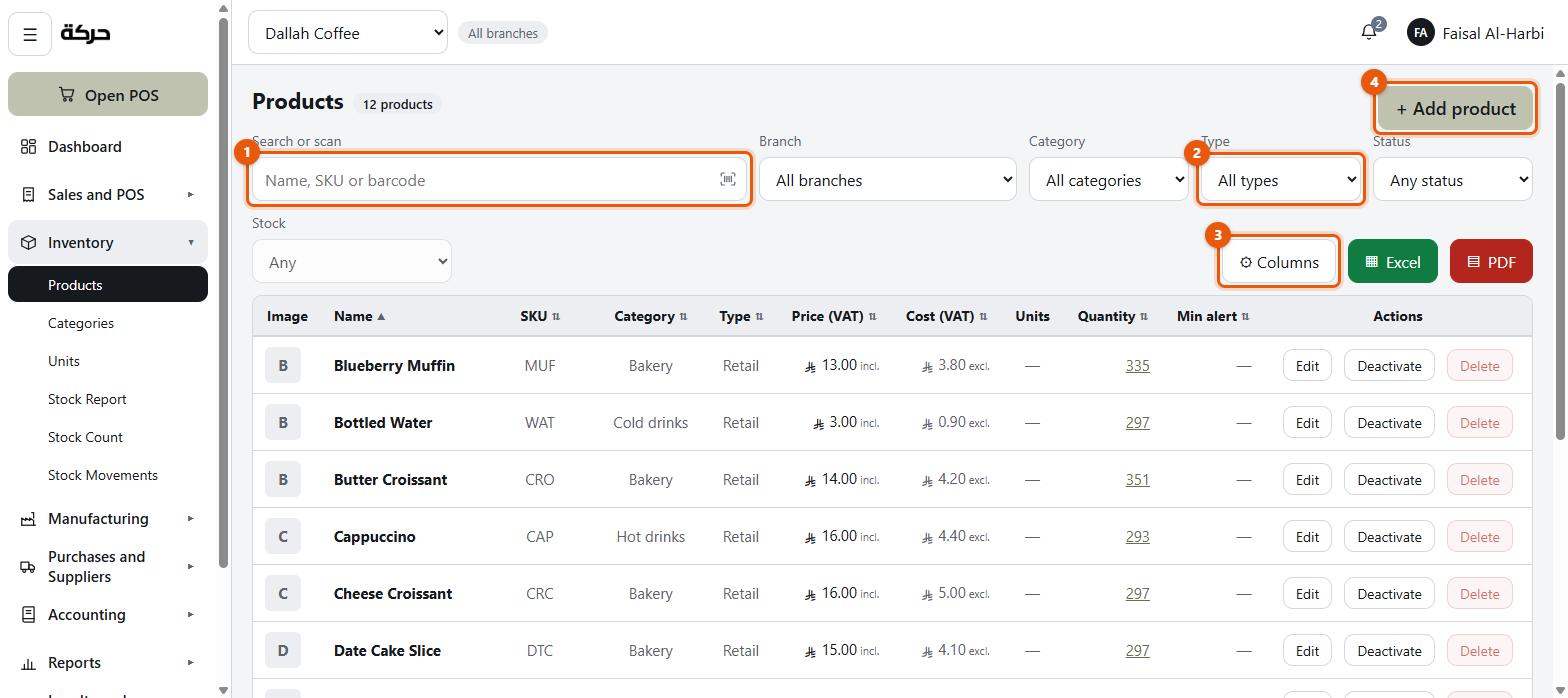
Back on Inventory → Products, the list is a working tool rather than a dump.
- Search or scan — type to filter, or scan a barcode
- Filters for category, type, status and branch
- In stock shown per branch, or across all of them
- At or below minimum to find what needs reordering
- Choose columns — pick what you want to see; the choice is saved to your account, so it follows you to another machine
#Deleting versus deactivating
HarakahTec decides which is possible, and tells you why.
A product that has never been sold can be deleted outright. The screen says so: This product has never been sold, so it can be removed entirely rather than deactivated. Its stock records and any extras go with it.
A product that has been sold cannot. Past invoices must keep resolving — an invoice naming a product that no longer exists is not readable. The screen tells you how many times it has sold and offers Deactivate instead.
Deactivating stops it appearing on the till and stops it being sold. Past sales that include it are untouched. It is the reversible option, and the right one for anything seasonal.
#What to do next
Section 10 covers importing a catalog from a spreadsheet, which is how most businesses with more than about fifty products get started.