
Step 11 · Part 3 — The catalog
Price lists
Sell the same product at more than one price — for delivery platforms, wholesale, or a second brand — without duplicating your catalog.
Applies to: Anybody selling through a delivery app, or at wholesale. Skip it if every sale is at one price.
A delivery platform takes 15% of the order. If you sell a latte at the same price through the app as over the counter, you make 15% less on every app order — so most shops charge more through the app.
That is what a price list is for: the same product, a different price, chosen at the moment of sale.
Price lists live under Sales and POS → Payment Methods → Price lists.
#Turning it on
The first control is a switch: Sell at more than one set of prices.
Leave it off and everything sells at its own price, always. Turn it on and the rest of the screen appears.
Worth knowing: Turning it back off keeps everything you have built. The screen says Price lists are off. What you have built is kept. So you can try it without committing.
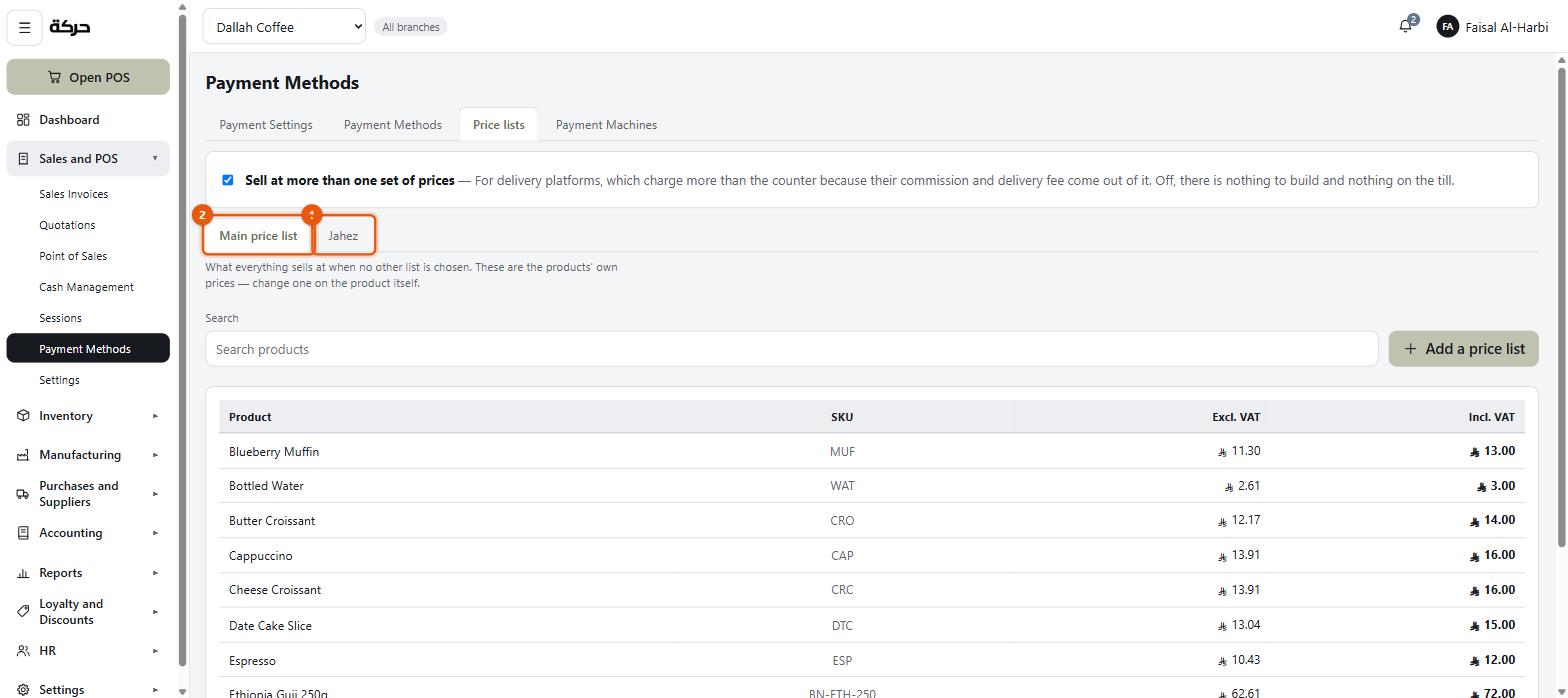
#The main price list
Always present, and not editable here: Main price list — what everything sells at when no other list is chosen. These are the products' own prices — change one on the product itself.
It is the baseline. Every other list is an exception to it.
#Creating a price list
Press Add a price list. The name is what a cashier will see on the button — the screen suggests Delivery platform, Wholesale…
Then there are four things to set.
1. The prices
Search for a product and give it a price on this list. You can enter it excluding or including VAT; the screen shows both.
You do not have to price everything. Nothing is priced on this list, so everything sells at its counter price is what the screen says when a list is empty, and it stays true per product: anything you do not give a list price to sells at its normal price even on that list.
That is usually what you want. Price the twenty things the platform carries, leave the rest alone.
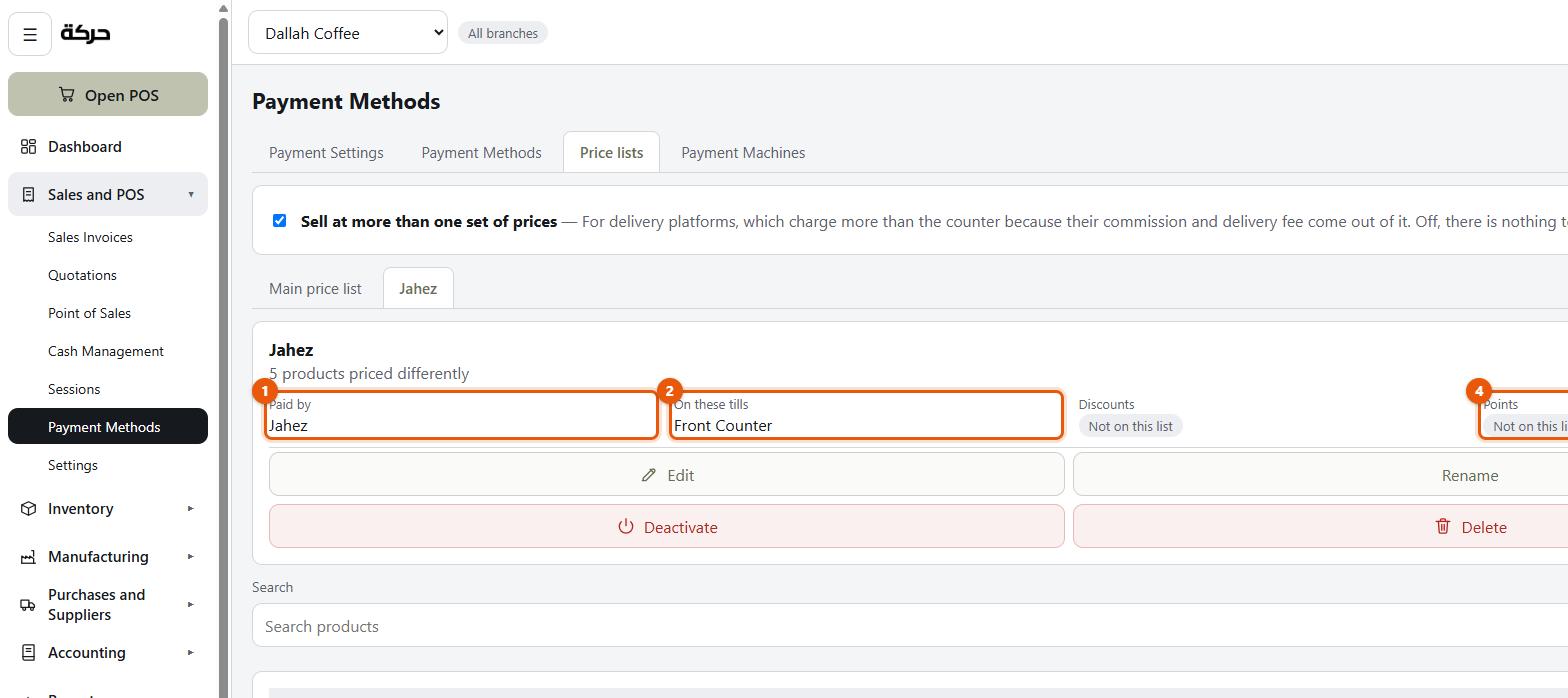
2. Paid by — which payment methods may pay
Only these methods may pay for a sale at these prices. Leave it empty to allow any.
This is the setting that stops the most expensive mistake. If your Delivery platform price list is restricted to the Delivery platform payment method, then a cashier cannot ring up a walk-in customer at platform prices and take cash for it. Without the restriction, they can — and the shop sits waiting for a settlement from a platform that never saw the order.
Careful: Always restrict a delivery platform's price list to that platform's payment method. It takes five seconds and it closes a real hole.
3. On these tills
Tick Show this list in the POS, then choose the tills. They are named one by one. A delivery channel is usually rung on the one screen by the pass, not on the counter till where walk-ins are served.
A list on no till at all is legitimate: the screen says Not offered at any till. The prices still apply to orders that name this list, which is how an integration would send them — which is right for a channel that comes in through an integration rather than through a cashier.
4. What is allowed on it
Two switches that decide what else may happen to a sale at these prices:
A discount may be taken off. Turn it off for a platform list. A platform price already carries the commission; a cashier discounting it gives away the shop's margin and the platform's cut together. With it off, the till's discount button is dead on those sales and no automatic rule applies.
A sale earns loyalty points. Turn it off for a platform list too. Points are a cost the shop carries, and paying them out on an order the platform has already taken its cut of is paying twice for the same sale. With it off, the till stops asking who the customer is.
#What a cashier sees
At the till, a Price list button. Tapping it offers Counter prices and every list that is on that till.
Choosing one changes the prices on the grid immediately and the till shows Ringing at {list} prices. Choosing Counter prices puts it back (Back to counter prices.).
A list can be chosen part-way through a sale, too: what is already in the cart is repriced. If the list bars discounts, a discount already on the sale is cleared; if it earns no points, the customer and any points being used come off the sale.
The till also shows what the list does not allow — a list with discounts barred shows No discounts, one with points off shows No points — so the cashier knows before they try.
If they try anyway, the refusal names the list: Delivery platform prices do not take a discount.
#Deactivating and deleting
Deactivate takes a list off every till and stops any sale being rung at it. What you built is kept, and it can come back.
Delete removes it. The confirmation is worth reading: Sales already rung at these prices keep the prices they were rung at, so nothing on the books changes. What goes is the record of what this channel charged — deactivate it instead if you may need to explain a past order.
#A worked setup for a delivery platform
For a shop taking orders through a delivery platform:
- Create the payment method first (section 12) — type Delivery App, with the platform's commission percentage on it.
- Create the price list, named Delivery platform.
- Price the products the platform carries, at whatever covers the commission.
- Paid by → the Delivery platform payment method only.
- Show this list in the POS → on, and On these tills → the till by the pass.
- A discount may be taken off → off.
- A sale earns loyalty points → off.
Now a platform order can only be rung at the platform's prices with the platform as the payment, it cannot be discounted, and it earns nobody points.
#What to do next
Section 12 sets up the payment methods themselves — including the Delivery App type this section just assumed.