
Step 12 · Part 4 — The till
Payment methods
The five types, why the type — never the name — decides everything, and the settings that govern what happens at the close.
Applies to: Everyone. Until one payment method exists, nothing can be taken at any till.
A payment method is how money arrives. Cash, Mada, a delivery app, a customer's tab. Until at least one exists, nothing can be taken at any of your tills — the screen says exactly that.
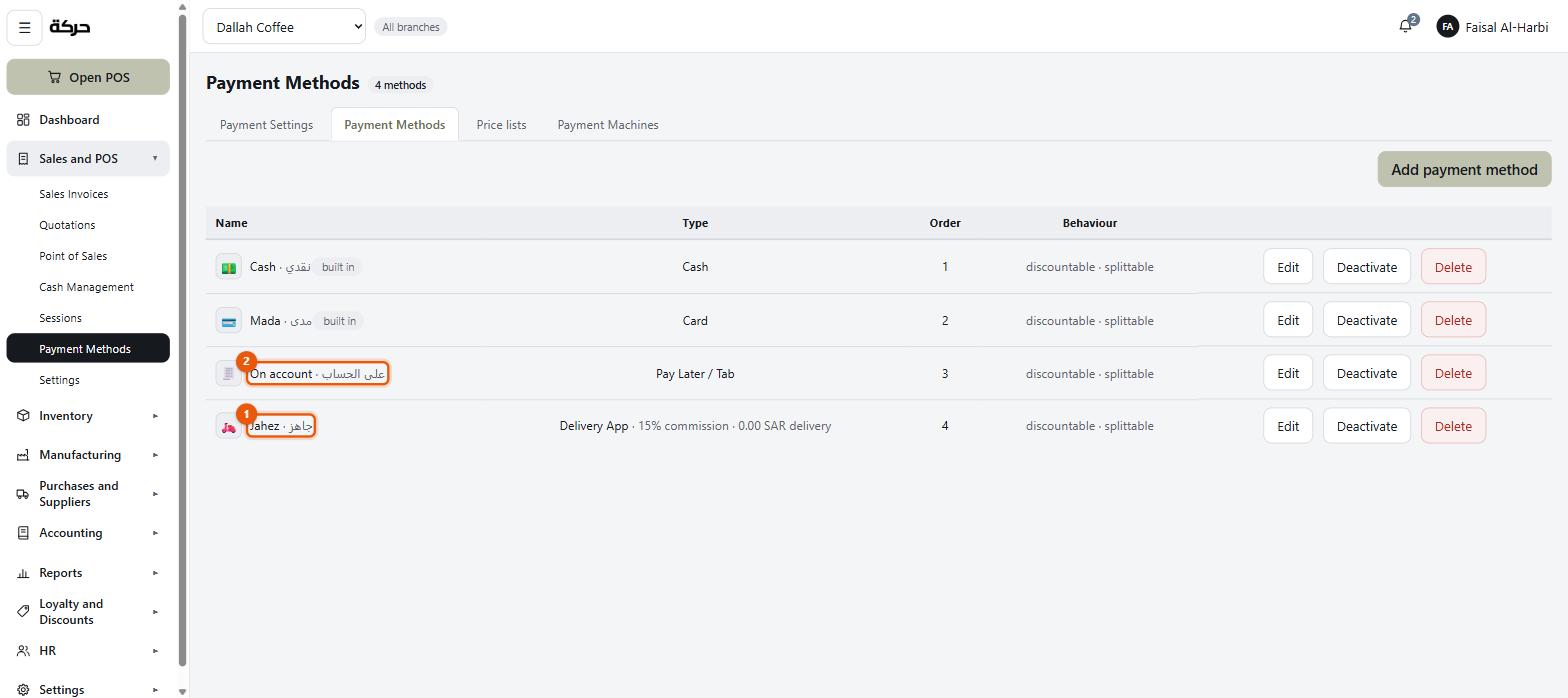
Go to Sales and POS → Payment Methods → Payment Methods.
#The type is what matters
Every method has a type, and this is the most important idea in the section. The type — never the name — decides:
- whether the money is counted in the drawer at close,
- whether it is reconciled against the bank,
- whether it is owed to you rather than paid to you,
- how it posts to the ledger.
A method called "Cashback Credit" is not cash. A method called "Sadad" may be. The system never guesses from the name.
| Type | What it means | At the close |
|---|---|---|
| Cash | Physically counted in the drawer. | Counted |
| Card | Settles electronically, reconciled against the bank. | Reconciled, not counted |
| Pay Later / Tab | Put on a customer's account. Money owed to you. | Neither — it is a receivable |
| Delivery App | A platform collects and remits later, less its cut. | Neither — owed by the platform |
| Other | Store credit, bank transfer, anything neither counted nor card-settled. | Neither |
Careful: Getting the type wrong is not cosmetic. A card method typed as Cash would ask your cashier to hand over money the shop never had — the drawer would be expected to hold the card takings too.
#Cash and Card are built in
Every business unit starts with Cash and Card already made. They keep their type permanently; everything else about them — the name, the Arabic name, the order, the image — is editable.
Rename Card to Mada if that is what your staff call it. The type stays Card, so the close still reconciles it.
#Adding a method
Press Add payment method.
| Field | Notes |
|---|---|
| Name (English) and Name (Arabic) | What the cashier sees. |
| Type | One of the five. Not changeable after money has been taken. |
| Display order | Where it sits on the payment pad. Put your most-used first. |
| Image | Optional logo. Remove it to go back to the symbol for the type. |
Behaviour
Two switches on every method:
Accepts discount. With it off, a sale with anything taken off it is refused on this method, and no automatic discount rule applies. Use it for a method where the price is already fixed by somebody else.
Combinable — can be part of a split payment. With it off, this method must pay for the whole sale by itself. A voucher that must be used in full is the usual case.
Worth knowing: A cashier trying to split a non-combinable method is refused at the till, with a message saying why. Section 26 covers split payments.
#Settings that depend on the type
Delivery App
Two figures, and both post to your books:
- Commission % — what the platform takes. This posts to the ledger, so it must be the rate in your contract, not an estimate.
- Delivery fee — what it charges to deliver, on top of its commission. Set as a fixed amount or as a % of the order.
Both come out of what the platform remits to you. HarakahTec books the commission as a cost the moment the order is taken, rather than quietly netting it off your revenue — so your sales figures are what you sold, and the platform's cut is visible as the expense it is.
Careful: Delivery pricing is genuinely different from in-store pricing. Set up a price list for the platform as well (section 11), and restrict it to this payment method.
Card
This one settles into a different account. By default card takings go to your default bank account. If a particular terminal settles somewhere else, name the account here.
Delivery App, again
What the platform remits goes to the default receivable unless it pays into an account of its own. Same idea as above.
Pay Later / Tab
No extra fields here, but two things elsewhere govern it:
- Who may put a sale on a tab — a switch on the Payment Settings tab, below.
- Each customer's credit limit — section 21.
#The Payment Settings tab
Sales and POS → Payment Methods → Payment Settings carries four things about how money is handled at the close.
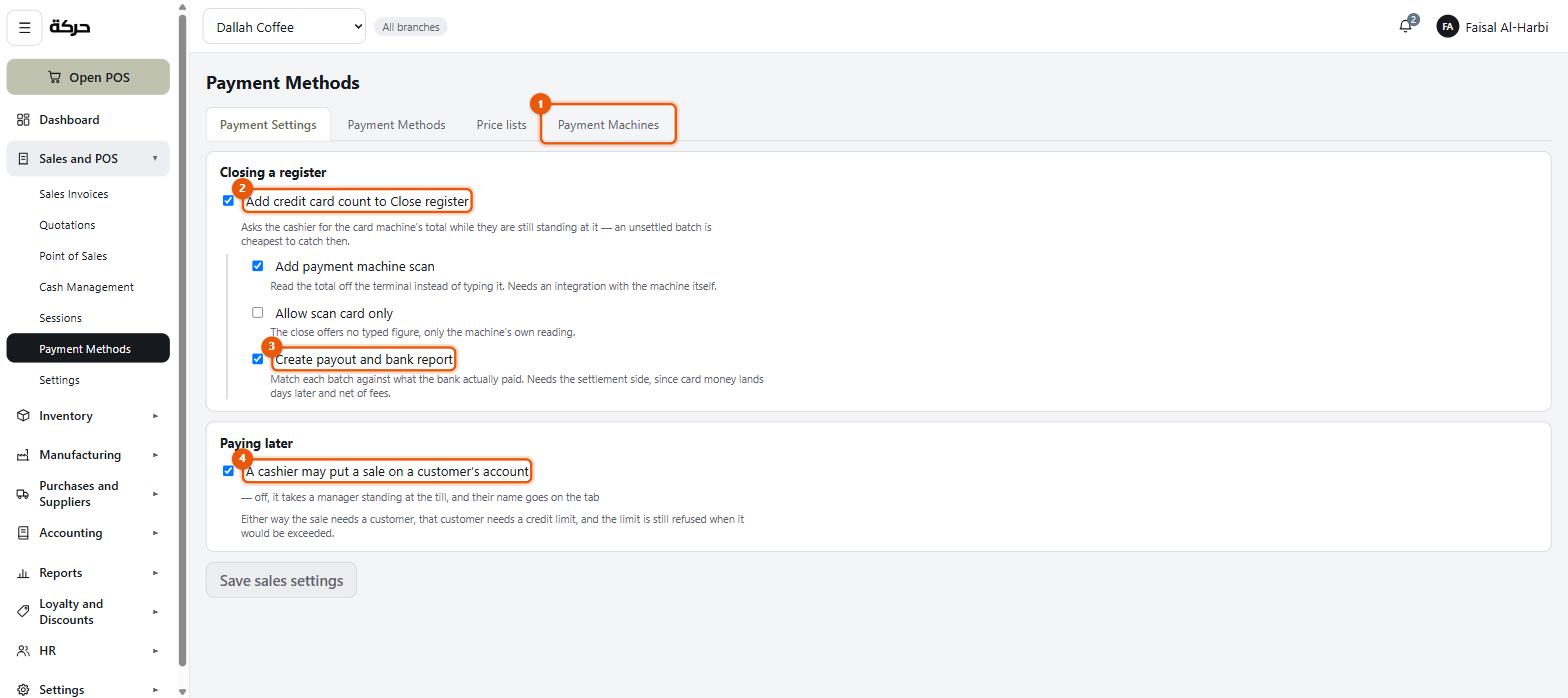
Closing a register
The four switches here unfold one from another — the last three are hidden until the first is on, so a shop that takes no cards never sees them.
Add credit card count to Close register. Asks the cashier for the card machine's total while they are still standing at it — an unsettled batch is cheapest to catch then. Switching this on reveals the other three.
Add payment machine scan. With this on, the close offers a step to scan the settlement slip from the card terminal — the machine's own figure, rather than one typed at the till. Section 26 covers using it; section 13 covers registering the machines.
Allow scan card only. Needs the scan switched on. With it on, the close offers no typed figure, only the machine's own reading — the cashier cannot key a card total instead.
Create payout and bank report. Match each batch against what the bank actually paid. This is the switch that turns on the Card Payout report (section 27) and the Payment Machines tab where terminals are registered (section 13). Without it, neither exists. It too needs the scan switched on.
Paying later
A cashier may put a sale on a customer's account. This decides whether any cashier can do it alone. It is not a master switch: with it off, a tab still goes through when a manager standing at the till approves it — their name goes on the tab — or when the person signed in holds Approve on Checkout & sales, the permission that extends credit.
Either way the sale needs a customer, that customer needs a credit limit, and a sale that would take them past it is still refused.
#Deactivating and deleting
A method that has taken money cannot be deleted — the payments pointing at it must keep resolving. The screen says Has taken money — deactivate it instead.
A deactivated method no longer appears at the till. Past sales that used it are untouched, and the close still accounts for them correctly.
#What to do next
Section 13 registers the physical card machines, which is what makes the settlement scan at the close possible.