
Step 13 · Part 4 — The till
Card machines and settlement
Register your card terminals and their fee rates, so the close can read the machine's own figure instead of one typed by hand.
Applies to: Anybody taking cards. Skip it if you are cash and delivery apps only.
At the end of a shift somebody has to say what the card machine took. They can type it — or the machine can say it itself, by scanning the settlement slip it prints.
For that to work, and for the card fees to reach your books, the machines have to be registered.
Go to Sales and POS → Payment Methods → Payment Machines.
Careful: That tab is not there by default. It appears only once Create payout and bank report is switched on for the business unit, on the Payment Settings tab beside it (section 12) — and that switch is itself hidden until Add credit card count to Close register is on, and cannot be ticked until Add payment machine scan is on. If you cannot find the tab, that is why.
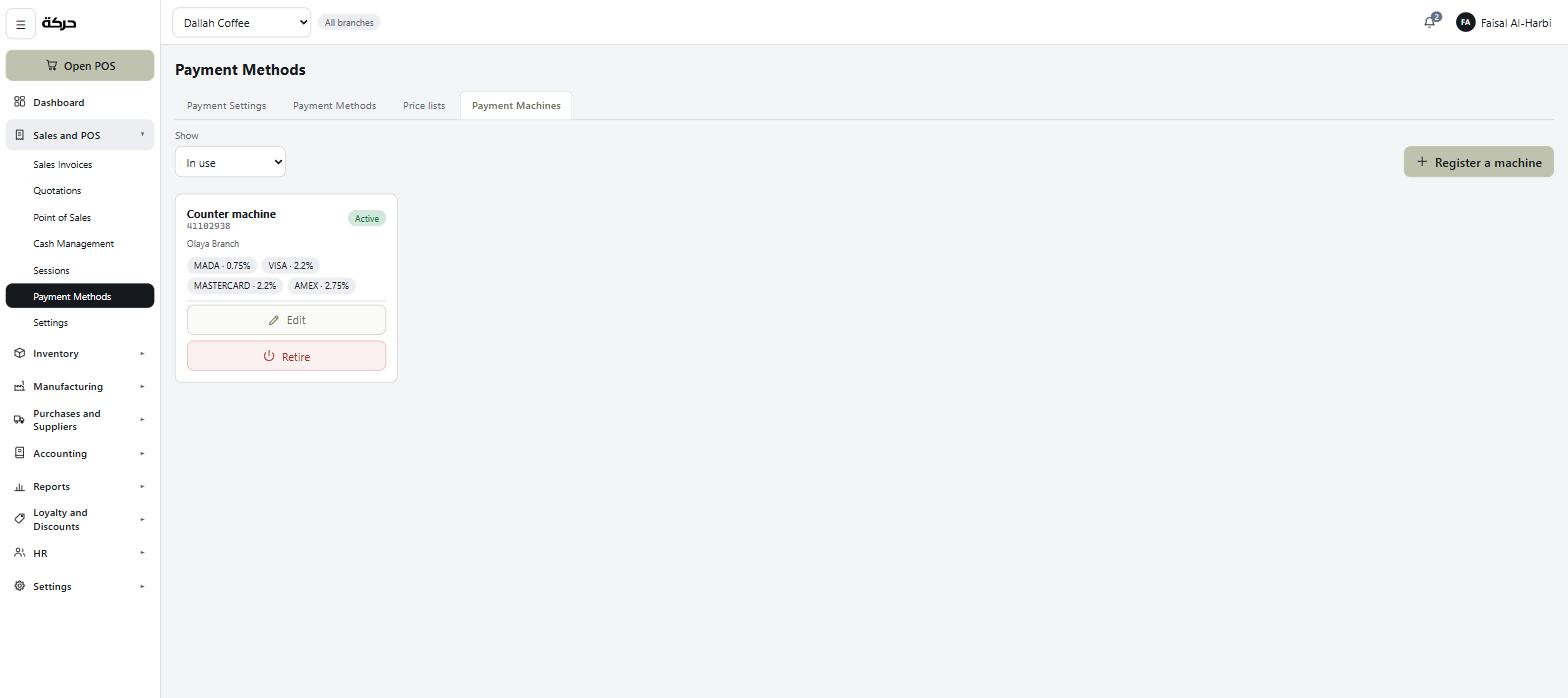
#Registering a machine
Press Register a machine.
| Field | Notes |
|---|---|
| Which machine | A name a person would use — Counter machine, Drive-through. |
| Terminal number | The machine's own identifier, printed on its slips. |
| Picture | Optional logo of the acquirer. |
| What it charges | The rates, per card network. See below. |
Finding the terminal number
It is on the settlement slip the machine prints at the end of the day, usually labelled TID or Terminal ID. It is also normally on a sticker on the machine itself.
This is the number that ties a scanned slip to the right machine, so it has to be exact.
The rates are per card network
This is the part worth getting right, and it is not one pair of figures for the machine. Each card network is priced separately — mada, Visa, Mastercard, Amex, GCCNet, Diners and Other — because they cost you different amounts. A mada transaction might be 0.75% where an Amex one is 2.75%.
For each network your contract covers, enter one or both of:
- Share of value (%), like 2.2% of each transaction, and/or
- Per transaction (SAR), like SAR 0.50.
The registered machine then shows its rates as chips — MADA · 0.75%, VISA · 2.2% — so you can check them at a glance.
Enter what your contract says. If only one form of charge applies, leave the other at zero; the screen shows No rates set or No charge set rather than assuming anything.
Careful: If you leave a network unpriced, the Card Payout report can show that the bank paid less than the batch was worth but cannot tell you why. The networks you actually accept are the ones to fill in.
Worth knowing: These rates are what make the Card Payout report work (section 27). That report answers the question card-taking businesses actually care about: the machine says we took SAR 8,400 — why did the bank pay us SAR 8,253? Without rates, the report can show the gap but not explain it.
#Reading a slip at the close
Once machines are registered and Add payment machine scan is on (section 12), the closing steps include a Scan option.
The cashier scans the QR code on the settlement slip, or pastes the link from it. The system reads the batch: the machine that settled it, the gross total, and the number of transactions.
Three things worth knowing:
- The same batch cannot be recorded twice. It is refused on the batch's own identity — the terminal and the timestamp — not on anything a screen happens to remember. Scanning the same slip again says so.
- A batch can be removed from a close if it was scanned in error.
- The cashier can do it. Reading the machine is a checkout activity, not an accounting one, so it does not need an accountant's permission. The person standing in front of the machine is the one who can read it.
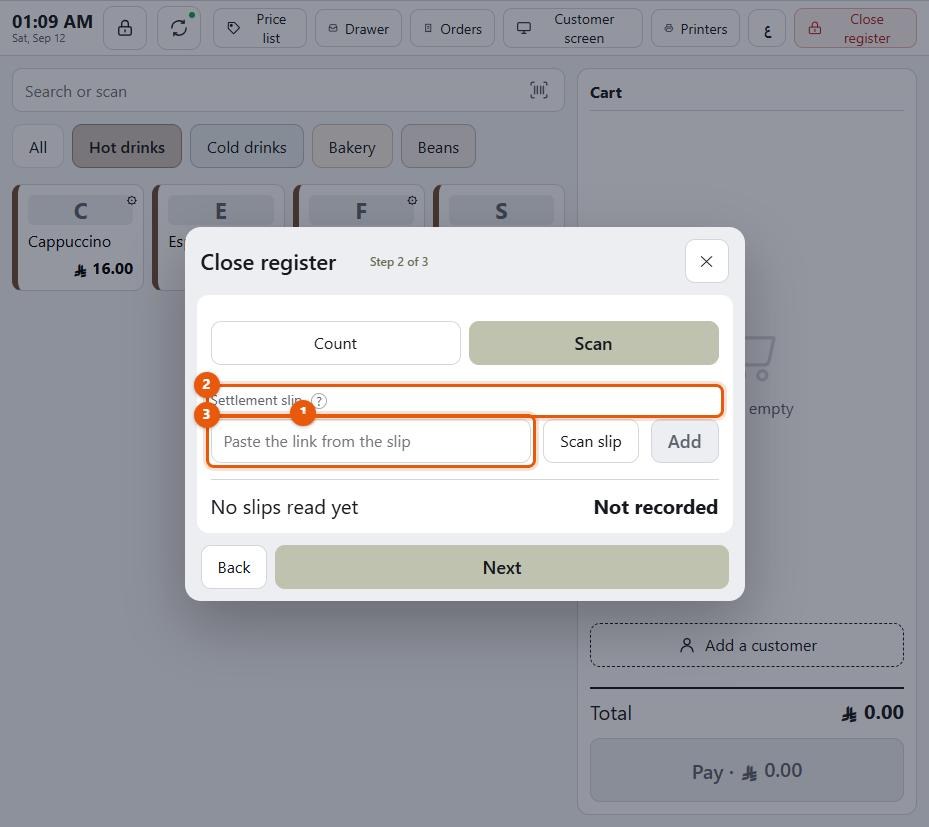
Careful: The slip parser has been tested against real slips, but acquirers lay their QR codes out differently. Test a scan with your own machine before you rely on it for a real close. A slip that will not scan can still be typed in by hand — unless Allow scan card only is on (section 12). Then the close offers no typed card figure at all, only the machine's own reading.
#Retiring a machine
When a machine is replaced, Retire it rather than deleting it. The screen says Retired. Its batches are kept. The settlements it recorded stay readable, and the report covering last month still balances.
Retired machines can be brought back, and the filter at the top of the screen lets you show In use, Retired or All of them.
#What to do next
Section 14 creates the registers — the tills themselves — that all of this plugs into.