
Step 14 · Part 4 — The till
Registers — the tills themselves
Create each till, decide who may stand at it, what it sells, what it takes and how it prints. Every till keeps selling when the internet goes.
Applies to: Everyone with a shop. Until a till exists at a branch, that branch cannot sell.
A till — HarakahTec calls it a POS point — is where a sale is rung up. It is tied to one branch, and its sales and takings are counted there.
Go to Sales and POS → Point of Sales.
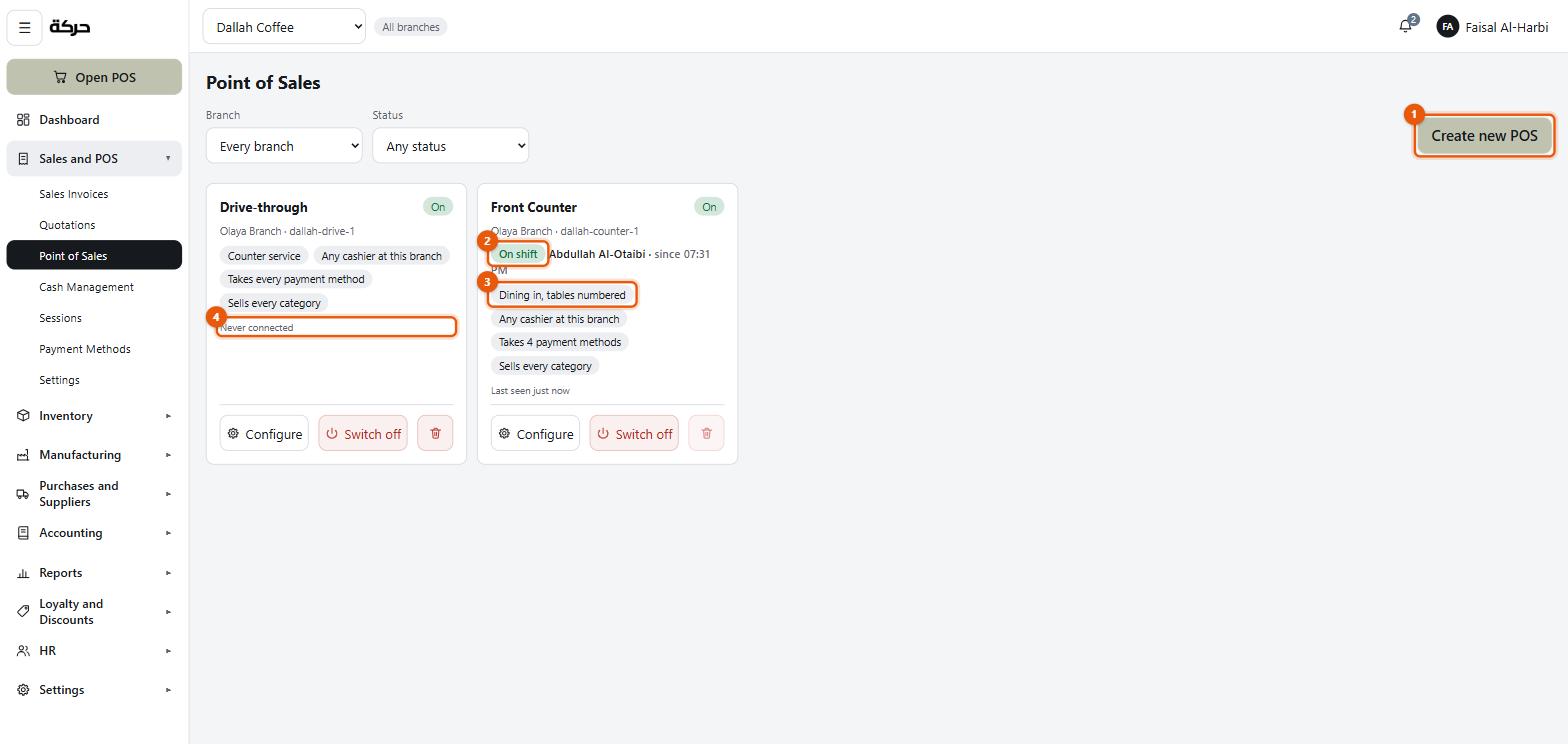
The list tells you at a glance:
- Switched on or Switched off
- On shift, with how long since it opened
- Last seen — just now, 5 min ago, 3 d ago, or Never connected
- Counter service, Dining in, or Dining in, tables numbered
- Takes every payment method or how many are withheld
- Sells every category or how many are withheld
#Creating a till
Press Create new POS.
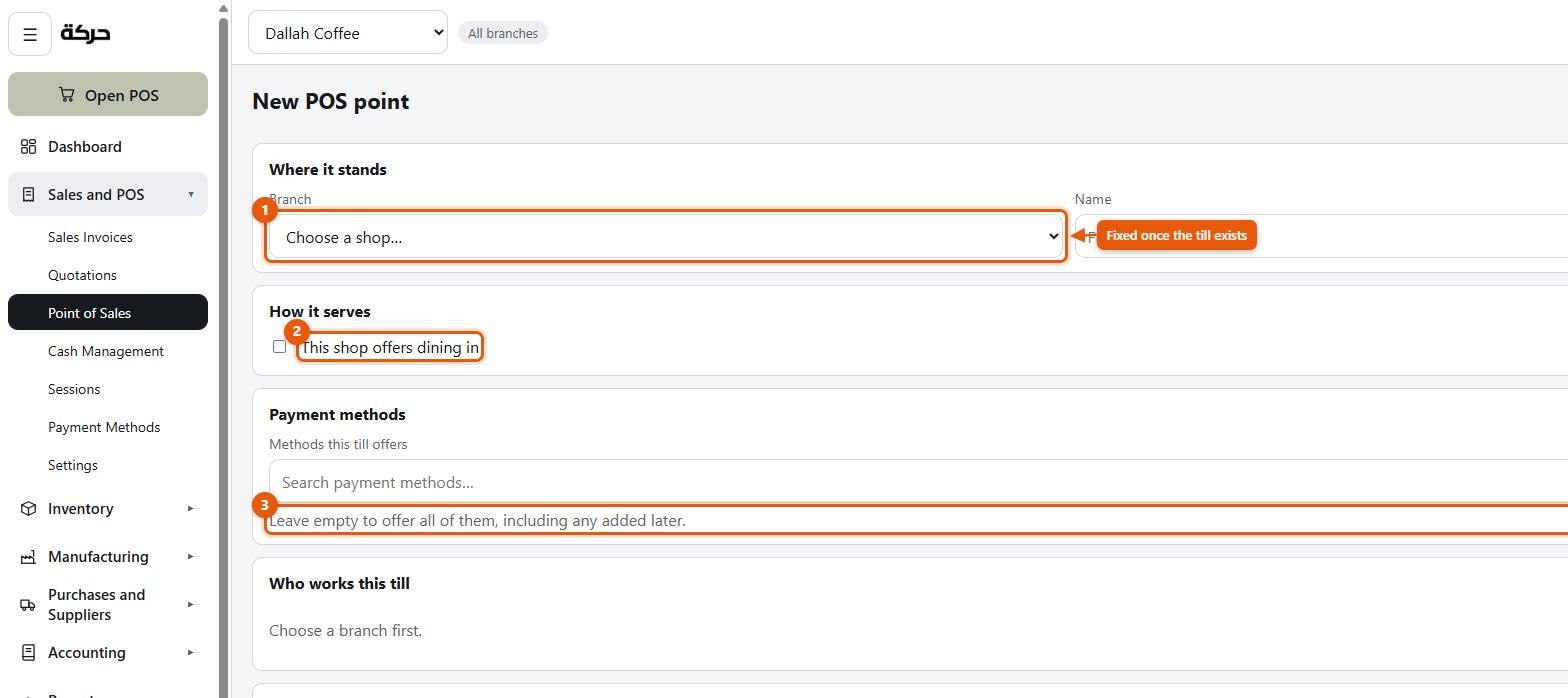
Where it stands
Choose the branch. The screen is clear that this is permanent: Fixed once the till exists: its sales and takings are counted here.
Then a name — something a person would say standing in the shop. Front Counter, Drive-through, Terrace. The screen suggests Front Counter.
Worth knowing: The till also gets an identifier of its own, which the screen shows as Known to its device as {identifier} — generated, and not something anybody has to type. You will not normally need it.
How it serves
Three choices, and they change what the till asks for on each sale:
| Choice | What happens |
|---|---|
| Counter service | Ring up, take money, done. |
| Dining in | The till knows people sit down, but does not ask where. |
| Dining in, tables numbered | The till offers the branch's tables to pick from. |
Tick This shop offers dining in, and a second switch appears — Ask which table an order is for — if you number your tables. The tables themselves are a list kept per branch, under Sales and POS → Settings → Tables (section 17).
At the till, the cashier picks the table from that branch's list — only its active tables are offered, with No table for a walk-in. Nobody types a number, and the server refuses a table that is not on the branch's list.
Who works this till
Two options:
- Any cashier at this branch — the default, and right for most shops.
- A named list. The screen then reads Open to 3 of 9. The other cashiers will not see this till when they sign in.
Use the named list where a till should only be worked by particular people — a drive-through window, or a till in an office.
Careful: If nobody is posted to the branch yet, the screen says so and points you at Settings → Users. A till with no cashiers is a till nobody can sign in at.
Payment methods this till offers
Leave it empty to offer all of them, including any added later. That is almost always what you want.
Name specific methods only where a till genuinely should not take something — a delivery-only screen that should never take cash, for instance.
Groups this till does not sell
The opposite polarity, deliberately: you name what the till does not sell, and leave empty to sell everything, including groups added later.
Stating the exclusions rather than the inclusions means a new category appears on every till automatically, instead of being invisible until somebody remembers to add it to nine tills.
Printing paper
Three options:
- Following the branch, which prints on whatever the branch uses — the default.
- Thermal — this till prints a till roll, whatever the rest of the company does.
- A4 — this till prints a full-page invoice, whatever the rest of the company does.
Use the override for a till that serves a different kind of customer. An office till raising wholesale invoices wants A4 even in a shop full of thermal printers.
Receipt wording
Per-till header and footer text. Leave either blank to use the branch's wording. Section 17 covers the receipt design properly.
Customer display
A second screen faces the customer at this till. Switch it on for a counter with a monitor facing outward.
With it on, the cashier opens the display once from the till and drags the window to the second monitor. With it off, the till does not offer to open one.
What is not on this form
There is no setting here for offline selling, and that is worth saying because it is the first thing people look for. There is nothing to switch on: every till keeps selling when the internet goes, and each one keeps its own chain of invoices, so no till has to be chosen as the offline one. See section 26 for what happens at the till when it loses its connection.
#Switching a till off
A till that is switched off cannot be opened by anybody: "Front Counter" switched off. Nobody can open it. Use this for a till that is out of service without deleting it.
#Deleting a till
Only possible if it has never traded. The screen says This till has never traded, so nothing in the books points at it.
Once sales or shifts name it, deletion is refused with the count: Cannot be deleted — 412 sale(s) and 26 shift(s) name this till. Switch it off instead.
#What a cashier sees
When a cashier signs in they get Choose a register, listing the tills at their branch that are switched on and open to them. Each row shows:
- Free — nobody is at it
- Free · takes table numbers
- In use since {time} — somebody else is signed in
- Your shift is still open here — come back to it
If somebody else is at a register, the cashier can Sign {who} out and stand here — which ends that person's session on that device. A cashier can only be at one register at a time; trying to be at two says so.
If no register is available, the screen explains why: A till has to be switched on at your branch, and assigned to you if it names anybody.
#What to do next
Section 15 lays out what the cashier actually sees on that till — the grid of products and the tabs above it.