
Step 15 · Part 4 — The till
The cashier's grid
The coloured tabs a cashier taps, and how big the tiles under them are. Twenty minutes here saves a second on every sale.
Applies to: Everyone with a shop. More important the busier you are.
A cashier serving a queue does not read. They tap a colour in a position they know. The grid is what makes that possible, and it is worth setting up properly rather than accepting the default.
Two tabs: POS categories decides the tabs, POS Layout decides the size of everything.
#POS categories — the tabs
Go to Sales and POS → Settings → POS categories.
Worth knowing: These are not the categories from section 8. Those are the back office's filing system — what the stock report sums by. These are the cashier's tabs. They are separate on purpose: a barista does not want Cleaning supplies as a tab, and an accountant does not want Hot / Cold / Food as a reporting group.
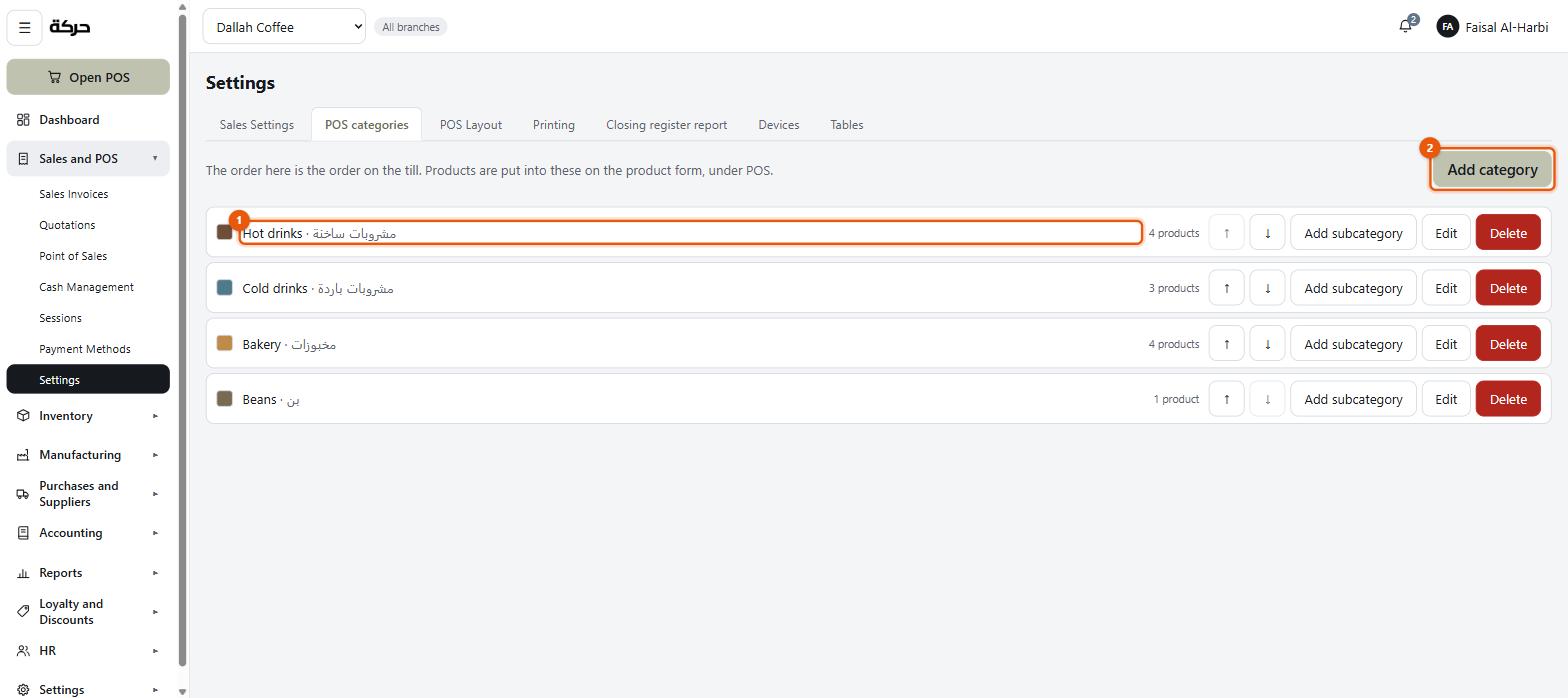
Adding a category
Press Add category, give it a name, and choose a colour.
A subcategory can instead tick Use its category’s colour — it takes the colour of the POS category it sits under, so a family of tabs stays one colour without being set twice. The screen shows Colour inherited from its category when it does. (The inventory categories of section 8 have no colour; this is only ever the parent POS category.)
Subcategories
Press Add subcategory on a row to nest one inside it. Hot drinks might hold Espresso, Filter, Saudi.
Order
Move rows up and down with the controls on each one. Order matters more than anything else here: the first tab should be what sells most.
For a coffee shop, that is almost always hot drinks first, then cold, then food. Not alphabetical.
Hiding one
Untick Shown on the grid to hide a category without deleting it or losing what is in it — the row shows · hidden. Useful for something seasonal.
#POS Layout — the size of everything
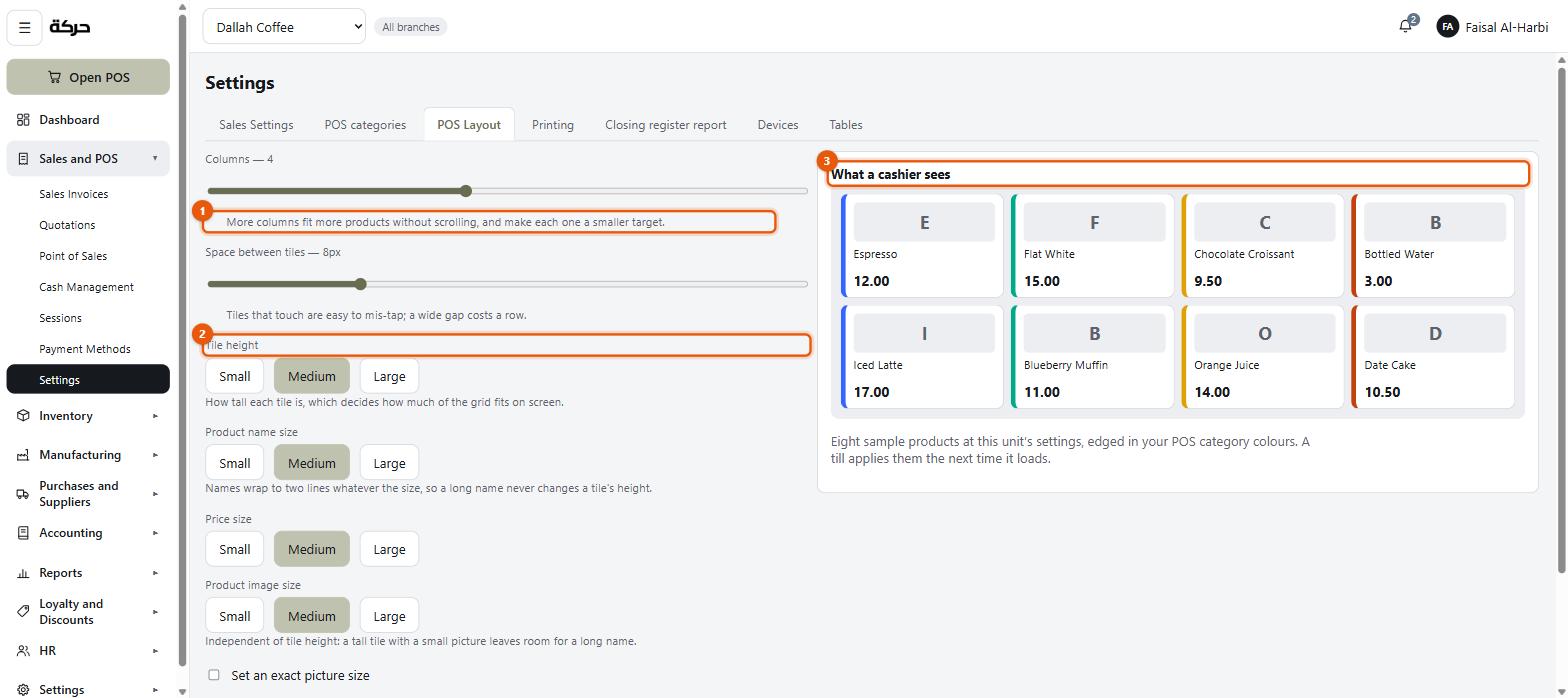
Go to Sales and POS → Settings → POS Layout.
Every setting here has a live preview: What a cashier sees, showing eight sample products at your settings, edged in your POS category colours. Change a slider, watch the preview.
Columns
More columns fit more products without scrolling, and make each one a smaller target.
That is the whole trade-off. A shop with twelve products wants few, large tiles. A shop with two hundred wants more columns and a search-first habit.
Start at four or five and try it on the actual screen the shop will use.
Space between tiles
Tiles that touch are easy to mis-tap; a wide gap costs a row.
Six to ten pixels is usually right. Go wider if your staff wear gloves.
Tile height
How tall each tile is, which decides how much of the grid fits on screen.
Product name size, Price size
Three steps each: Small, Medium, Large.
Names wrap to two lines whatever the size, so a long name never changes a tile's height — you can raise the name size without the grid jumping around.
Product images
Show product images — a product with none shows its first letter rather than a gap.
Images make a menu-driven shop much faster, because a barista recognises a picture before they read a word. For a barcode-driven shop they are not worth the photography.
Product image size is independent of tile height: a tall tile with a small picture leaves room for a long name.
If the three steps do not fit your screen, Set an exact picture size and give a height and width in pixels.
Show category images on the category tabs does the same for the tabs.
Saving
Press Save layout. The screen says Layout saved. Tills pick it up when they next load.
Careful: Tills do not change mid-sale. A till re-reads its rules between sales, so a change you make now reaches the shop floor within a sale or two — not instantly, and not before the sale a cashier is in the middle of. Section 26 explains why that is deliberate.
#Getting it right
The only real test is the actual hardware. A layout that looks generous on a 27-inch monitor is unusable on a 10-inch till, and the other way round.
Set it, save it, then stand at the till and ring up five things. You will know within a minute whether the tiles are the right size.
#What to do next
Section 16 sets the rules the till follows — what happens at zero stock, what a cashier may discount, and whether they can add a customer.