
Step 16 · Part 4 — The till
The rules the till follows
What happens when the shelf says zero, what a cashier may discount, whether they can add a customer, and whether they can write off waste.
Applies to: Everyone with a shop. These are the settings you will revisit as you learn what your staff need.
This screen decides how much a cashier can do without asking anybody. Every setting on it is a judgement about trust and speed, and there is no universally right answer — a shop with two long-serving staff wants different settings from one with a rotating weekend team.
Go to Sales and POS → Settings → Sales Settings.
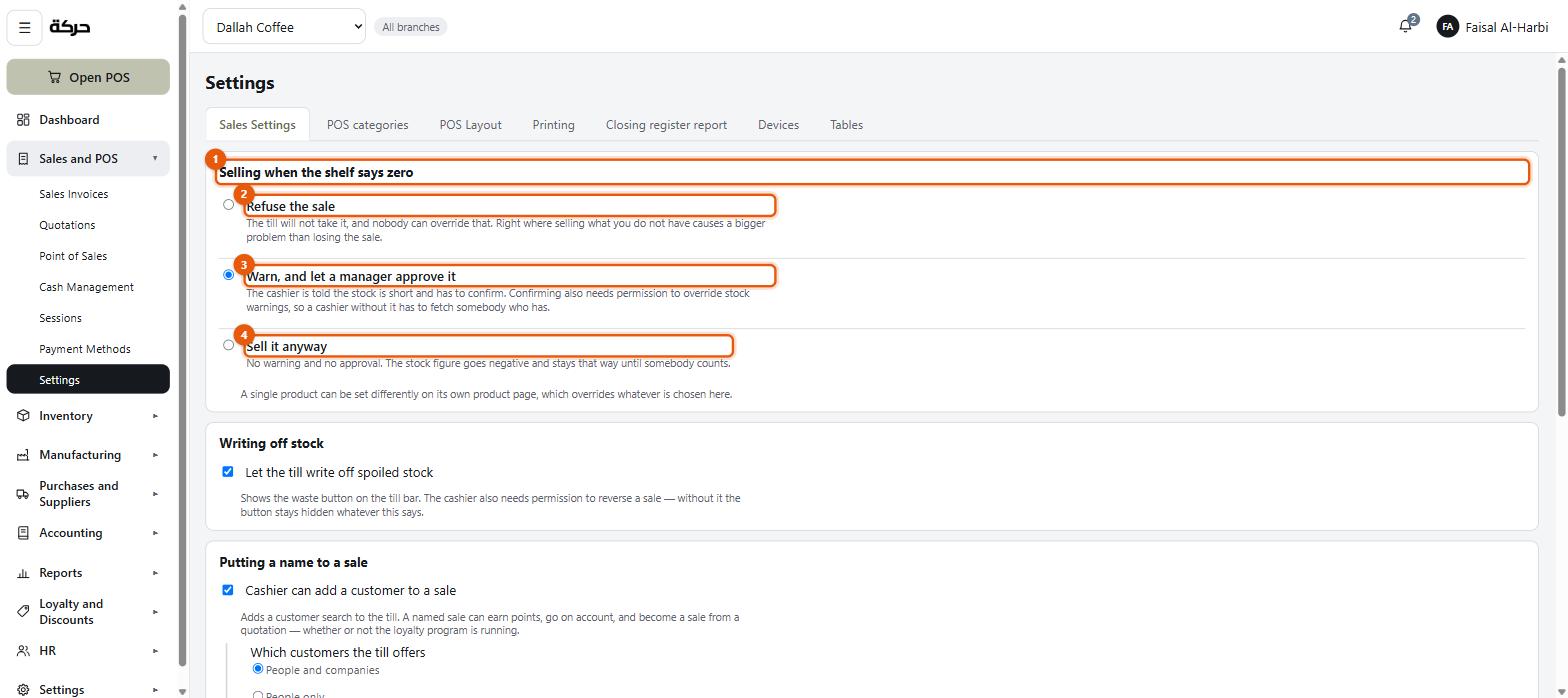
#Selling when the shelf says zero
Three choices:
| Choice | What happens |
|---|---|
| Refuse the sale | The till will not sell it. Full stop. |
| Warn, and let a manager approve it | The till objects; a manager with the right permission approves and the sale goes through. |
| Sell it anyway | The till sells, and stock goes negative. |
Which to choose
Warn is right for most shops, and is the default worth keeping. It catches genuine mistakes — a cashier ringing up something that is actually gone — without stopping trade when the count is simply stale.
Refuse suits a business where selling what you do not have is a real problem: anything made to order, anything with serial numbers.
Sell it anyway suits a business whose stock figures are approximate and whose staff should never be blocked. A café that has not counted its syrups this week, for instance. The cost is that negative stock accumulates quietly and your stock report becomes decorative.
Worth knowing: A product can override this individually. A single item that must never oversell can be set to Refuse while everything else warns.
#Writing off stock
Let the till write off spoiled stock.
With it on, cashiers get a Waste button. They can write off something that was dropped, burnt or went out of date, choosing Expired or Damaged and adding a note.
With it off, the button is gone and waste is a back-office job (section 19).
Worth knowing: This is deliberately gated twice. The shop has to allow it and the cashier has to hold the permission that lets them reverse a sale. Both, or the button does not appear. A cashier you would not trust to process a refund is not one you would trust to make stock disappear.
The till's write-off is narrower than the back office's on purpose: only two reasons, only this branch, only products on the till, and never more than is actually on the shelf.
#Putting a name to a sale
Three settings about customers.
Cashier can add a customer to a sale. Off, and every sale is anonymous — no tabs, no points, no name on the invoice.
Which customers the till offers. Three choices:
- People and companies
- People only
- Companies only
A retail shop running a points scheme wants People only. A wholesaler wants Companies only. A shop doing both wants both.
Cashier can create a new customer. Whether a cashier can add somebody who is not in the system yet, from the till, mid-sale.
On is convenient — a customer joining the loyalty scheme can be signed up at the counter. Off means customers are created in the back office, which keeps the list clean but means somebody has to do it.
Careful: Customer types have their own switch for this too (section 21). A customer type marked creation needs approval will not be created at the till even if this setting allows it.
#Taking money off a sale
Cashier can make a discount. The master switch. Off, and the discount button is dead.
With it on, two limits:
- Most a cashier may give, as a percentage — or No limit
- Most a cashier may give, as an amount — or No limit
Both apply. A cashier limited to 20% and SAR 50 cannot give 20% of a SAR 500 sale, because that is SAR 100.
Who can go past the limits
The limits bind everyone who does not hold Approve on Checkout & sales (section 5) — the same permission that lets somebody approve a sale on account. Whoever is signed in at the till with that permission can give more.
There is no sign-off on the spot. A cashier without the permission who goes over a limit is refused, and the bigger discount has to be rung up by somebody who holds it, signed in at that till. No separate approver is recorded on the sale; it shows who rang it up.
So set the limits at what a cashier should be able to do without asking, not at the maximum you would ever allow.
Worth knowing: One discount per sale. Two rules never stack. If a sale qualifies for two automatic discounts, the better one applies, alone. A cashier's manual discount and an automatic rule likewise do not combine, and a sale with a discounted line or points being spent will not take a cashier discount on top.
#Saving
Press Save sales settings. The screen says Saved. Tills pick it up when they next load.
As with the layout, a till re-reads its rules between sales rather than mid-sale. A change reaches the floor within a sale or two.
#A worked setup
For a café with a manager on shift and three baristas:
| Setting | Choice | Why |
|---|---|---|
| Zero stock | Warn | Catches mistakes, does not stop trade |
| Till waste | On | Baristas drop things; it should be recorded when it happens |
| Add a customer | On | The points scheme depends on it |
| Which customers | People only | No wholesale |
| Create a customer | On | Sign-ups happen at the counter |
| Discount | On, 15%, SAR 30 | Covers an apology coffee; anything bigger involves the manager |
#What to do next
Section 17 covers the hardware and the paper — printers, the drawer, the customer display, and the design of the receipt itself.