
Step 17 · Part 4 — The till
Devices, receipts and the closing slip
Printers, drawer, display and scanner; the receipt designer field by field; the closing report; and dining tables.
Applies to: Everyone with a shop. The receipt is the only thing most customers ever see of your system.
Sales and POS → Settings has seven tabs. Three of them belong to earlier sections — Sales Settings (section 16), POS categories and POS Layout (section 15). The four here cover everything physical and everything printed: Printing, Closing register report, Devices and Tables.
#Devices
Sales and POS → Settings → Devices is the register of what each branch has linked, and whether it is switched on.
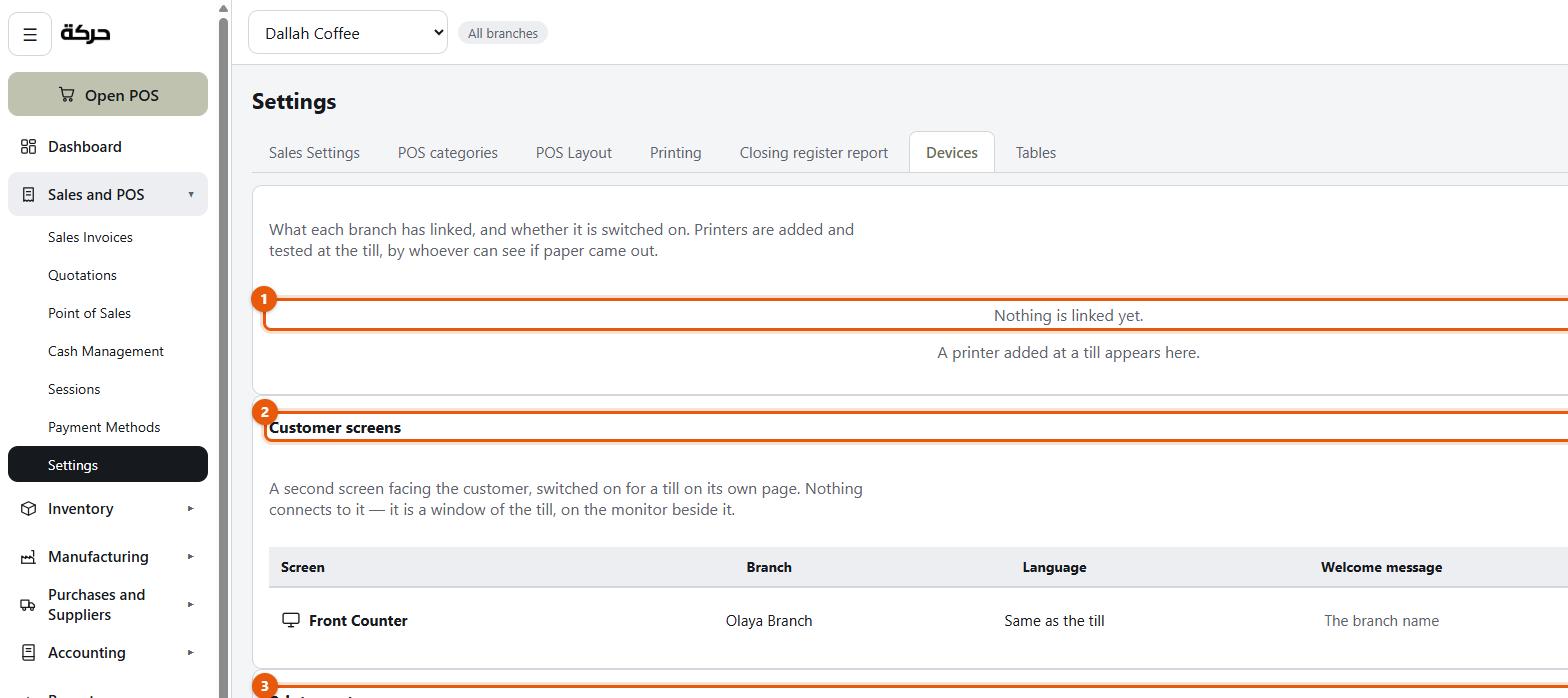
Six kinds of device:
| Device | What it does |
|---|---|
| Customer receipt | The main printer at the counter |
| Kitchen ticket | A second printer for the kitchen or bar |
| Cash drawer | The till drawer |
| Card machine | The payment terminal |
| Customer display | The screen facing the customer — a window of the till on the monitor beside it, not a device that connects to anything |
| Barcode scanner | The scanner |
And four ways one can be connected:
- Over the network — the printer has its own IP address
- Plugged in by USB
- Serial cable
- Through the print agent — a small program on the till's computer
Worth knowing: Devices are added and tested at the till, not here — the screen says why: by whoever can see if paper came out. A printer added at a till appears on this list. This tab is where you see what every branch has, from one place.
The print agent — read this before buying hardware
Underneath the device list is a block that decides what your till can and cannot do, and it is easy to skim past.
A browser cannot open a socket to a printer. Neither can a server in a datacentre reach a printer sitting behind your router. So a till running in a browser needs a small program on a PC in the shop — the print agent — to hand receipts to the printers.
What that means in practice:
| Your till is… | What happens |
|---|---|
| The Android till app | It prints by itself. No agent needed. |
| A browser, with the agent running | Full printing: receipts, kitchen tickets, and the cash drawer opens. |
| A browser, with no agent | It prints through the browser's own print dialog — no cash drawer and no kitchen tickets. |
That last row is the one to plan around. If your counter has a cash drawer wired to the receipt printer and you are running the till in a browser, the agent is not optional.
Run it on the till's computer. It prints its own address and token in its window when it starts, which is what you give the till.
Getting the Android till app
The Android till app is not something you download from this guide. To get it for your counter tablet or handheld, ask HarakahTec — the contact details are at the foot of this page.
The cash drawer
Most counters wire the drawer to the receipt printer, which means a pulse down the printer's cable is what opens it. Three consequences worth knowing before go-live:
- A printer that is offline is a drawer that will not open.
- The drawer opens for cash, and only for cash. The first print of a sale's receipt opens it if any of that sale was paid in cash — the whole bill or part of it. A card sale, a transfer or a delivery platform order leaves it shut, and a reprint never opens it.
- Nothing else opens it. Cash in and cash out at the till do not, and there is no button that opens the drawer without a sale.
Both need testing on the real counter. There is a checklist for that in section 28.
#Printing — designing the receipt
Sales and POS → Settings → Printing is the receipt designer, and it has a live preview beside it showing a sample sale on a till roll. Nothing here is real — it is eight sample lines at your settings.
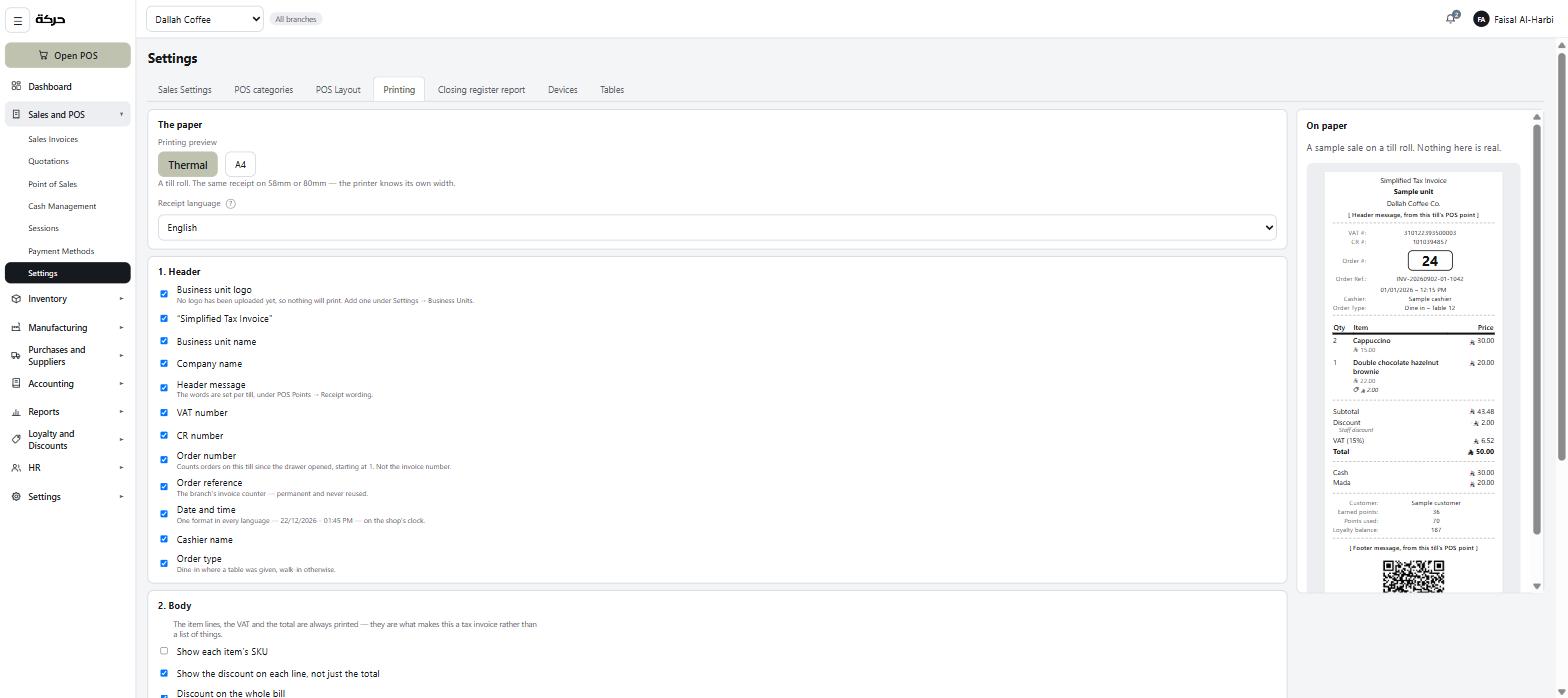
The screen has changed since this picture: VAT number is now locked on, like the QR code, and reads Always printed.
The paper
Thermal (a till roll) or A4 (a full page with a real item table). The screen notes that a till roll is the same receipt on 58mm or 80mm — the printer knows its own width, so there is nothing to set for paper size.
An A4 invoice always carries the seller's VAT number, because it is a full tax invoice.
Receipt language
English, Arabic, or Both, side by side.
The screen is explicit about whose language this is: the customer's language, not the back office's. Staff working in English still hand Arabic receipts to Arabic-speaking customers.
Careful: An Arabic receipt is drawn as a picture and sent to the printer as dots, which is how Arabic letters join correctly on a printer that has never heard of Arabic. It works — but it is worth printing one on your actual printer before go-live, because it is the single most likely thing to look wrong. Section 28 has this on the checklist.
1. Header
Every element is a switch. Turn on what you want:
| Element | Notes |
|---|---|
| Business unit logo | Taken from the business unit's logo, or the company's. If neither is uploaded, nothing prints — the screen warns you. |
| "Simplified Tax Invoice" | The document's own title. |
| Business unit name | |
| Company name | |
| Header message | Free text, set per till on its POS point. |
| VAT number | Locked on — Always printed. A tax invoice must carry this, so it is not a setting. |
| CR number | |
| Order number | Counts orders on this till since the drawer opened, starting at 1. Not the invoice number. |
| Order reference | The branch's invoice counter — permanent and never reused. |
| Date and time | One format in every language — 22/12/2026 – 01:45 PM — on the shop's clock. |
| Cashier name | |
| Order type | Dine-in where a table was given, walk-in otherwise. |
Worth knowing: Order number and Order reference are different things and both are useful. The order number is what a customer says at the counter — "number 12". The reference is the permanent invoice number that a tax officer or a refund needs.
2. Body
The item lines, the VAT and the total are always printed. They are what makes it an invoice, so they are not switchable.
What you can add:
- Show each item's SKU
- Show the discount on each line, not just the total
- Discount on the whole bill — only printed when there is one
- Payment method — how the customer paid
3. Footer
- Customer — the customer's name
- Earned points — needs the customer line
- Points used — only printed when the customer paid with some; needs the customer line
- Loyalty balance — the customer's points balance; needs the customer line
- Footer message — free text, per till
- QR code — scannable proof of the invoice, as ZATCA requires
- Barcode — the invoice number, scannable
- Image at the bottom — printed under the barcode. A promotion, a menu QR, a notice.
Worth knowing: The VAT number and the QR code are locked on. A simplified tax invoice must carry both, so they are shown ticked and cannot be switched off. Section 27 explains what the QR code carries.
Press Save printing settings. Tills pick it up when they next load.
#Closing register report
Sales and POS → Settings → Closing register report designs the slip a cashier is shown, and can print, when they close the register.
Enable closing report switches the whole thing on.
Report language — Same as the till, English or Arabic. The slip is an internal document, so this is about who reads it in your shop.
Then the sections, each a switch:
| Section | What it prints |
|---|---|
| Session details | Opening and closing date and time, to the second |
| Session summary | Number of orders, transactions and returns |
| Sales details | Subtotal excluding VAT, the VAT, the discount total, and total sales including VAT |
| Payment methods | What each payment method took |
| Cash details | Opening balance, cash sales, cash in, cash out, expected, counted and the difference |
| Card details | Card sales, the counted or scanned card amount, and the difference |
| Waste logged | What the cashier wrote off |
A preview shows how the slip will come out.
Worth knowing: Turn on Waste logged if you let cashiers write off stock (section 16). A waste figure on the closing slip is what makes it a shared fact rather than something discovered in a report a week later.
Sending it to Telegram
Tick Also send it to Telegram and the same slip goes to a Telegram chat as each register closes — useful where whoever wants the figures is not the person closing the till.
- Bot token — create a bot with @BotFather in Telegram and paste the token it gives you. It is stored encrypted and never shown again.
- Send it to — a chat ID, or @name for a public channel. Add the bot to the group first: a bot cannot message a chat it is not in.
Worth knowing: A register that closes with no connection prints as usual and sends nothing. The report is not held and sent later.
#Tables
Sales and POS → Settings → Tables, for a shop with numbered tables.
Press Add a table:
| Field | Notes |
|---|---|
| Table | Whatever is written on it — 7, A1, Patio 3. |
| Area | Optional grouping — Terrace, Inside, Mezzanine. |
| Seats | Optional. |
The list is kept per branch, and it is what the till works from:
- At the till, the cashier picks the table from the branch's active tables — or No table for a walk-in. Nothing is typed, and the server refuses a table that is not on the branch's list.
- In Sales Invoices, choose a branch that keeps tables and a Table column appears, with a Table filter (Every table by default).
- A refund keeps the table of the sale it refunds.
- An offline sale keeps its table when it syncs. The table is dropped only if it was retired before the sale reached the server — the sale itself still stands.
Worth knowing: A table that has held orders is retired rather than removed — Table 7 has held 42 orders, so it was retired rather than removed. A retired table can be brought back.
Tables only appear at a till set to Dining in, tables numbered (section 14).
#Customer display
Set up per till, from the till's own page or from the Devices tab.
| Setting | Notes |
|---|---|
| Language | Same as the till, or fixed. The customer reads this screen, and they need not read what the cashier works in. |
| Welcome message | Shown between sales. Leave blank to show the branch name. |
| Show the logo between sales | The same logo the receipt carries. |
| Show the VAT line under the total | |
| Show the customer's name and points |
Careful: Turn the customer's name and points off where a queue can read the screen over somebody's shoulder. The screen itself says so. A points balance is not a secret, but a name and a spending pattern together are more than most customers expect to broadcast.
#What to do next
The till is set up. Section 18 moves to the buying side — suppliers and getting stock in.