
Step 21 · Part 6 — Customers and money
Customers, loyalty and discounts
Customer types and their rules, points that earn and expire, tabs and credit limits, and discount rules that apply on their own.
Applies to: Anybody running a points scheme, offering credit, or discounting. Most shops do at least one.
Three related things live under Loyalty and Discounts: who your customers are, what they earn, and what comes off their bill.
#Customer types
Loyalty and Discounts → Settings is where the rules per kind of customer are set, before any individual customer exists.
There are two kinds, and they are not interchangeable:
- Person — an individual. A simplified tax invoice is enough.
- Company — a business. Standard tax invoice — VAT number, registration and address are required.
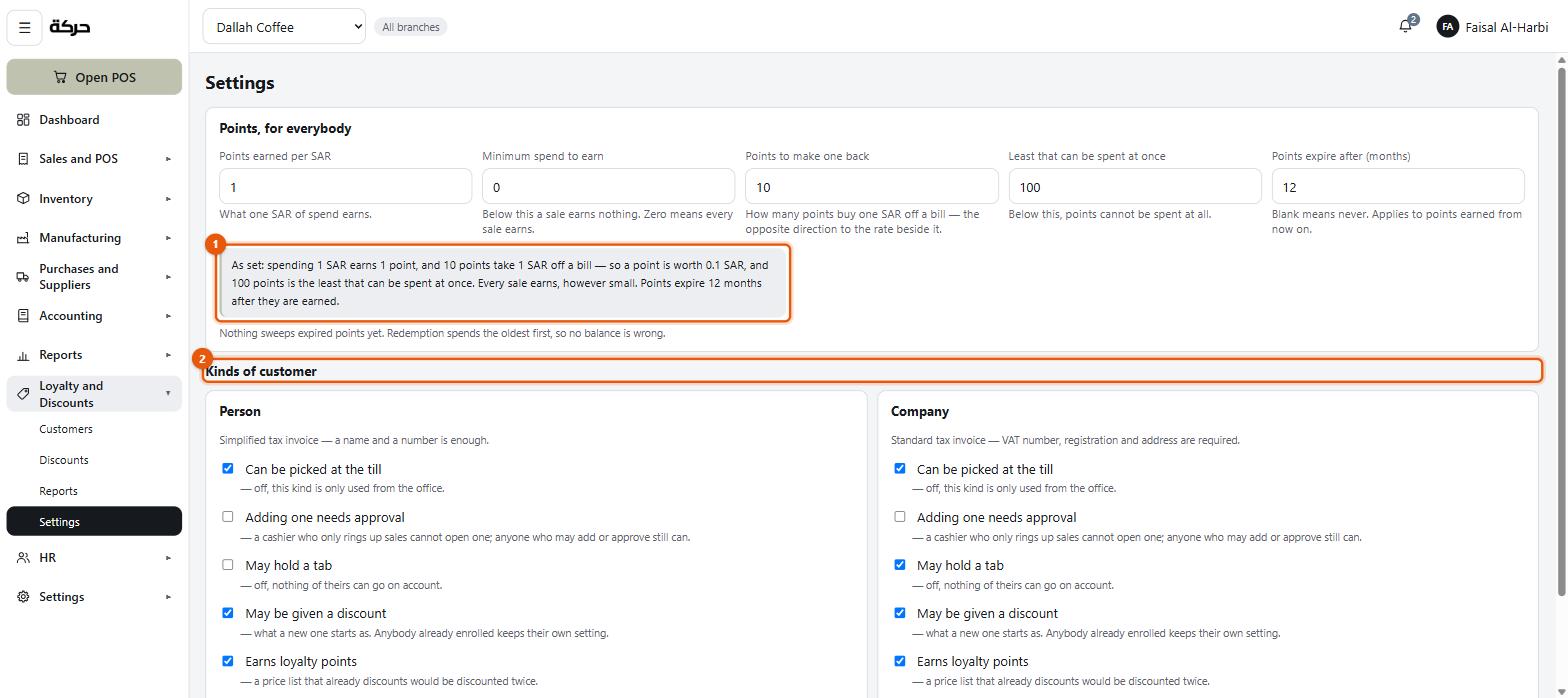
The five switches, per type
| Switch | What it decides |
|---|---|
| Can be picked at the till | Off, this kind is only used from the office. |
| Adding one needs approval | Whether a cashier can create one |
| May hold a tab | Off, nothing of theirs can go on account. |
| May be given a discount | Whether discounts apply to them |
| Earns loyalty points | A price list that already discounts would be discounted twice. |
The two kinds sit side by side, and each carries a one-line reminder of what it is: Person — simplified tax invoice, a name and a number is enough; Company — standard tax invoice, VAT number, registration and address are required.
Two of these are worth reading carefully.
Adding one needs approval. With it on, a cashier who only rings up sales cannot open one; anyone who may add or approve customers can. This is how you let baristas sign people up for the points scheme while keeping company accounts a back-office job.
May be given a discount is what a new one starts as. Anybody already enrolled keeps their own setting. So changing it does not sweep through your existing customers — it sets the default for the next one.
Credit limit to start with
Per type: what a new customer of that kind starts with. New ones start with SAR 5,000, or New ones start with no tab.
#Points
Above the customer kinds, under Points, for everybody, are the points rules — and the screen states them back to you in a sentence so there is no ambiguity:
As set: spending 1 SAR earns 1 point, and 10 points take 1 SAR off a bill — so a point is worth 0.1 SAR, and 100 points is the least that can be spent at once. Every sale earns, however small. Points expire 12 months after they are earned.
Read that sentence rather than the five boxes above it. It is the whole scheme in one line, and it is what you check after every change.
| Setting | Meaning |
|---|---|
| Points earned per SAR | The earning rate |
| Minimum spend to earn | Below this a sale earns nothing. Zero means every sale earns. |
| Points to make one back | The redemption rate — how many points buy one SAR off a bill |
| Least that can be spent at once | Below this, points cannot be spent at all |
| Points expire after (months) | Blank means never |
Three things about points worth knowing
Points are earned on what the shop keeps, not on the tax. A SAR 50 sale at 15% VAT is SAR 43.48 net, so at one point per riyal it earns 43 points, not 50. Tax is collected for the state; it is not spending with your business.
Redemption spends the oldest points first. That matters when expiry is switched on, because it means a customer's oldest points are always the ones being used up rather than the ones quietly ageing out.
A handful of points cannot be spent. Least that can be spent at once is 100 points until you change it, and the till refuses anything under it — 100 points is the least that can be spent at once — rather than quietly taking a riyal off. It is set per customer type, so a scheme that earns slowly can have a lower floor than one that earns fast.
Careful: Expiry applies to points earned from now on. Turning it on does not retroactively put a clock on points somebody already holds.
Careful: Setting an expiry does not, by itself, take expired points off anybody's balance. The screen says so: Nothing sweeps expired points yet. Redemption spends the oldest first, so no balance is wrong. In practice that means a customer's number stays high until they spend, and the oldest points go first — which is the fair order. Ask HarakahTec whether expired points are being written off on your account.
#Customers
Loyalty and Discounts → Customers is the list.
Each customer has:
- Name and phone — the phone is how the till finds them
- Type — person or company
- VAT number, CR number and address, for a company
- Credit limit — what they may run a tab up to
- Points balance
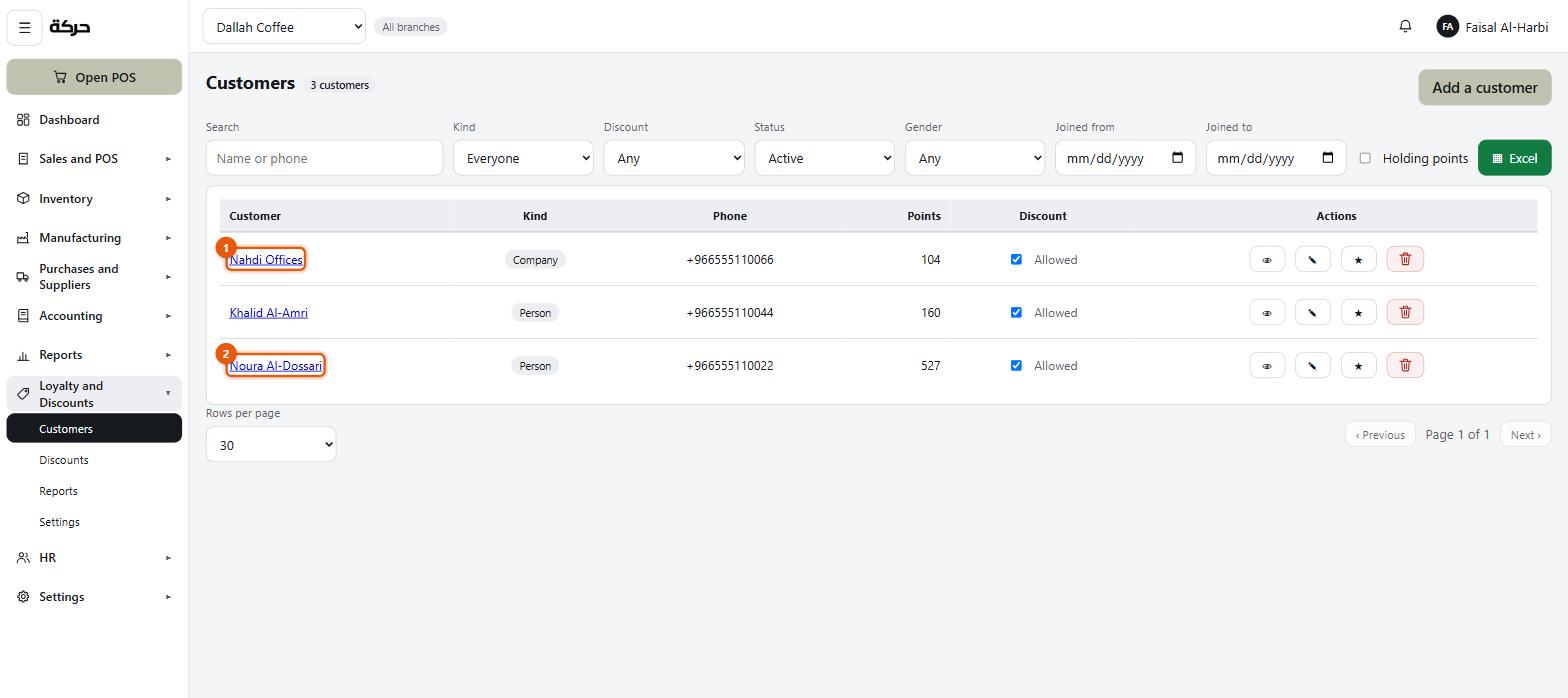
The list here shows Customer, Kind, Phone, Points and whether a Discount is allowed, with filters for kind, discount, status, gender and when they joined, plus a Holding points tick.
Worth knowing: What they owe is not on this screen. Money is the accounting side of a customer, and it lives on Accounting → Customer Accounts (section 22), which shows Owes, Limit, Room left, whether an account is Running and when they Last paid. Two screens, because the person who runs the points scheme and the person who chases the money are usually not the same person.
Worth knowing: Phone numbers are stored in international form and searched in local form, so a customer entered as
+966551234567is found by typing0551234567. You do not have to remember which way it was entered.
Credit limits and tabs
A customer with a credit limit can have sales put on their account, up to that limit. A blank limit closes the tab — what is already owed still stands.
Three things all have to line up for a tab sale to work:
- The customer type allows tabs.
- The customer has room left.
- Somebody is allowed to extend the credit: either Payment Settings → Paying later lets a cashier put a sale on a customer's account, or a manager approves it at the till, or the signed-in user holds Checkout & sales: Approve (section 12).
Even then, the credit limit is still refused when the sale would exceed it.
Section 22 covers collecting what is owed.
#Adjusting points by hand
Sometimes a balance has to move without a sale — goodwill after a complaint, or a sale that was keyed against the wrong customer. On Loyalty and Discounts → Customers, each row has a points button: Adjust points for the customer.
| Field | Notes |
|---|---|
| What is happening | Give points or Take points back |
| How many | Required. A whole number of points. |
| Why | Required. Kept with the entry. A balance that moved for no recorded reason is the one somebody will ask about a year from now. |
The dialog shows what the customer Holds now and what the change Would leave. You cannot take back more than they hold — a balance never goes below zero.
The adjustment is recorded in the customer's Points history as Adjusted by hand, with the reason, and it moves the points liability in the books like any other points entry. The loyalty report keeps hand adjustments apart from points earned and redeemed.
Worth knowing: The button is greyed out for a kind of customer that does not earn points — change that under Loyalty and Discounts → Settings first. Adjusting points needs Discounts & loyalty: Edit.
#Discount rules
Loyalty and Discounts → Discounts.
A discount here applies on its own at the till — the cashier does not have to do anything. That is the difference between these and the manual discount a cashier types (section 16).
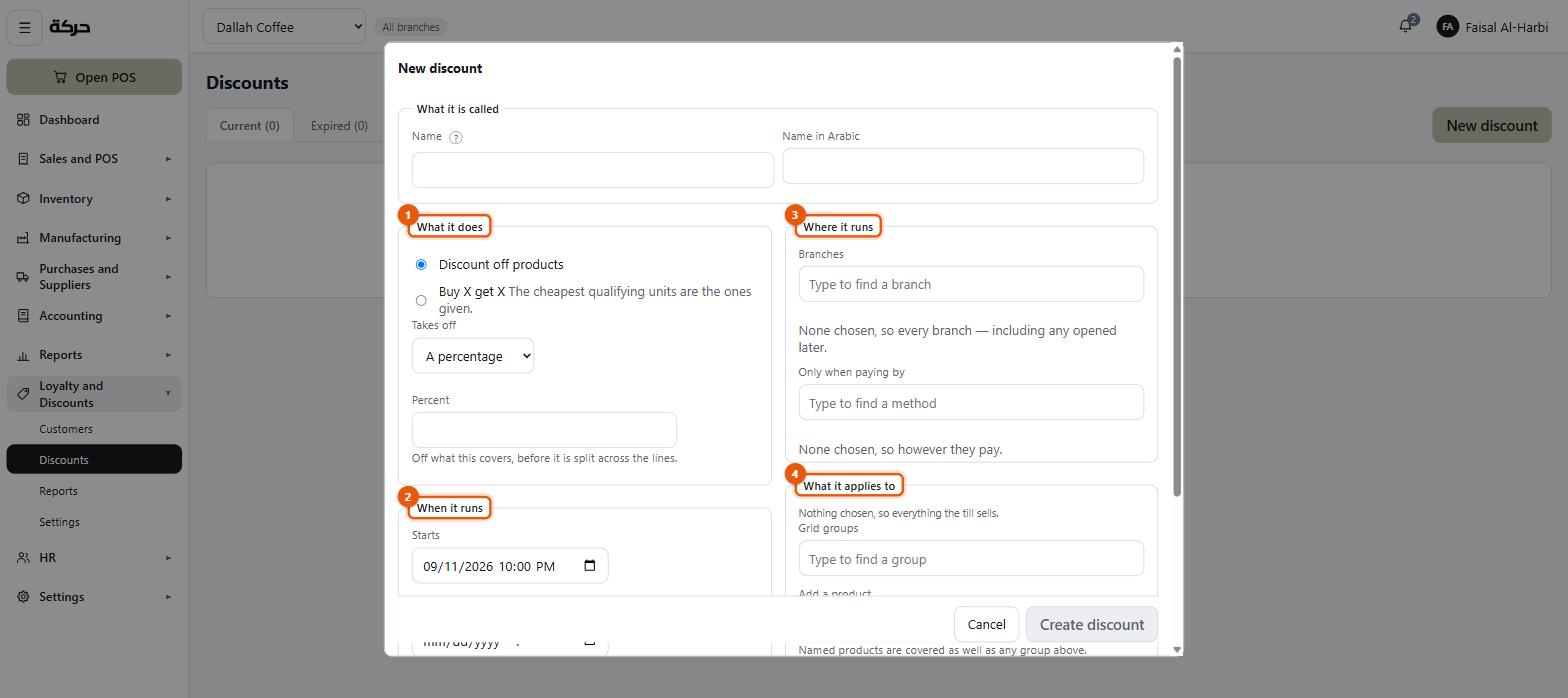
Creating one
Press the add button.
What it is called — a name and a name in Arabic. The hint is worth following: what a report will call it — "National Day", not "10%". A rule named after its percentage is useless the day you change the percentage.
What it does — two shapes:
| Shape | Example |
|---|---|
| Discount off products | 20% off, or SAR 5 off |
| Buy X get X | Buy 2, get 1 free — or buy 2, get 1 at 50% off |
Worth knowing: On Buy X get X, the cheapest qualifying units are the ones given. Buy three coffees of different prices on a buy-2-get-1 and it is the cheapest that comes off, not the dearest. That is the sane default, and it is worth knowing before a customer asks.
For Discount off products, choose A percentage or An amount. The figure comes off what this covers, before it is split across the lines.
When it runs — Starts, and an Ends you may leave blank: left empty, so it never expires.
Where it runs — Branches, and Only when paying by. Both work the same way: leave them empty and the rule is unrestricted. The screen says so in words — none chosen, so every branch, including any opened later — which is the behaviour that matters, because a branch you open next year inherits the rule without anybody remembering to add it.
What it applies to — Grid groups and named products. Nothing chosen, so everything the till sells, and named products are covered as well as any group above — the two add together rather than narrowing each other.
One discount per sale
This is the rule that catches people out, and it is absolute:
One discount per sale. A sale that already has one — on a line, or from points — does not get another.
If two rules both qualify, the one worth most to the customer wins, and it applies alone. They never stack, and a cashier cannot key another on top.
Ending versus deleting
A discount that has never discounted a sale can be deleted outright.
One that has is ended rather than deleted: "Ramadan offer" has discounted 214 sales, so it was ended rather than deleted. The rule has to stay readable, because the invoices that name it do.
Ended discounts move to their own list. A discount also moves there on its own when its end date passes.
#The loyalty report
Loyalty and Discounts → Reports shows points earned, points redeemed and what they were worth, and the outstanding balance — what your customers collectively hold and could spend tomorrow.
Worth knowing: That outstanding figure is a real liability. Points your customers hold are money they can take off future bills. Section 22 covers where it sits in the accounts.
#What to do next
Section 22 covers the day-to-day accounting: expenses, assets, customer accounts and journal entries.