
Step 19 · Part 5 — Stock and suppliers
Stock operations
The stock report, counting a shelf honestly, moving stock between branches, and writing off what you lost.
Applies to: Everyone holding physical stock.
Once stock is in, four things happen to it: you look at it, you count it, you move it, and you lose some of it. All four are under Inventory.
#The stock report
Inventory → Stock Report answers what have I got, and what is it worth?
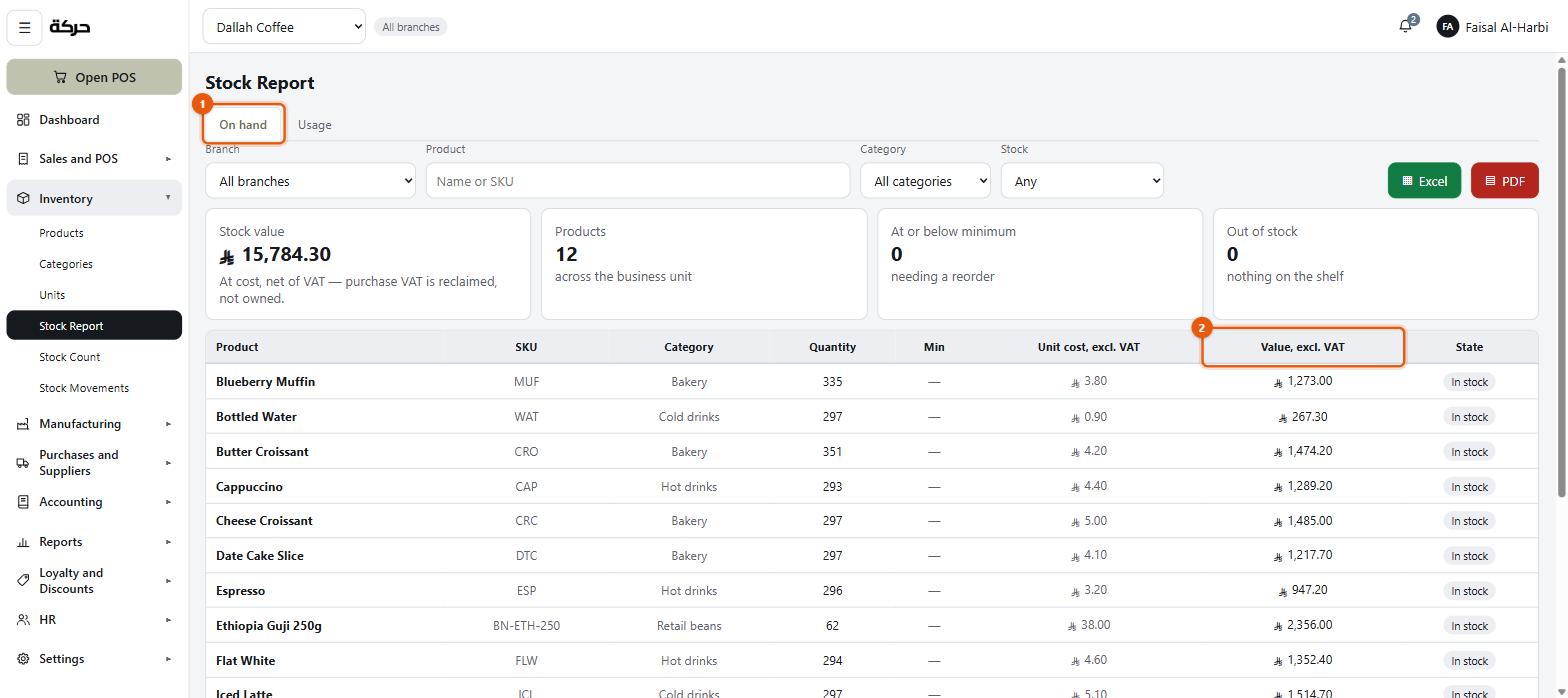
Four figures sit across the top before any rows: Stock value (at cost, net of VAT), Products across the business unit, how many are At or below minimum needing a reorder, and how many are Out of stock with nothing on the shelf. Those four are usually the whole answer; the table underneath is for when they are not.
Two views are offered as tabs: On hand and Usage.
Columns:
| Column | Meaning |
|---|---|
| On hand | Quantity at the branch you are looking at |
| Min | The minimum stock level from the product |
| Unit cost, excl. VAT | What one costs |
| Value, excl. VAT | On hand × unit cost |
| State | Including At or below minimum |
The total at the top is Total value, excl. VAT — every row, not this page.
Three things the report tells you about itself
These notes are on the screen, and they are worth understanding:
Cost is net of VAT. Purchase VAT is reclaimed, not owned — so the tax you paid a supplier is not part of what your stock is worth.
Products with no cost add nothing. If four products have no cost recorded, the screen says so, because they are quietly making your stock look less valuable than it is. Chase them.
Recipes and combos are not listed. Their quantity is how many could be made, which is not a thing sitting on a shelf. Counting them as stock would double-count their ingredients.
Usage
A second view shows what moved over a period: opening, in, used, returned, adjusted, net change.
It is read from the movement ledger rather than by comparing balances, which means a product that went out and came back shows both — not a net zero that hides the activity.
#Stock count
Inventory → Stock Count is how you find out what is actually on the shelf, as opposed to what the system thinks.
Starting one
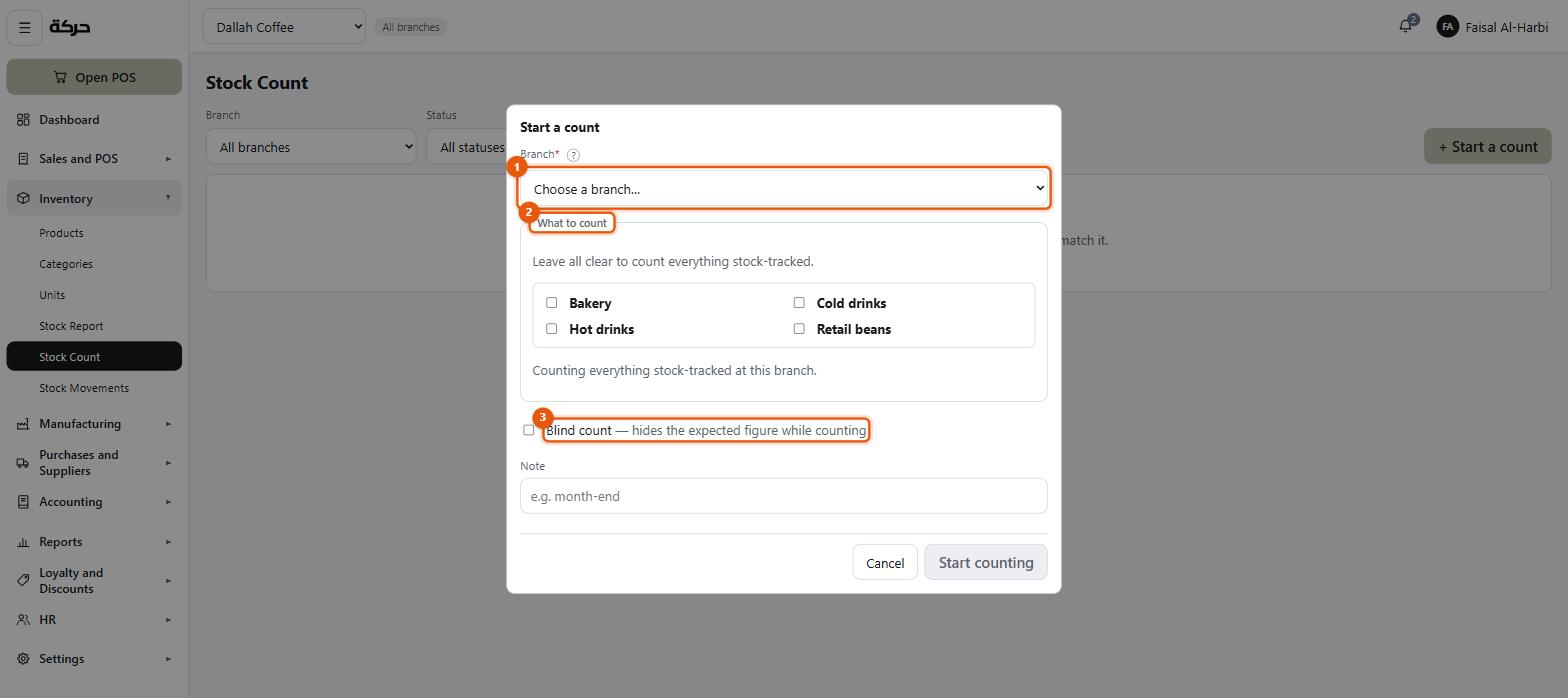
Press Start a count.
| Field | Notes |
|---|---|
| Branch | Stock is per branch, so a count belongs to one of them. |
| What to count | Everything stock-tracked, or narrowed to chosen categories. |
| Blind count | Hides the expected figure while counting. |
Blind counting, and why it matters
This is the most important idea in the section.
A blind count hides what the system expects. The counter writes down what they see, with no number to compare against.
Worth knowing: Somebody who can see the book figure will, without meaning to, count towards it. A count that agrees with the books by suggestion has measured nothing at all. Blind counting is not distrust of your staff — it is how you get a number that means something.
The screen is explicit while a blind count is open: This count is blind: the system's figure stays hidden until it is posted.
There is a matching permission — See expected quantity (section 5) — so you can have staff who never see the book figure, on any count.
Counting
Enter what you counted, line by line. A blank counted box means nobody has looked yet, which is deliberately different from counting zero. Zero is a finding; blank is an omission — posting leaves a blank line alone rather than emptying the shelf.
Approval and posting
When the count is finished it may go to Waiting for manager approval — This count is finished and waiting for someone who can post it.
Posting is what changes stock, and it needs permission to approve inventory changes. Until it is posted, nothing has moved. On posting, the counted quantities are applied and the differences become stock movements, so the adjustment is documented rather than silent.
Cancelling or deleting a count
Cancel — Nothing recorded here will be applied, and no stock changes. The count stays on the list as a record that it was abandoned.
Delete — The count and everything on it go for good. No stock changes.
The screen recommends cancelling: Cancelling instead keeps it on the list marked abandoned, which leaves a record. A count somebody started and abandoned is itself information.
#Transfers between branches
Inventory → Stock Movements → Internal transfer.
Moving stock from one branch to another. Choose the branch it leaves, the branch it arrives at, and the products and quantities.
The movement is documented at both ends: stock leaves one and arrives at the other, and both show in the movement history.
Careful: A transfer is not the same as a correction. If stock is missing at one branch and mysteriously present at another, that is two adjustments to investigate, not a transfer to record after the fact.
#Removals and waste
Inventory → Stock Movements → Remove stock.
This is the back office's write-off, and it is broader than the till's.
| Field | Notes |
|---|---|
| Branch | Where it is being removed from |
| Product | |
| How much left the shelf | Never more than is actually there |
| Reason | Required — see below |
| Note | Free text — "fridge failure overnight" is the example given |
Five reasons, more than the till's two: Waste, Damage, Expiry, Internal use and Loss. A cashier using Log waste at the till gets only Expired and Damaged. Each is its own reason rather than a note on one: waste is a process problem and loss is a security problem.
A recipe or combo holds no stock of its own, so removing one takes what it is made of off the shelf, exactly as selling one would.
Careful: A removal cannot be undone. One recorded by mistake is corrected by a stock count, so the ledger keeps both.
Every removal posts: the stock goes down, and its cost goes to the right expense account so your profit and loss shows what you lost.
Recent removals
A list underneath shows what has been written off, so a pattern is visible. Nothing has been written off yet is a fine thing to see; three fridge failures in a month is a conversation.
#Movement history
Inventory → Stock Movements → Movements history is the full ledger of every quantity change: what moved, when, why, by whom, and what document it came from.
Filter by branch, by product, by reason, by date.
This is the screen to open when a stock figure is wrong and you need to know how it got that way. Every change is here — receipts, sales, refunds, transfers, counts, waste — with the document that caused it.
Worth knowing: Nothing in HarakahTec changes a stock figure without leaving a movement behind. If a quantity is wrong, the history says why. That is the whole reason the history exists.
#What to do next
Section 20 covers manufacturing, for kitchens and production sites. If you neither make nor assemble anything, skip to section 21.